

Security patches are one of the most important yet often underestimated aspects of running a Magento store. They are the backbone of a stable, high-performing and secure eCommerce platform, protecting your business from vulnerabilities, ensuring compliance, and maintaining customer trust. Failing to keep up with them can quickly turn minor issues into serious risks that affect both operations and revenue.
In this article, we’ll explore what Magento security patches are, how they protect your business, and whether you should manage them in-house or rely on experts. You’ll also learn how to apply patches correctly, avoid common risks, and adopt proactive practices to ensure your Magento store remains secure, stable, and ready for long-term growth.
What are Magento security patches?
Definition
Magento security patches (appended with “-pN”, for example, 2.3.5-p1) are official updates released by Adobe to enhance the platform foundation, fix vulnerabilities, and strengthen the overall security of both Magento Open Source and Adobe Commerce stores. Each security patch release builds on the previous full patch release, incorporating all prior quality and security fixes, along with new security fixes identified since the last release.
Within Adobe’s release ecosystem, there are major and minor upgrades (e.g. 2.3 → 2.4 for major, 2.4.6 → 2.4.7 for minor) that introduce new features, architectural enhancements, and performance improvements. And then security patches are a specialised subset of update releases designed to be applied to those existing versions to keep the store secure without disrupting functionality.
Note: Adobe now releases security patches primarily for its supported Adobe Commerce and Magento Open Source versions, starting from Magento 2.4.4 and above.
Adobe’s security patch release cadence
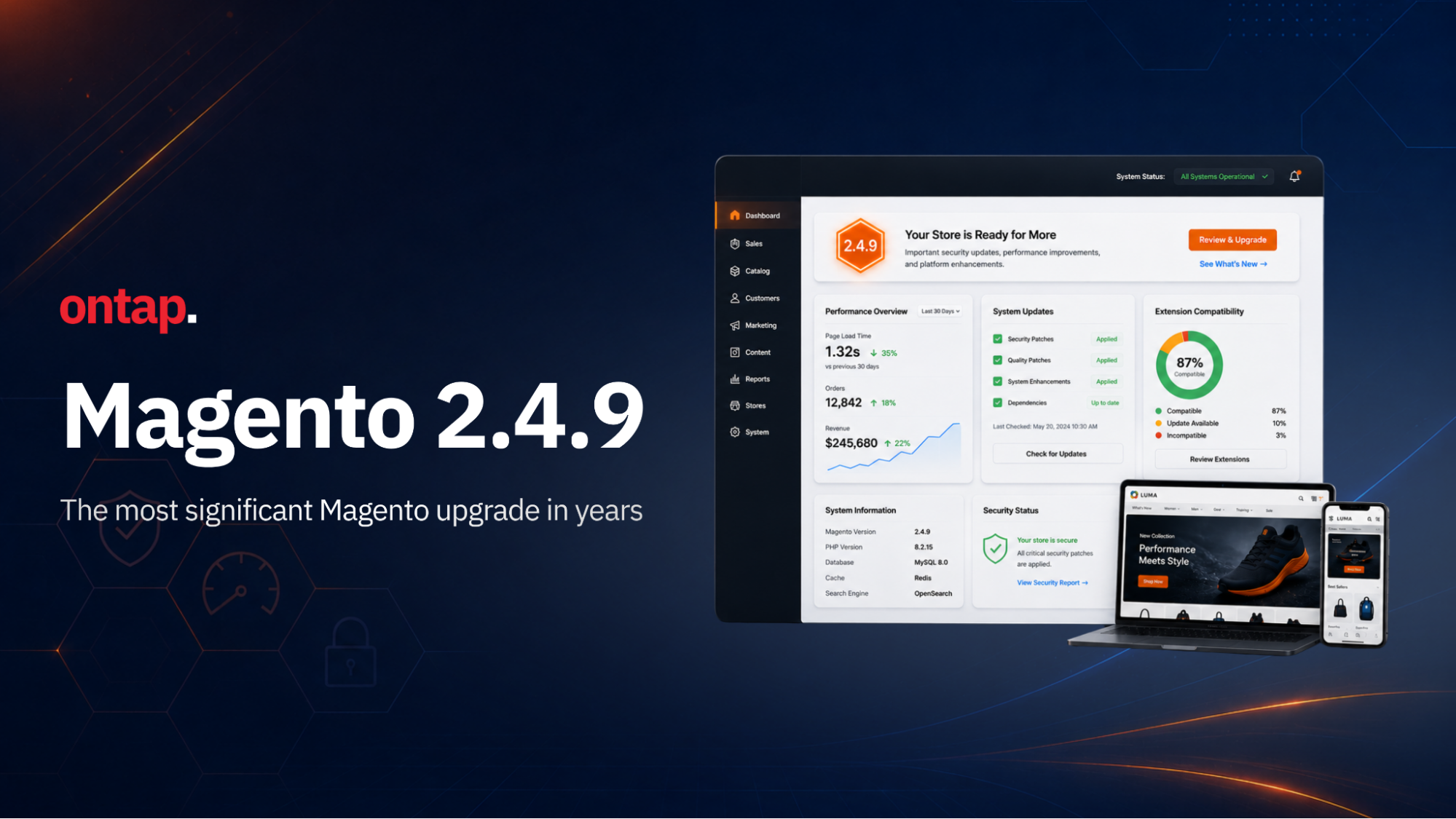
Historically, security patches were released quarterly, but in 2024 and 2025, this cadence increased to around five releases per year. Starting in January 2026, Adobe Commerce follows a monthly isolated security fixes schedule to deliver more frequent and predictable protection. Adobe Commerce 2.4.9 went GA on May 12, 2026, alongside security bulletin APSB26-49, which patched Adobe Commerce 2.4.8-p5, 2.4.7-p10, 2.4.6-p15, 2.4.5-p17, and 2.4.4-p18, and Magento Open Source 2.4.8-p5, 2.4.7-p10, and 2.4.6-p15.
The most recent security patch is APSB26-92, released August 11, 2026, a Priority 2 update covering Adobe Commerce, Adobe Commerce B2B, and Magento Open Source. It patches every actively supported line to new versions labelled "-2026-aug" (for example, 2.4.9-2026-aug, 2.4.8-2026-aug). The bundle resolves 7 vulnerabilities, 4 of them critical, including an unauthenticated authorization flaw (CVE-2026-71362, CVSS 9.1), a clear illustration of why the monthly cadence matters. It follows the previous bundle, APSB26-73 (July 14, 2026), which resolved 13 vulnerabilities including a critical unauthenticated file upload flaw. Adobe has also indicated that a further aggregated security patch is tentatively expected around November 2026, subject to confirmation closer to the date.
Beyond these scheduled patch updates, Adobe also releases occasional isolated security fixes (hot fixes), urgent, out-of-schedule updates that address critical vulnerabilities immediately across all versions. For example, in June 2025, Adobe issued APSB25-50, an isolated security fix that resolved a severe arbitrary code execution vulnerability (CVE-2025-47110) affecting both Adobe Commerce and Magento Open Source.
For the latest details on upcoming patches and isolated fixes, refer to Adobe’s official security bulletin.
Why Magento security patches matter for long-term stability
Each Magento security patch addresses specific, identified weaknesses in the platform’s core code, reducing exposure to unauthorised access and security vulnerabilities that could otherwise be exploited to disrupt store operations.
-
Fixing critical vulnerabilities in Magento’s core system: Each patch targets weaknesses in Magento’s internal code, such as checkout logic, admin authentication, or customer account handling, that could otherwise be exploited to gain unauthorised access or disrupt store operations.
-
Eliminating common attack vectors: Security patches address the most frequent and damaging forms of attack, including:
-
Cross-site scripting (XSS) - malicious scripts are injected into customers' browsers.
-
SQL injection - attempts to access or corrupt your database.
-
Remote code execution (RCE) - code runs on your server without permission.
-
Privilege escalation - attackers gaining admin-level control.
-
Responding to zero-day threats: Adobe’s Product Security Incident Response Team (PSIRT) monitors global threat data and releases patches rapidly when zero-day vulnerabilities are discovered. By applying these updates as soon as they’re available, you reduce your exposure window from weeks to hours.
When these actions are in place, they strengthen your store’s long-term stability and ensure smooth, uninterrupted operations.
-
Protect customer data and transactions: Patching ensures that encryption, authentication, and data validation mechanisms work as intended, helping prevent account takeovers, card skimming, and data leaks. This directly supports compliance with PCI-DSS (Payment Card Industry Data Security Standard, which governs how businesses handle payment data) and GDPR (General Data Protection Regulation, which defines how personal data must be collected, stored, and protected).
-
Improve store stability and performance: Many patches also correct low-level system bugs or configuration inconsistencies that could lead to site crashes, API errors, or conflicts with third-party modules, improving your store’s reliability over time.
-
Reduce downtime and recovery costs: Preventing breaches is far less costly than recovering from one. Regular patching helps you avoid expensive remediation, data restoration, and reputation damage that follow successful cyberattacks.
However, applying only security patches cannot fully protect your store because they only secure Magento’s native codebase, but real-world attacks can also come from outside the core platform. Many vulnerabilities originate from outdated third-party modules, misconfigured servers, insecure integrations, or even risky admin practices. This means that even a fully patched store can still be exposed if these external factors are not addressed.
To achieve long-term protection, Magento merchants need a security strategy that goes beyond patching. Continuous, proactive monitoring is essential. Tools like AuditIQ run daily vulnerability scans across your entire environment, not just after Adobe releases a patch, allowing you to detect risks early, stay ahead of emerging threats, and keep your store stable and secure at all times.
Magento security patches updates: Manage yourself or leave it to experts?
Applying Magento security patches can be quick and straightforward, or time-consuming and risky, depending on the quality of your site’s foundation and the expertise behind your deployment process.
When security patch updates are simple
Updating security patches can be fast and low risk, sometimes completed in 30 minutes to a few hours, when the right conditions are in place:
-
Deep Magento expertise: Skilled developers who understand Magento’s full ecosystem and architecture can accurately assess how a security patch interacts with every part of your store. This includes the core foundation, custom modules, theme layers, API integrations, server configuration, caching mechanisms (such as Redis and Varnish), and deployment workflows. With this holistic understanding, they can test safely in a staging environment, identify compatibility issues early, and deploy updates confidently without disrupting the live site.
-
A well-structured, logically built Magento site: If your site follows clean coding standards with proper version control, clear module separation, and minimal core modifications, patching and rollback become predictable. Developers can test, validate, and deploy changes efficiently, reducing the chance of errors or downtime.
With the right foundation and team, patching is simply another part of your regular maintenance routine, not a risk to your operations.
When patching becomes complex and risky
In contrast to well-structured stores managed by experienced teams, patching becomes far more complex and risky when either the implementation expertise is lacking or the site’s technical foundation is weak. Both scenarios can turn what should be a routine update into unpredictable, escalating issues.
-
Lack of Magento expertise leads to conflicts and errors: Without a solid grasp of Magento’s architecture and how various components depend on each other, even small updates can introduce conflicts that break critical flows such as checkout, cart, or payments. The result is immediate performance issues, downtime, lost conversions, and direct revenue impact.
A real-world example from the Magento Reddit community shows how a patch upgrade from 2.4.5-p7 to 2.4.5-p8 caused checkout failures across multiple stores due to untested dependencies and incorrect patch handling. -
A weak foundation makes every update harder: Even with capable developers, patching can become increasingly unstable when the underlying codebase is in poor condition. Stores that have accumulated outdated custom modules, quick fixes, or years of unmaintained code are especially vulnerable. Each patch applied to a weak foundation compounds existing problems, creating new conflicts, slowing site performance, and increasing the likelihood of downtime. Over time, this erodes operational efficiency and raises maintenance costs, as every update takes longer, becomes riskier, and impacts the store’s performance and reliability.
As patching grows more complex, the effort, cost, and resources required to maintain your Magento store inevitably increase. The key to staying ahead is strengthening your Magento foundation and working with a team that has the expertise to manage upgrades efficiently and without risk.
With over 20 years of Magento experience and a team of seasoned technical experts, On Tap helps refresh your Magento foundation, making it stable, scalable, and easy to maintain. And once your architecture is fully optimised, you’ll benefit from Evergreen, our free Magento/Adobe Commerce upgrade program, which keeps your site always secure, up to date, and performing at its best without ongoing maintenance costs. As of August 2026, that includes APSB26-92, applied across every On Tap client store the same week it was released.
How to install Magento security patches for your store
A note on patch naming: Older patches use a "-pN" suffix (for example, 2.4.8-p1). Since Adobe moved to a monthly security cadence in 2026, new patches are labelled by release month instead, for example 2.4.9-2026-jul for the July 2026 bundle (APSB26-73). Both formats work the same way in Composer and the Admin UI, just check Adobe's bulletin for the exact string to use.
Method 1: Apply via Composer (Recommended by Adobe)
This is the safest and most efficient method, as Composer automatically manages dependencies and ensures compatibility with your current version.
1. Run Composer to apply the patch: Run the Composer command below to install the update. Here, the July 2026 patch is used as an example:
composer require magento/product-community-edition 2.4.9-2026-jul
2. Execute Magento commands to finalise the patch: Run the following commands in sequence:
php bin/magento setup:upgrade
php bin/magento setup:di:compile
php bin/magento cache:flush
3. Disable maintenance mode: Once patching is complete, bring your site back online:
php bin/magento maintenance:disable
Method 2: Apply manually via a .patch file
If your hosting environment doesn’t support Composer-based deployment, your Magento setup is outdated or heavily customised, or Adobe releases isolated fixes not available through Composer, you may need to apply the update manually. In these situations, using a .patch file allows you to update the codebase directly.
1. Download the patch: Obtain the official .patch file from Adobe’s support site or via Composer if available.
2. Apply the patch: Navigate to your Magento root directory and run this command line in the terminal:
patch -p1 < patch_file_name.patch
3. Clear the cache and recompile: Execute the following commands to ensure all updates are applied correctly:
php bin/magento cache:flush
php bin/magento setup:di:compile
4. Disable maintenance mode: Bring your store back online once testing confirms stability:
php bin/magento maintenance:disable
Method 3: Update via Admin UI
If you’re still using an older Magento version (2.3.x or earlier), you can install security patches directly through the admin panel:
1. Navigate to the Web Setup Wizard: Log in to Magento Admin Panel, then navigate to System > Web Setup Wizard in the left-hand menu.
2. Select System Upgrade: Under the Web Setup Wizard section, you have options to select System Upgrade or Component Manager. Choose the System Upgrade to proceed with updating the Magento version.
3. Choose the available patch version: In the System Upgrade section, Magento will display the available patches for your current version. Select the latest security patch that is compatible with your Magento version.
4. Follow the on-screen instructions to back up and install: Magento will guide you through the patch installation process, including backup steps and the patch installation itself. Ensure you follow all the prompts carefully to back up your system and apply the patch. This process may take several minutes, depending on your store’s size and complexity.
5. Complete the update: Once the patch is applied, Magento will confirm that the update was successful. You may be required to refresh your cache and clear temporary files.
Note:
-
Always test the patch in a staging environment before applying it to your live store. This helps identify conflicts or errors early, ensuring smooth deployment.
-
Use only one installation method per patch. If you apply it via Composer, do not also install the manual .patch file. Mixing methods can cause file conflicts and unexpected errors.
Best practices for applying Magento security patches without disruption
Step 1: Check your current Magento version and the latest security patch available
Before installing any security patch, the first step is to identify which Magento version your store is currently running and confirm whether a newer patch is available. This ensures that you apply the correct update and avoid version mismatches that can cause compatibility issues.
1. Check your Magento version:
You can verify your Magento version using one of the following methods:
-
Via Magento admin panel: Log in to your Magento admin dashboard, scroll to the bottom of the page, and check the version number displayed in the footer (for example, Magento ver. 2.4.6-p1).
-
Via Command line: Run the following command from your Magento root directory: php bin/magento --version.
-
Via composer.json: Open the composer.json file in your Magento root directory and look for the main platform dependency line to find the version: "magento/product-community-edition": "x.x.x”.
The version number shown here indicates which release your site is currently using.
For detailed steps, see our full guide: How to check your Magento version.
2. Compare your current version with Adobe’s latest security patch releases:
Once you've identified your current Magento version, the next step is to compare it with Adobe's latest security patch releases to see whether your store is up to date. As of August 2026, the latest bulletin is APSB26-92, patching every supported line to a "-2026-aug" version.. For the most accurate and up-to-date information, refer to the official Adobe security patch release notes.
Note: You also need to confirm that the new patch is compatible with all installed third-party modules and custom modules. This helps ensure stability and prevents potential functionality conflicts or downtime during deployment.
Step 2: Back up your store
A proper backup ensures you can quickly restore your site if something goes wrong during the patching process, helping you avoid data loss, downtime, or extended disruptions.
What to back up:
You should back up both the codebase and the database:
-
Codebase backup: Includes all Magento core files, custom modules, themes, media assets, and configuration files (env.php, config.php, composer.json, composer.lock).
-
Database backup: Contains all store data - products, customers, orders, CMS content, configurations, and any custom module data.
How to back up safely
1. Enable maintenance mode: Activate maintenance mode before starting the backup or patching process to prevent customers from placing orders or making changes while the site is being updated. Run the following command in your Magento root directory:
php bin/magento maintenance:enable
2. Create a codebase and database backup: Back up your Magento root directory and database using your hosting control panel, SSH, or a dedicated backup tool. If you use version control (e.g., Git), make sure your repository is fully up to date before proceeding.
3. Verify backup integrity: Always confirm that the backup files are complete and can be restored successfully. This verification step is crucial; an incomplete or corrupt backup won’t help you recover if an issue arises.
4. Store backups securely: Save a copy of your backups in a secure, off-site location (for example, cloud storage or a separate server). Avoid storing backups in the same environment where Magento is installed, as a security breach, server failure, or malware infection affecting your main site could also corrupt or delete those backups.
Once your backups are safely stored and verified, you can proceed to install the new patch with confidence.
Step 4: Verify store functionality and stability
Once the patch is successfully installed, it’s essential to verify that your store is functioning properly across all critical areas. This ensures that no functionality has been broken during the update process and that your site is ready for customers to use.
1. Verify the frontend and admin panel
Start by checking both the frontend (what customers see) and the admin panel (what you manage behind the scenes) to confirm that everything displays and operates as expected. Key pages to review include: Homepage, product pages, cart and checkout, and admin dashboard.
Make sure that there are no broken links, missing images, or layout issues. Also, verify that the content (e.g., product details, prices, stock availability) is displayed correctly.
2. Test critical store features
Next, thoroughly test the core functionalities of your store to ensure they work smoothly post-patch:
-
Customer login and registration: Confirm that customers can log in and register accounts without issues.
-
Add to cart and checkout flow: Test the entire purchase journey, from adding products to the cart through to completing the checkout process. Ensure that the cart updates correctly and the checkout page functions as expected.
-
Tax and shipping calculations: Verify that tax rates and shipping costs are applied correctly based on the customer’s location.
-
Place a test order: Complete a test order to ensure that the entire transaction process works, including payment gateway integration and order confirmation.
-
Custom or third-party modules (if any): If you use any custom modules or third-party modules, ensure they’re still compatible and functioning properly with the new patch.
Step 5: Monitor store performance and document
Monitoring your store’s performance and user flows helps ensure that everything is running smoothly and that no hidden issues arise post-update.
1. Log the patch version and update details
Start by documenting the specifics of the update for future reference. This information will be helpful for troubleshooting and for any future updates or audits.
-
Patch version: Note which security patch version was applied (e.g., 2.4.9-2026-jul).
-
Update date: Record the date the patch was installed.
-
Method used: Indicate which method was used to apply the patch (e.g., Composer or manual .patch).
2. Monitor site performance and user flows
Over the next 24 to 48 hours, monitor the following areas to ensure that everything is functioning properly:
-
Site performance: Check your store’s load times, responsiveness, and server health to confirm that there are no performance regressions caused by the patch.
-
User flows: Track key user interactions, such as browsing, searching, adding items to the cart, and completing the checkout process. Ensure that there are no disruptions or errors during these actions.
-
Review error logs: Review your system logs to identify any potential issues that may have arisen during the patch process. To ensure everything is functioning as expected, check the log files located in var/log/system.log and var/log/exception.log for any errors. If any problems are found, address them quickly by working with your developer to resolve the issues and maintain your store’s stability.
Note: After resolving any issues, remember to document what was fixed and how it was addressed. Keeping clear records helps your team troubleshoot faster in the future and identify recurring problem areas during later patch cycles.
Conclusion
Keeping your Magento store secure isn’t just about applying the latest security patch; it’s about maintaining a strong, well-structured foundation that allows those updates to be applied safely and effectively. Security patches are essential to protecting your store against vulnerabilities, ensuring compliance, and sustaining customer trust. But as Magento evolves, staying up to date requires both technical expertise and a clean, optimised codebase.
At On Tap, we help merchants achieve exactly that. Our experts will optimise your store foundation so security patches and upgrades can be deployed seamlessly. Once your store is stable and future-ready, you will benefit from Evergreen, our Magento free lifetime upgrades program, which keeps your store secure, up-to-date, and high-performing without additional cost.
Beyond patching, proactive monitoring is equally critical. Our AuditIQ solution continuously monitors your store’s performance, security, and code health in real time, detecting potential issues before they can impact your site. Together, these solutions give you the confidence that your Magento store is always protected, stable, and ready to scale.
For end-to-end Magento protection and performance, explore our Magento support and maintenance services or contact our team today to discuss how we can help secure and optimise your store for the long term.