
On Shopify, where customer acquisition costs are high and user expectations are even higher, faster site performance improves multiple metrics at once:
- Conversion rates go up because users are less likely to bounce or abandon carts. According to Potent, a site that loads in 1 second converts 3x more than a site that loads in 5 seconds.
- Average order value increases, as smooth experiences encourage browsing and upselling.
- Ad efficiency improves (e.g., lower CPC, higher quality scores), making paid traffic more profitable.
- Customer lifetime value grows through better retention and repeat purchase rates.
In short, speed affects not just the user experience — but also your revenue, ROI, and long-term scalability.
In this guide, you’ll learn proven, high-impact Shopify speed optimization tactics that directly support both short-term revenue and long-term profitability.
Key metrics to measure Shopify store speed and why they matter
Core Web Vitals are the most reliable way to assess how your Shopify store performs for real users, especially on mobile, where most traffic and purchases occur. These metrics are based on real user interactions and are directly tied to how Google evaluates your site for SEO.
Shopify’s Web Performance Dashboard surfaces these metrics using performance data collected over the past 28 days. It focuses on three key page types — your homepage, product page, and collection page — to reflect typical shopping behavior. The dashboard highlights the three Core Web Vitals that matter most:
Largest Contentful Paint (LCP)
- What it measures: LCP tracks how long it takes for the most important visual part of a page to load — usually a large image, hero banner, or headline that appears above the fold.
- Example: On a homepage with a big hero image, LCP measures how fast that image fully appears.
- Why it matters: If this takes too long, shoppers perceive your site as slow — even if other elements have loaded in the background.
Interaction to Next Paint (INP)
- What it measures: INP looks at how quickly your site responds when someone interacts, like clicking a button or opening a menu. It replaces the older FID (First Input Delay) metric.
- Example: If a shopper taps “Buy Now” but nothing happens for a moment, INP measures that delay.
- Why it matters: Even if a page looks loaded, lag after interaction can frustrate shoppers and lead to lost sales.
Cumulative Layout Shift (CLS)
- What it measures: CLS tracks how much your layout shifts while the page is still loading.
- Example: A user opens a product page. While the page is still loading, a banner appears at the top and pushes the content downward. The “Buy Now” button moves to a new position. Cumulative Layout Shift (CLS) measures this kind of unexpected movement during loading.
- Why it matters: Sudden shifts can cause users to click the wrong thing or perceive your store as unstable.
Benchmarking page loading speed for Shopify stores
The thresholds below are used by both Google and Shopify, represent industry-standard benchmarks for real-world performance. They provide a reliable way to assess whether your store is fast, responsive, and stable enough to meet user expectations.
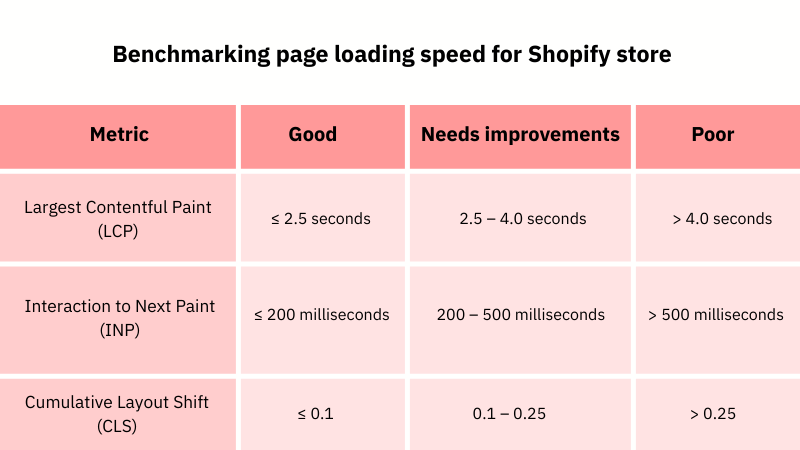
If any metric falls into the “Needs Improvement” or “Poor” range, it signals that performance issues may be affecting SEO, bounce rates, or conversions — and it’s time to take action.
The three Core Web Vitals (LCP, INP, CLS) are reliable for measuring user-perceived speed and UX stability. Additionally, you should also track complementary metrics and diagnostics for better decision-making.
Other metrics you should also use and why they matter
| Metric | Why it matters | When to use |
| Time to First Byte (TTFB) | Detects slow server responses, especially on Shopify Plus stores with heavy Liquid logic. | When CWVs are poor despite fast frontend assets |
| Total Blocking Time (TBT) | Highlights long script execution that delays interaction (good for debugging INP issues). | When INP is high, or buttons feel unresponsive |
| JavaScript execution time | Measures script bloat from apps or themes that delay load/interaction | When you suspect app or theme code is causing the slowdown |
| Bounce and exit rates by page | Flags specific URLs where visitors leave early, potentially due to speed, layout, or load issues | To prioritize which pages need testing and optimization |
| App impact analysis | Isolates performance penalties caused by third-party apps or scripts | After changes or app installs that could affect load or interaction |
Tracking these metrics continuously is foundational to any successful Shopify store speed optimization strategy, especially as customer expectations and SEO standards evolve. It’s best to use a tool like AuditIQ to automatically track page speed and Core Web Vitals (LCP, INP, and CLS) across your high-intent pages daily, using real-user field data from Google CrUX alongside lab data. Beyond performance, AuditIQ eCommerce monitoring also monitors SEO, GEO health and other technical issues, giving you a complete picture of what’s driving or blocking conversions.
Factors that affect your store's speed — what you can (and can’t) optimize
Your store’s speed is shaped by two distinct layers: what happens in the browser (frontend) and what happens behind the scenes on Shopify’s infrastructure. Most performance issues occur on the storefront, where you have full control. But understanding platform-level limitations helps you avoid wasting time on areas you can’t influence.
Frontend (merchant-controlled)
These are the elements rendered in the customer’s browser. They have the most direct impact on Core Web Vitals and are fully within your control:
- Media files (affects LCP): You control all images, videos, and fonts across your store. Large, uncompressed, or poorly formatted assets delay the appearance of main content, which hurts Largest Contentful Paint (LCP).
- Shopify theme and site structure (affects LCP, CLS, INP): This includes how your theme is built—its layout, number of sections, use of dynamic blocks, and Liquid logic (Shopify’s templating language).
A heavy structure with too many featured collections, sliders, or conditional loops can delay when key content appears (LCP), especially on mobile.
Missing size attributes in images or late-loading banners can cause elements to shift unexpectedly (CLS).
Excessive scripts or deeply nested templates can also block the browser’s main thread, slowing down user interactions like menu taps or button clicks (INP). - Apps and third-party scripts (affect INP and LCP): Apps often add external scripts for features like reviews, pop-ups, or chat widgets. These scripts increase JavaScript execution time, which affects how quickly your store responds to user input (INP) and can delay loading of key content (LCP).
Shopify infrastructure (platform-controlled)
These factors are managed by Shopify’s backend and apply consistently across all stores. You can’t configure or override them, but they still influence how your store performs:
- Server response time (affects TTFB and indirectly LCP): Shopify handles all backend processing, including server optimization and load balancing. Pages are served from Shopify’s high-performance infrastructure, which means you don’t need to manage hosting, server tuning, or uptime.
While you can’t directly speed up Time to First Byte (TTFB), it’s already optimized for global delivery and reliability. - CDN behavior (affects LCP): Shopify automatically serves your store’s static assets (like images, CSS, and JavaScript) via Fastly’s global Content Delivery Network (CDN). This ensures your content loads quickly for customers around the world.
You don’t have to configure caching rules or set up edge delivery, Shopify handles it by default. The only trade-off is that asset changes may take a few moments to propagate across the network. - Script isolation (affects INP and CLS): Third-party apps load their JavaScript in the same browser environment as your theme (not sandboxed). A slow or unstable app can block interactions or shift layout elements, and you can’t isolate them technically. You can only choose whether to keep or remove them.
Summary: Common reasons that slow down your Shopify store (that you can fix)
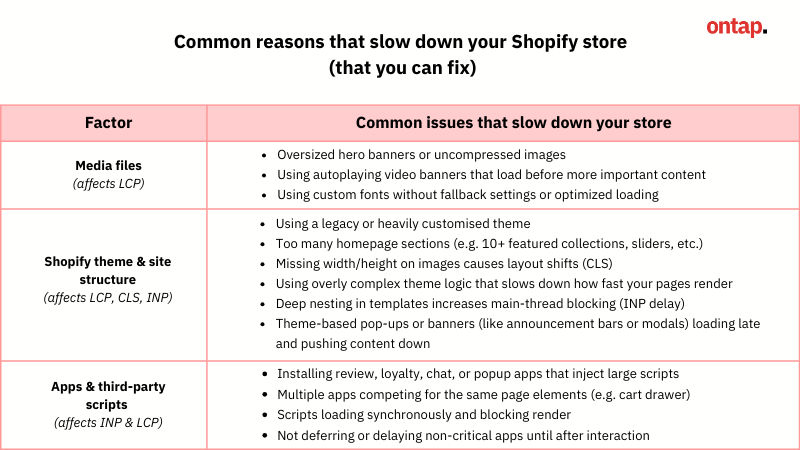
Proven Shopify speed optimization best practices
As outlined above, most slowdowns come from frontend issues — like oversized media, heavy theme code, or app bloat — that accumulate over time. The following best practices are designed to help you fix what's within your control and leverage Shopify infrastructure — avoiding common performance pitfalls and ensuring your storefront is optimized for faster load times.
Optimize your Shopify theme and site structure
A well-structured theme is essential if you want to optimize Shopify speed without compromising design or functionality. The structural integrity of your Shopify theme — how it’s built, rendered, and deployed — has a significant impact on site speed. The tactics below target Shopify-native theme architecture and rendering behavior to deliver improvements in page load speed, interactivity, and user experience.
Choose a Shopify 2.0 theme built for speed and modularity
Effort: Moderate — may require rebuild or migration
Many legacy themes were built before speed best practices became standard. Shopify 2.0 themes like Dawn use a modular, section-based architecture and native lazy loading. This reduces render-blocking code and enables faster Time to First Byte and FCP.
How to take action:
- Check if your theme uses Shopify 2.0 by looking for .json templates under Online Store → Edit code → Templates. If not, consider switching to a lightweight 2.0 theme like Dawn, Craft, or Studio.
- If branding requires bespoke development, instruct your agency or developers to customise on top of a performance-optimized 2.0 base, not on a legacy framework.
- Benchmark speed on staging using tools like Google Lighthouse before publishing.
Below is a quick comparison of popular Shopify 2.0 themes optimized for speed to help you choose a strong foundation for performance.
| Theme | Desktop Speed Score | Mobile Speed Score | Performance Summary | Best For |
| Dawn | 98 | 87 | Shopify’s default theme. Minimalist, lightweight, and highly optimized. | All-purpose starter stores |
| Sense | 98–100 | 83–91 | Clean design with fast loading, especially strong on desktop. | Health, beauty, wellness |
| Studio | 92 | 83–90 | Designed for creatives. Strong desktop speed, supports rich media storytelling. | Artists, photographers, creators |
Caution: Changing your theme can impact SEO and analytics tracking. Before migrating, confirm that the new theme maintains your keyword structure, internal linking, and schema.
Streamline your theme structure and remove unnecessary code
Effort: Moderate — developer support recommended
Many Shopify themes include prebuilt templates, sections, and legacy code you may no longer use. Even if hidden from customers, they still load code in the background, making your pages heavier and slower. This is a common root cause of poor LCP and interaction delays.
How to take action:
- Remove unnecessary sections: Review your homepage, product, and collection templates to identify sections that aren’t visible or in use (e.g., extra carousels, testimonials). Ask your developer to remove these sections directly from the code, not just disable them in the theme editor.
- Use JSON templates to consolidate layout logic, so you don’t maintain multiple copies of nearly identical templates.
- Move shared elements (like trust badges or shipping info) into global reusable sections instead of repeating them in every template.
- Ask your developer to reduce excessive Liquid logic (
{% if %}, {% for %}), especially for content that doesn’t change dynamically. - Remove unused and combine theme code: Audit your theme’s CSS and JavaScript files. Remove unused or legacy code left behind by past features or apps. Minify remaining custom code to reduce file size, and where practical, combine above-the-fold styles or scripts to cut down on request overhead.
Caution: Always back up your theme before making changes: Duplicate your current theme via Online Store → Themes → Actions → Duplicate, so you can roll back if something breaks.
Prevent layout shifts with fixed dimensions and reserved space
Effort: Low — can be handled in-house or with light developer input
Layout shifts—when buttons or images suddenly move as the page loads—damage user trust and hurt your Google performance score. These shifts usually happen because media or dynamic elements don’t have fixed dimensions.
How to take action:
- Ensure all images and videos include
widthandheightattributes in the theme’s HTML or Liquid templates. - Reserve space in the layout for pop-ups, banners, or announcement bars—even if they load later via JavaScript.
- Ask your developer to use
font-display: swapwhen loading custom web fonts. This avoids a flash of invisible text that causes reflow. - Use Shopify’s theme preview or Chrome DevTools (Performance tab) to simulate loading behavior and spot layout movement.
Defer and prioritise what loads first
Effort: High — requires technical implementation
Many Shopify stores load all features upfront, including content users won’t interact with until later. Deferring unnecessary code reduces load time and improves LCP and INP.
How to take action:
- Identify features that aren’t essential at initial page load—like product tabs, pop-ups, embedded videos, or chat widgets.
- Ask your developer to apply
deferorasyncto non-critical scripts so they load after the main content. - Use
requestIdleCallbackto delay background functionality until after the browser finishes rendering the core layout. - Inline only the CSS needed for the first visible screen. Load remaining stylesheets asynchronously.
- Run Google PageSpeed Insights or WebPageTest to validate improvements and catch new performance blockers.
Optimize Shopify apps and third-party scripts
Apps are essential to extending your store’s functionality, but each one introduces additional scripts, stylesheets, and requests that can slow down page loads. As your store grows, regularly auditing and optimising your app usage becomes crucial to maintaining performance.
Clean out unnecessary apps and legacy code
Effort: Low to Moderate — can be handled in-house with some developer assistance
Regularly reviewing your installed apps is one of the most overlooked ways to optimize Shopify speed and eliminate hidden performance bottlenecks. Apps that aren’t actively improving revenue, retention, or UX often still load scripts in the background, slowing your store down. Even after you uninstall an app, leftover code in your theme can continue to affect performance. This hidden bloat contributes to longer load times, layout shifts, and slower page interactions.
How to take action:
- Review your installed apps in the Shopify admin and identify which ones are no longer essential for conversions or operations.
- Uninstall apps that don’t drive clear value, especially storefront tools like pop-ups, countdowns, chat widgets, and review carousels.
- Ask your developer to audit the
theme.liquid,snippets/, andthe assets/folder for leftover app code or script tags. - Remove unused JavaScript, CSS files, and external libraries left behind by previously installed apps.
Replace heavy apps with lighter apps or native Shopify features
Effort: Moderate — requires theme or feature rebuild
Not all apps are built for performance. Some inject unnecessary code or large external libraries that slow your site down—especially on mobile. In many cases, you can now rebuild these features using Shopify’s native capabilities or theme functionality.
How to take action:
- Identify apps used for basic features like product tabs, announcement bars, image sliders, or pop-ups.
- Check if your Online Store 2.0 theme offers these as native blocks or settings. If yes, remove the app and recreate the feature in the theme editor.
- When removing an app, test the rebuilt feature in a staging environment to ensure the UX and function still meet customer expectations.
Prevent app-related performance conflicts
Effort: Moderate — requires developer coordination and testing
When multiple apps inject content into the same part of your storefront—like the cart drawer, announcement bar, or product page—they often compete for control. This causes layout shifts, script conflicts, and delayed interactivity, especially if the apps load at different times.
How to take action:
- Audit your installed apps to see which ones modify high-touch areas like the cart, PDP (product detail page), or header bar. Check if two or more apps are loading into the same space (e.g. two cart upsell tools, two banner apps).
- Disable overlapping functionality so only one app controls each page element.
- Ask your developer to test for layout shifts and script load order using Chrome DevTools > Performance tab or WebPageTest filmstrip view.
- Prioritise apps that use Shopify's App Bridge or theme app blocks—these are less likely to inject code that conflicts.
Delay non-essential app scripts to prioritise content loading
Effort: High — requires technical support to implement safely
Even essential apps can slow your store if they load too early. Scripts for reviews, chat tools, pop-ups, and tracking often run before the main content appears, blocking the page from rendering or delaying user interaction. Deferring them improves your LCP and INP scores.
How to take action:
- Use Chrome DevTools (Sources tab) or Tag Assistant to see which scripts are loading before the page is visible.
- Ask your developer to defer non-critical scripts using
defer,async, or by triggering them only after user interaction (e.g. scroll, click). - Load review widgets only on product pages—not site-wide. Trigger chat widgets only after a few seconds or on scroll.
- Consolidate tracking and analytics scripts using Google Tag Manager (GTM) to manage all marketing tags from one interface. Within GTM, set rules to control when each tag loads—for example, only after the page becomes interactive or on specific URLs.
Reduce storefront weight by optimizing images, fonts, and videos
Effort: Low to Moderate — can often be done in-house with light developer support
Media files like images, fonts, and videos are major contributors to slow load times—and represent one of the most important focus areas in any Shopify speed optimization plan. While Shopify helps by generating responsive image sizes and supporting lazy loading in 2.0 themes, it doesn’t compress or optimize files automatically. Fonts and videos also slow down loading and shift layout during rendering, hurting Core Web Vitals like LCP and CLS.
Enforce standards for image compression and sizing before upload
- Set a standard file size threshold (e.g., < 300KB for product images; < 500KB for homepage banners).
- Use tools like TinyPNG, ImageOptim, or Squoosh to compress images before upload.
- Ensure product, lifestyle, and homepage images are cropped or resized to actual display dimensions—no oversized uploads.
Use modern formats and lightweight layouts for images
- Use modern image formats like WebP or AVIF where supported. These offer up to 30% smaller file sizes with no visible quality loss. Shopify doesn’t auto-convert, but themes can deliver WebP using
srcsetor theimage_urlfilter. - For image-heavy layouts (e.g., collection or blog grids), use responsive image variants via
image_urlwithwidth,scale, orsrcset. - Avoid using GIFs for animation. Convert to compressed MP4s or use CSS animations for smaller file sizes and smoother performance.
Optimize how videos load and display
- Avoid autoplay background videos, especially in hero sections. These slow LCP and increase page weight significantly.
- For product or explainer videos, use a static image thumbnail with a play button overlay. Load the actual video (e.g. YouTube or Vimeo embed) only when clicked.
- When you create videos or compress self-hosted media before uploading, always prioritize reducing the file size to preserve bandwidth.
- Enable lazy loading for iframes and video containers using
loading="lazy"orintersectionObserver(your developer can handle this).
Improve font loading across the storefront
- Limit your store to 2–3 font families. Each additional font adds 1–2 extra file downloads.
- Use
font-display: swapin your CSS. This lets fallback text render immediately while the custom font loads — avoiding invisible text or layout jumps. - Preload key fonts (e.g., headings or buttons) using
<link rel="preload">in yourtheme.liquidto start downloading early. - Use system fonts (like Helvetica or Arial) for body text to reduce file size and improve load time on mobile.
- Test font loading behavior during staging using Chrome DevTools or Lighthouse.
Leverage Shopify infrastructure to deliver faster, more stable storefront experiences
Effort: Low to Moderate — mostly strategic, with light development support
One of the key advantages of Shopify is its fully managed infrastructure: global CDN delivery, server-side optimizations, and platform-wide caching. While you can't control the server or CDN directly, you can optimize how your store interacts with Shopify’s performance systems. Doing so ensures you're getting the full benefit of Shopify's speed, scalability, and stability.
Use Shopify’s built-in CDN for all storefront assets
Shopify automatically delivers your theme’s static assets (images, stylesheets, JavaScript files) using a global CDN powered by Fastly. This ensures fast load times worldwide, but only if assets are served correctly.
How to take action:
- Make sure your store’s images are served via Shopify’s
image_urlorimg_urlfilters, which route through the CDN. - Avoid hosting images or scripts externally (e.g. AWS S3 or external CDNs), unless they’re performance-tested and critical.
- Confirm that your theme doesn’t load fonts, CSS, or media from third-party servers unless required. These won’t benefit from Shopify’s global edge caching.
Avoid workarounds that bypass Shopify's caching layer
Shopify’s infrastructure is designed to cache pages and assets effectively. Some developer workarounds — like custom proxy routes, JavaScript-rendered content, or unnecessary redirects — can disable caching and slow down performance.
How to take action:
- Avoid using proxy apps or dynamic content injection via JavaScript unless necessary.
- When creating landing pages or product variants, use Shopify’s native templates and metafields instead of custom routing or injected content.
- For dynamic content, use Shopify’s AJAX API or Sections Rendering API to fetch or update content asynchronously without bypassing the cache.
Conclusion: Make speed optimization an ongoing effort
Speed optimization should not be treated as a one-time project. While initial improvements can deliver quick wins, long-term gains come from building speed into your ongoing workflows and development process. Performance often degrades gradually as new apps, design elements, or content are introduced, especially during peak trading periods or after marketing campaigns.
Speed trade-offs: What not to cut in the name of performance
Optimizing your Shopify store for speed doesn’t mean stripping it of what makes it usable, shoppable, or memorable. Speed is a lever, not the goal. Without careful planning, over-optimization can unintentionally harm brand identity, usability, or conversion.
- JavaScript-based features: Evaluate impact, not presence: JavaScript contributes to slower performance when overused or poorly implemented. However, it is also essential for key functionality such as product filters, variant selectors, image zoom, and accessibility tools. These are particularly important for large catalogs or B2B stores. Rather than removing JavaScript entirely, focus on reducing unused scripts, deferring non-critical functionality, and optimizing how essential features are implemented.
- Visual richness must be balanced, not removed: Animations, micro-interactions, or dynamic elements can enhance trust and delight. According to Nielsen Norman Group, well-timed animations support user comprehension and reduce cognitive load. The key is not to eliminate visual polish, but to implement it using techniques like CSS transitions, async loading, or GPU-accelerated animations.
- Personalisation may add load, but also adds conversion: Dynamic content such as recently viewed products, geo-targeted banners, or custom pricing may add complexity, but these features often lift conversion when done well. Instead of removing them, consider lazy loading, caching, or limiting scope on initial paint. Removing personalisation to improve speed scores may solve one problem while creating another.
- Brand standards matter in a competitive market: For premium or design-led stores, layout, typography, and content richness are part of the brand experience. Speed decisions should be made within those constraints, not in opposition to them. Where performance changes affect the visual identity, collaborate with your brand or design team to find alternatives that preserve the experience.
Speed optimization is most effective when approached with balance and precision. The goal is not to minimize page size at all costs, but to ensure that performance improvements enhance the shopping experience. In practice, this means making targeted improvements that preserve functionality, maintain brand consistency, and support conversion.
Conclusion
Shopify site speed optimization isn’t just a technical fix — it’s a strategic lever for growth. A faster Shopify store helps customers find what they need more quickly, reduces bounce rates, improves mobile engagement, and unlocks higher conversion potential.
Shopify gives merchants a strong performance foundation through its infrastructure, CDN, and theme framework. But ultimately, the way your store is designed, built, and maintained determines how fast it performs in the real world.
By combining platform-native best practices with strategic oversight — from theme choice to app governance, image optimization, and continuous performance monitoring — you can build a future-proof Shopify speed optimization strategy that supports long-term growth.
On Tap - A trusted Shopify development agency works with leading brands to deliver measurable performance gains on Shopify. Our team helps businesses audit, optimize, and future-proof their storefronts for speed, scalability, and commercial impact. Whether you're planning a theme rebuild, struggling with speed drops after growth, or want to unlock better conversion metrics through performance, we’re here to help you deliver faster experiences that drive real results. Contact us today for a free consultation!