
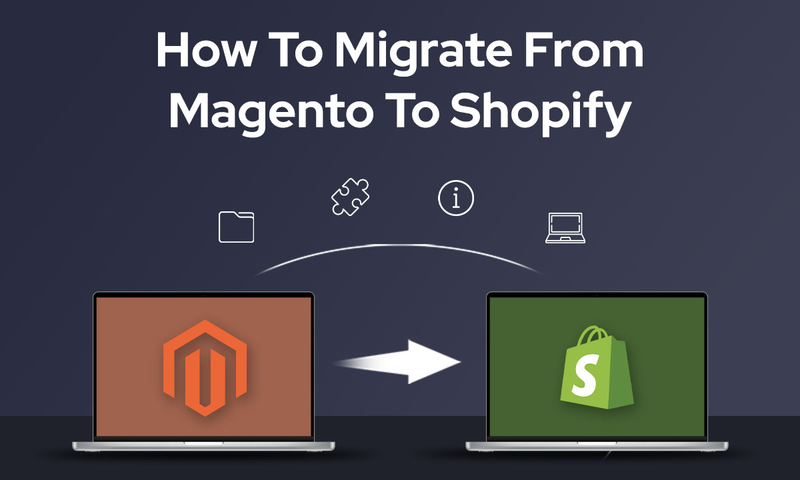
A Magento to Shopify migration is not simply a matter of exporting a catalogue and importing it into a new platform. You are changing the underlying data model, storefront architecture, checkout, app stack, URL structure and often the way your team manages day-to-day eCommerce operations.
That is why a successful migration from Magento to Shopify needs to be treated as a replatforming project rather than a data transfer exercise.
Whether you are planning a Magento 2 to Shopify migration, still operating Magento 1, or evaluating a move from Adobe Commerce to Shopify, the safest approach is the same: audit first, define the target architecture, test the migration in a development store, protect SEO, run a controlled cutover and validate everything again after launch.
This guide explains how to migrate from Magento to Shopify step by step, what normally transfers cleanly, what needs rebuilding, which migration method suits different store types, how to estimate time and budget, and what to include in the final migration checklist.
The migration at a glance
A typical replatforming project has six workstreams running in parallel:
-
Discovery and scope: catalogue, customers, orders, content, integrations, SEO and custom functionality.
-
Data architecture: mapping Magento attributes, configurable products, customer groups and custom fields into Shopify products, variants, metafields and metaobjects.
-
Store build: theme, navigation, search, filtering, content, checkout settings and apps.
-
Migration: products, customers, orders and any app-specific data that needs to move.
-
SEO and cutover: URL mapping, 301 redirects, analytics, domain, sitemap and final delta migration.
-
Post-launch QA: orders, payments, redirects, indexing, feeds, integrations and performance monitoring.
The key principle is simple: do not recreate Magento feature for feature by default. Rebuild only the functionality that still supports the commercial and operational requirements of the new store.
What you need to know before the Magento to Shopify migration
Migrating from Magento to Shopify introduces a number of constraints that may impact how your store is structured, how your data is handled, and which features need to be rebuilt or rethought.
Before you begin, it’s essential to understand the key differences that will shape your migration strategy:
Magento to Shopify: What data migrates — and what needs extra work
While many core data types (such as products, customers, and orders) can be migrated from Magento to Shopify, there are important limitations in structure, field compatibility, and import order. Some elements will require reformatting, manual recreation, or third-party apps to function correctly in the Shopify environment.
The table below summarises which types of data are partially supported and what adjustments you’ll need to plan for:
| Data type | Data compatibility & implementation notes |
| Products |
Simple and configurable products can be imported via CSV files and mapped to Shopify’s variant system (e.g., size, colour, material). However, Shopify imposes strict limits:
Products exceeding these limits will be truncated or skipped. You’ll need to split oversized listings or use a variant extension app, such as Infinite Options, to work around Shopify’s native variant limits. |
| Customers |
Core details such as name, email, address, and order history can be imported via CSV files. However, passwords cannot be transferred due to encryption. Customers will need to reset their passwords post-launch, so a clear communication plan is essential. |
| Orders |
Historical orders can be migrated using third-party tools such as Matrixify or LitExtension. Note that migrated orders are treated as historical records in Shopify—they are not editable, and payment/refund actions are disabled. For Shopify to correctly show which customers placed which orders, and which products were purchased, you need to:
This order matters because Shopify links each order to existing product and customer records. If those aren’t imported first, the orders may be incomplete or fail to import correctly. |
| Category tree (converted to Shopify collections) |
In Magento, you can create category trees like this: Clothing → Men → Shirts That structure is built into Magento and appears automatically in menus and breadcrumbs. In Shopify, this kind of nested category system doesn’t exist. Instead, Shopify uses something called collections to group products, and each collection is a separate group, not part of a hierarchy. To recreate your category structure from Magento, you’ll need to:
|
| CMS pages & blocks |
Magento CMS pages and static blocks (like About Us, Contact, and homepage sections) can be migrated to Shopify, but not automatically. Shopify does not support CSV imports for pages or blog posts. To transfer this content, you’ll need to either:
Design elements like custom layouts or reusable blocks (widgets in Magento) will also need to be rebuilt manually using a Shopify theme or page builder. |
| Store credit/gift cards |
Magento does not include store credit features out of the box, but many merchants use extensions to offer account-based credits or flexible gift card functionality. Shopify now supports native store credit functionality across all plans. Merchants can issue credit directly from the admin, and customers can apply it at checkout or in the POS. However, advanced use cases—such as bulk imports, expiry rules, and loyalty-based automation—still require third-party apps like Rise.ai or CreditsYard. |
| Reviews, metafields |
Magento often uses built-in or extension-based product review features and custom attributes (metafields) to display rich product data. In Shopify:
|
Platform functionality gaps to prepare for
Understanding the structural and feature differences between Magento and Shopify is critical to planning a smooth migration. Below are key areas where merchants often encounter functional mismatches:
| Area | Magento Open Source | Shopify (Standard plans) |
| Checkout customisation |
Fully customisable using layout XML, templates, and JavaScript |
Shopify's checkout is locked down; you cannot modify it via code. |
| SEO controls |
Advanced SEO features built in. You can fully control URLs, meta tags, canonical tags, robots.txt, and create flexible URL structures (e.g., |
Shopify uses fixed URL paths ( Magento’s flexible URLs must be mapped to Shopify’s structure, and you must create 301 redirects to preserve SEO and avoid 404s. |
| Product types |
Supports multiple product types out of the box, including simple, configurable, grouped, and bundled products. |
- Supports simple products and variants (up to 100 per product, with 3 options). - Grouped, bundled, and configurable product types are not supported natively and must be recreated using apps or custom workarounds. |
| Tax & shipping rules |
Supports complex, rule-based tax and shipping setups — including conditions by customer group, cart value, product attributes, and zones. These setups are often deeply integrated into store logic and won’t migrate directly to Shopify.
|
Provides a streamlined setup with flat or carrier-calculated rates by zone. It does not support customer-specific tax or shipping rules, so merchants must simplify, replace, or recreate logic using apps or manual configuration. |
Magento 1 vs Magento 2 vs Adobe Commerce: does the migration approach change?
The core migration process is similar, but the risks are different.
Migrating Magento 1 to Shopify
A Magento 1 to Shopify migration usually involves more technical debt because Magento 1 reached end of official support years ago. Stores still operating on heavily customised Magento 1 builds often have older extensions, non-standard data structures and custom integrations that need to be documented before anything is moved.
For a Magento 1 to Shopify migration, discovery should include:
-
all custom product attributes and attribute sets;
-
configurable and bundled-product logic;
-
custom customer fields;
-
extensions still writing to the database;
-
legacy URL rewrites;
-
custom checkout or payment behaviour;
-
ERP, PIM, warehouse and fulfilment connections;
-
cron jobs and bespoke scripts that might not be visible in the admin.
Do not assume an automated migration app will understand every legacy customisation.
Migrating Magento 2 to Shopify
A Magento 2 to Shopify migration is usually easier to audit because the architecture is newer, but it can still be complex. Magento 2 stores frequently rely on configurable products, customer groups, tier pricing, layered navigation, custom attributes and third-party modules that do not map one-to-one to Shopify.
The important question is not, "Can this Magento feature be copied?" It is, "What business requirement does this feature serve, and what is the best Shopify implementation for that requirement?"
For a Magento 2 to Shopify migration, this requirement-first approach helps prevent teams from reproducing years of platform-specific complexity that the new store no longer needs.
Adobe Commerce to Shopify
Adobe Commerce adds another layer of enterprise functionality around B2B, content, customer segmentation, promotions and multi-site operations. If you are moving from Adobe Commerce to Shopify Plus, scope those capabilities individually rather than treating the project as a standard catalogue migration.
This is especially important for B2B pricing, company accounts, approval workflows, custom checkout behaviour and regional store architecture.
How to migrate Magento to Shopify: A step-by-step guide
The following process can be used as a practical framework for the replatforming project. The exact implementation will vary by store, but the sequence reduces the risk of data loss, SEO problems and last-minute launch issues.
1. Pre-migration planning & Magento store audit
Before migrating from Magento to Shopify, take stock of your Magento store’s structure, functionality, and dependencies. This helps identify what needs to be rebuilt, simplified, or replaced — and ensures you don’t overlook critical features.
Review your current Magento setup:
-
Document your key store components — including products, categories, CMS pages, customer groups, tax rules, and shipping zones — to understand the scope of what needs to be migrated.
-
Document third-party integrations: List all external systems connected to your Magento store — such as ERP, CRM, PIM, on-site search, reviews, and email marketing. Determine whether these can be integrated directly into Shopify or need alternatives.
-
Multi-store or multi-region setups: If your Magento store serves multiple regions, brands, or customer types using separate storefronts (e.g., different domains, languages, or pricing by country), document how each one is structured. Shopify handles this differently — you’ll need to decide whether to consolidate under a single store using Shopify Markets or maintain multiple Shopify stores. This decision affects how you manage currency, content, fulfilment, and reporting going forward.
-
Custom logic and business rules: Identify any custom-built workflows or logic that go beyond Magento’s default features. Examples include:
-
-
Customer-specific pricing or discounts
-
Bundled or grouped product logic
-
Checkout customisations (e.g., split shipping, gift messages)
-
Store credit systems or loyalty point logic
-
Advanced tax or shipping calculations
-
These types of logic don’t always have direct equivalents in Shopify. Some can be replicated using Shopify apps, while others may need to be simplified or adapted.
Decide what to carry forward:
-
Determine which features will be:
-
Migrated as-is
-
Replaced with Shopify-native functionality or apps
-
Simplified or removed entirely
-
Flag unsupported elements (e.g., multi-store setup, advanced checkout customisation) and plan alternatives
Define the migration scope and team roles:
-
Set your timeline, key milestones, and content freeze date
-
Assign responsibilities across data preparation, store setup, testing, and communication
-
Establish pre-launch benchmarks: traffic, conversion rate, site speed, SEO performance
2. Prepare and export your Magento data
Before anything is moved into Shopify, your Magento data needs to be reviewed, cleaned, and exported in a consistent format. This allows your new store to be populated accurately — without missing products, duplicated customers, or broken links.
Clean and prepare your data:
-
Remove discontinued or inactive products that no longer need to be migrated
-
Consolidate or archive unused categories and outdated CMS pages
-
Standardise SKUs, product titles, tags, and attribute values
-
Ensure all product images are publicly accessible via URL (required for Shopify import)
-
Deduplicate customer records and verify formatting for names, emails, and addresses
-
Review order records and remove test or incomplete entries
-
Map Magento attributes (such as colour, material, or brand) to Shopify-compatible fields like tags, options, or metafields
Export the following datasets:
| Data types | Details to include |
| Products |
Titles, SKUs, descriptions, images, variants, prices, inventory, attributes |
| Customers |
Names, emails, addresses, customer group (if relevant) |
| Orders |
Order history, timestamps, line items, customer association |
| Category structure |
Category names, paths, and relationships (for manual recreation in Shopify as collections) |
| CMS content |
Static blocks, About Us, Contact pages, homepage sections |
| SEO metadata |
Meta titles, descriptions, canonical URLs, custom redirects (if configured) |
Note: Once your data is exported, freeze all catalogue, content, and customer edits in Magento. Continuing to make changes at this stage increases the risk of inconsistency or data loss later in the process.
3. Set up your Shopify store
With your Magento data prepared, the next step is to create a private Shopify staging environment where you can safely configure settings, apply branding, and test functionality without disrupting your existing store.
Create a non-public staging store:
-
Open a new Shopify account and set up your store under a .myshopify.com subdomain
-
Disable indexing via theme settings or robots.txt to prevent early exposure to search engines
-
Keep your Magento site live during this period to avoid sales disruption
Configure core business settings:
-
General settings: store name, contact details, time zone, language, currency
-
Tax and shipping rules: zones, rates, tax registration numbers, and fulfilment workflows
-
Payment gateways: Shopify Payments, PayPal, or other preferred providers
-
Legal pages: terms and conditions, privacy policy, shipping and returns
Set up your admin team and branding:
-
Create staff accounts and assign appropriate permissions
-
Upload brand assets: logo, favicons, colour palette, fonts
-
Choose a theme or framework that suits your product range and business model
4. Import your product data to Shopify store
Once your Shopify store is configured, begin by importing your product data. This ensures collections, search, inventory, and merchandising can be set up correctly before moving on to other datasets.
Import and validate your products:
-
Use a migration tool (e.g., Matrixify or LitExtension) or prepare files using Shopify’s product CSV format
-
Check that all SKUs, titles, descriptions, and images are correctly mapped
-
Ensure inventory quantities, pricing, and product statuses (draft vs. active) are accurate
-
Check for compliance with Shopify limits:
-
Maximum 100 variants per product
-
Maximum 3 options per product (e.g., size, colour, material)
Note: If your Magento store uses grouped, bundled, or configurable products, they won’t import exactly as they appear. These complex product types will be restructured and rebuilt in Step 8: Adapt store logic and rebuild essential features.
5. Transfer your Magento customer data into Shopify store
Once your products are in place, the next step is to import your Magento customer records into Shopify. This allows you to preserve account-level data and order associations, supporting continuity in customer service and marketing segmentation.
Import and verify customer records:
-
Use a migration app (e.g, Matrixify, LitExtension) or Shopify's customer import CSV format
-
Include core fields: name, email, billing/shipping addresses, phone number (if collected)
-
Ensure customer records are unique and formatted consistently (especially emails and name casing)
-
Validate that imported records are linked to the corresponding historical orders
Note: Shopify does not support password migration. Customers must be prompted to reset their passwords after launch. Plan this as part of your post-launch communication strategy (see Step 12).
6. Move historical orders to your Shopify store
After products and customers have been successfully imported, you can migrate your Magento order history into Shopify. While these records are read-only in Shopify, they remain valuable for account context, analytics, and support.
Import your historical orders:
-
Use a migration tool (e.g., Matrixify, LitExtension) that supports order import and preserves relationships with customer and product records
-
Include key fields: order number, customer email, product SKUs, prices, payment status, fulfilment status, shipping details, order timestamps
After import, verify the following:
-
The total number of imported orders matches the source data
-
Orders appear in the correct customer accounts
-
Financial and fulfillment statuses are accurate
-
No missing line items or misattributed products
Note: Imported orders in Shopify are for reference only — they are not editable and do not count toward financial reporting or inventory tracking. However, they remain accessible in the customer’s account history (if the email matches) and in the admin panel for your team.
7. Rebuild your CMS pages and content blocks on your Shopify store
Magento CMS pages and static blocks (e.g., homepage sections, About Us, Contact, policy pages) do not transfer automatically to Shopify and must be recreated manually or with third-party tools.
Recreate core CMS content:
-
Manually rebuild static pages such as:
-
Homepage
-
About Us
-
Contact
-
FAQs
-
Shipping, returns, and privacy policies
-
Recreate reusable content blocks (e.g., banners, trust badges, promotional sections) using your Shopify theme or a visual page builder like Shogun or PageFly.
Ensure consistency and functionality:
-
Copy across headings, body content, embedded images, and video assets
-
Check that internal links point to the correct Shopify URLs (e.g., updated product or collection handles)
-
Restore forms (e.g., contact or newsletter) using Shopify’s native contact form, an app, or theme functionality
-
Maintain page-level SEO by reapplying meta titles and descriptions where applicable
Tip: If your Magento homepage relied on widgets or block-driven layouts, work with your Shopify theme’s custom sections or use a page builder to replicate the layout and content structure.
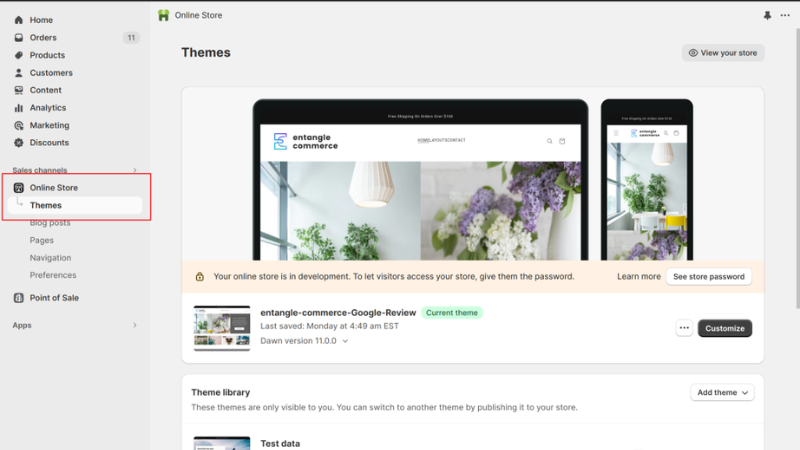
8. Adapt Shopify store logic and rebuild essential features
Magento often includes logic and structural features that don’t have direct equivalents in Shopify. Now that your data is in place, this stage is to rebuild essential functionality for merchandising, pricing, and navigation.
Restructure product types and catalog logic:
-
Split or duplicate products that exceed Shopify’s variant limits (100 variants, 3 options)
-
Rebuild grouped or bundled products using apps such as Bundler or PickyStory
-
Convert Magento attributes used for faceted filtering into tags or metafields for use with a filtering app (e.g., Boost Product Filter)
-
Migrate important custom fields (e.g., technical specs) into Shopify metafields and connect them to product templates
Rebuild your category structure as Shopify collections and menus:
-
Create collections to represent Magento categories
-
Manually recreate your main menu to reflect Magento’s category tree: Nest menu items (e.g., Clothing → Men → Shirts) to guide navigation
-
Test breadcrumb and navigation logic across mobile and desktop
Recreate business rules and promotions:
-
Replace customer group pricing with Shopify discounts or tag-based rules
-
Rebuild store credit workflows using apps like Rise.ai
-
Simplify or replicate tax/shipping rules using Shopify Markets or third-party apps like Intuitive Shipping
-
Reconfigure product recommendations, upsells, and loyalty tools like ReConvert or LoyaltyLion.
9. Preserve your SEO metadata during migration
Magento provides full control over SEO metadata, but this information doesn’t carry over automatically to Shopify. This step ensures your key SEO signals are preserved on the new platform.
Reapply on-page SEO elements:
-
Manually add meta titles and descriptions to:
-
Product pages
-
Collections
-
CMS pages
-
Reapply canonical tags where applicable (via your Shopify theme or an SEO app such as Smart SEO or SEO Manager
-
Restore structured data (e.g., product schema, review markup) using:
-
Your Shopify theme’s built-in JSON-LD
-
A dedicated SEO app like Smart SEO or SEO Manager
Optional but recommended:
-
Generate and submit your new sitemap via Google Search Console
-
Monitor crawl activity, indexing status, and page performance after launch
10. Test and QA your Shopify store
Before switching domains or inviting customers to use the new store, perform a full round of testing across devices, user types, and key workflows.
Test all core storefront functions:
-
Navigation: main menu, collections, search, filtering
-
Product pages: variants, availability, pricing, image zoom
-
Cart and checkout: add-to-cart, discount codes, shipping rates, payment gateways
-
Tax and shipping: Simulate orders across multiple regions to confirm correct tax rates and shipping logic are applied
-
Forms: contact, newsletter signup, account creation
Review imported data for completeness and accuracy:
-
Products: titles, prices, inventory, variant logic, metafields
-
Customers: addresses, order history associations
-
Orders: financial and fulfilment statuses, line items
Evaluate app integrations and custom logic:
-
Confirm that key apps (e.g., filters, bundles, loyalty, reviews) function as expected and are properly embedded in your theme
-
Test custom workflows ported from Magento, such as:
-
Bundled or grouped product logic
-
Tag-based pricing or promotions
-
Customer group emulation or segmentation
Validate store performance and responsiveness:
-
Test on desktop and mobile devices
-
Check page speed using Shopify’s admin reports or Google PageSpeed Insights
-
Review theme responsiveness and styling across browsers
Verify SEO setup:
-
Check that meta titles and descriptions appear as expected
-
Use the Google Rich Results Test to confirm that structured data is valid
-
Spot-check canonical tags and preview how product or collection pages appear in search
11. Go live your Shopify store and set up URL redirects
When you're ready to launch, you'll make your Shopify store publicly accessible and point your primary domain to it. Once the domain connection is verified, you can upload your 301 redirect map to protect SEO and ensure a smooth transition from Magento URLs.
This process must be carefully sequenced to prevent broken links and indexing issues.
Make your Shopify store public:
Disable storefront password protection and remove any noindex tags added during staging. These changes ensure your new site is crawlable as soon as it goes live.
Point your primary domain to Shopify:
Update your DNS records so your main domain (e.g., yourstore.com) resolves to your Shopify storefront. DNS propagation can take up to 48 hours, but usually completes within a few hours.
Reassign your Magento store:
Move your old Magento site to a temporary subdomain (e.g., old.yourstore.com) and add a noindex directive to prevent it from being indexed. Keeping it accessible helps with post-launch order referencing or content recovery.
Apply 301 redirects (after the domain is connected):
-
Upload a complete 301 redirect map to Shopify to ensure traffic from legacy Magento URLs is routed to the correct Shopify pages. Shopify URLs differ in structure from Magento, so skipping this step will result in 404 errors and SEO ranking loss.
-
Redirects should only be applied after the domain has been pointed to Shopify. Applying them too early will break links while the store is still behind a password or staging domain.
Sync final data before launch (if needed):
If customers continue placing orders or creating accounts on your Magento store after the initial data export, you’ll need to transfer that new data to Shopify before going live. Instead of re-exporting everything manually, use API-based syncing to copy only the new orders and customer records automatically.
On Tap provides expert support for API-led sync workflows, helping you migrate live stores without downtime or data loss — even when orders are still being placed during the transition.
12. Customer communication & password reset
After launch, returning customers will need to access their accounts on your new Shopify store; however, Magento passwords cannot be transferred due to encryption differences. A direct, well-timed message helps avoid support issues and builds trust.
Inform customers about the migration:
-
Send a branded email explaining that your store has moved to a new platform
-
Reassure them that their order history and account details are preserved
-
Highlight any improvements (e.g., faster performance, mobile experience, new features)
Prompt customers to reset their passwords:
-
Include a link to Shopify’s password reset page
-
Encourage them to log in and update their details
-
If possible, offer a small incentive to complete the reset (e.g. loyalty points or a discount)
Use on-site messaging to reinforce the transition:
-
Add banners or modals reminding logged-out customers to reset their passwords
-
Place help links in the account login area to guide confused users
-
Update your FAQ or Help Centre to address common questions
13. Monitor your Shopify store performance after launch
Once your new Shopify store is live, closely monitor how it performs, both technically and from a user perspective. This ensures you can quickly respond to any unexpected issues and continue refining your setup based on real-world usage.
Track technical performance and stability: In the foundation stage after launch, start with free tools that give you essential visibility.
-
Use Shopify Analytics for insights, and supplement with GA4 for behavioral analysis.
-
Check for any failed orders, fulfillment errors, or app-related issues
-
Monitor site speed and responsiveness on mobile and desktop
-
Watch for crawl errors, indexing issues, or broken links
Validate SEO migration success:
-
Review how key pages are appearing in search results
-
Confirm that 301 redirects are working correctly and no important pages return 404 errors
-
Track organic traffic and keyword rankings to identify any drops or recoveries
Gather customer feedback:
-
Monitor support requests for common issues (e.g., login problems, missing orders, confusion with navigation)
-
Use surveys or feedback widgets to collect insights from real users
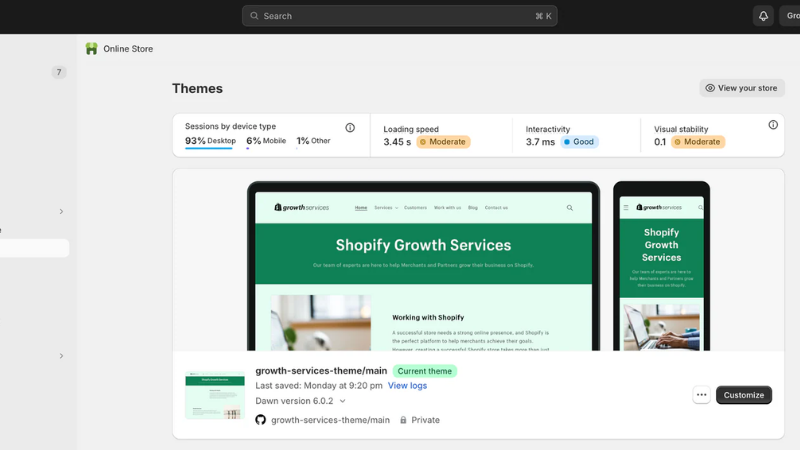
As traffic stabilises and more apps or content changes are introduced, continuous monitoring becomes essential to protect both performance and SEO recovery. That’s why many teams add a dedicated monitoring layer. Ecommerce monitoring tools like AuditIQ automatically track Core Web Vitals, uptime, real-user experience, technical health, and SEO signals 24/7 - so any regression is flagged early, before it affects conversions or organic rankings.
Magento to Shopify migration: Common issues and how to resolve them
Even with a well-executed migration, some issues may only become visible once your Shopify store is live. Below are common post-migration problems and how to resolve them quickly to restore functionality and minimise disruption.
Missing or inconsistent data after import
What happens: Some products, customers, or orders are missing, incomplete, or incorrectly formatted.
Why it happens: Field mismatches, unsupported data formats, or improperly structured CSV files can lead to partial or failed imports, especially when using bulk data tools without validation.
How to resolve it:
-
Use Matrixify or a similar tool to inspect imported data and identify what’s missing or incorrectly mapped
-
Compare item counts (e.g., total products, customers, orders) between Magento and Shopify
-
Reimport only the affected records after correcting formatting or field mapping issues
Products not displaying on the storefront
What happens: Products appear in the Shopify admin but not on the live store.
Why it happens: Imported products may be set to "Draft," not assigned to the Online Store sales channel, or missing collection assignments.
How to resolve it:
-
Use Shopify’s bulk editor to change product status from Draft to Active
-
Add missing products to the Online Store sales channel
-
Ensure each product is assigned to the correct collection and has inventory available for purchase
Incomplete filters or navigation
What happens: Shoppers can’t filter products the way they could on the Magento site.
Why it happens:
Shopify doesn’t support layered filtering out of the box, so filtering relies on third-party apps like Search & Discovery or Boost Product Filter. These apps require product attributes to be mapped into Shopify-compatible fields — such as tags or metafields — during import. If this mapping step is skipped or applied inconsistently, filters may not appear or function correctly, even if the underlying data exists.
Separately, navigation issues can occur when Shopify menus are not manually rebuilt to reflect Magento’s category hierarchy. While this doesn’t affect filtering directly, it can lead to a disjointed browsing experience, with flat menus or missing category links at launch.
How to resolve it:
-
Identify which Magento attributes were used for filtering (e.g., brand, size, material)
-
Convert those attributes into tags or metafields during product import
-
Use a filtering app like Boost Product Filter to replicate layered navigation
-
Manually rebuild your Shopify menus to mirror your Magento category structure
SEO traffic drop post-launch
What happens: Organic traffic and search rankings fall after the new site goes live.
Why it happens: Metadata like titles, descriptions, and structured data may not be fully reapplied. Magento’s flexible URLs differ from Shopify’s fixed paths, so without a full 301 redirect map, search engines can’t properly index old links. Internal links in product content or CMS pages may still point to Magento URLs, leading to crawl errors and ranking loss.
How to resolve it:
-
Reapply meta titles, descriptions, canonical tags, and structured data
-
Upload a full 301 redirect map to preserve link equity and prevent 404 errors
-
Update all internal links using new Shopify URLs — especially in product descriptions, menus, and CMS content. Internal links that still point to Magento URLs can confuse Google’s indexing, dilute page authority, or cause crawl errors.
-
Submit the updated sitemap to Google Search Console only after internal links are corrected and the new site structure is stable. Submitting too early can result in outdated links being indexed or missed entirely.
-
Monitor crawl and indexing reports in Google Search Console post-launch to catch any unresolved issues or missed redirects.
App conflicts or theme issues
What happens: Pages break or slow down after installing multiple apps.
Why it happens: Some Shopify apps inject JavaScript or make theme changes that conflict with each other or with your theme’s layout. This is common when multiple apps serve overlapping functions (e.g., reviews, bundling, upsells) or when code is installed directly into Liquid files without testing.
How to resolve it:
-
Remove overlapping apps that serve the same purpose
-
Test all new apps in a duplicate theme before applying changes to the live site
-
Use apps that follow Shopify’s theme extension standards (app blocks or app embed blocks) for better compatibility.
Top tools & apps to support Magento to Shopify migration
The right tools can significantly reduce manual effort, speed up migration, and help preserve data integrity. Below are trusted solutions used by experienced teams to manage key parts of the migration process.
Data migration tools
These tools help transfer core data from Magento to Shopify efficiently and accurately, with support for bulk imports, mapping, and error recovery.
Matrixify
Website: matrixify.app
A powerful import/export app for Shopify that supports structured migration of products, customers, orders, metafields, redirects, and more. Ideal for staged or selective re-imports during QA.
Key features:
-
Supports migration of products, customers, orders, variants, inventory, metafields, redirects, collections, and CMS content (via CSV/Excel)
-
Allows flexible field mapping for complex data structures
-
Enables staged or selective re-imports during QA
-
Includes dry-run mode and detailed error logs
Best for: Large catalogues or complex data models that require validation
LitExtension
Website: litextension.com
An automated, all-in-one migration tool that connects Magento and Shopify directly via API. Best suited for merchants who want a faster, hands-off process with minimal configuration.
Key features:
-
Supports automated migration of products, customers, orders, categories, reviews, SEO URLs, and passwords via direct API
-
Preserves relationships, metadata, and unique identifiers
-
Offers migration previews and rollback options
-
Designed for minimal configuration and fast execution
Best for: Merchants seeking a quick, low-effort migration
Apps to rebuild Magento features
Shopify’s app ecosystem allows you to replicate key Magento-native functionality using flexible, purpose-built tools. These apps help close the feature gaps around filtering, bundling, loyalty, and customer reviews.
Boost product filter & search
Link on Shopify App Store: Boost Product Filter & Search
Recreates Magento-style layered navigation using tags or metafields. Also enhances search UX and handles large catalogues efficiently.
-
Enables multi-attribute filters
-
Compatible with Shopify metafields and tags
-
Includes analytics and merchandising controls
Best for: Stores needing advanced product discovery
Bundler – Product bundles
Link on Shopify App Store: Bundler
Used to replicate grouped or bundled product setups from Magento. Allows merchants to offer combo pricing or cross-sell kits.
-
Create fixed or mix-and-match bundles
-
Display bundle savings on product pages
-
Track inventory by individual SKUs
Best for: Merchants replacing grouped/bundled product types
Rise.ai – Store credit, loyalty, and gift cards
Link on Shopify App Store: Rise.ai
A Shopify app that replaces Magento store credit or loyalty extensions. Supports branded gift cards, rewards programs, and refunds via credit.
-
Issue store credit instead of cash refunds
-
Automate loyalty campaigns
Best for: Migrating merchants with existing credit balances or loyalty schemes
Customer review apps
Popular review platforms that replace Magento’s built-in product review system. All support importing historical reviews and displaying them with star ratings, photos, or videos.
Best for: Migrating existing customer reviews and showcasing social proof
Apps for SEO redirect and management
Shopify does not automatically handle Magento-style URLs, so preserving SEO often requires a dedicated redirect tool. These apps help you bulk-import 301 redirects and manage post-launch SEO hygiene.
Plug in SEO – Metadata checks, bulk edits, and schema support
Link on Shopify App Store: Plug in SEO
Helps monitor, fix, and optimise SEO metadata post-migration. Also supports bulk editing and structured data validation to ensure pages are search-ready after launch.
-
Detects SEO issues and broken links
-
Allows bulk editing of meta titles and descriptions
-
Supports basic schema markup (limited to product, article, and organization types).
Best for: Maintaining SEO rankings after launch
Easy Redirects – Bulk 301 redirect management
Link on Shopify App Store: Easy Redirects (via SEO Manager)
Included as part of the SEO Manager, this app allows you to import large sets of redirects from your Magento store. Helps preserve rankings, avoid crawl errors, and ensure a smooth SEO transition.
-
Supports CSV import of Magento-to-Shopify URL mappings
-
Detects and fixes 404 errors
-
Allows manual and rule-based redirect creation
Best for: SEO continuity and reducing post-launch crawl errors
How to decide whether Shopify is the right destination
Before you migrate from Magento to Shopify, validate the target platform against your real requirements.
Shopify can be a strong fit when the priorities are:
-
lower operational complexity;
-
a managed SaaS platform;
-
faster day-to-day merchandising changes;
-
a broad app ecosystem;
-
easier access to themes and Shopify-specialist developers;
-
centralised commerce operations;
-
Shopify Plus features for larger or more complex businesses.
Magento or Adobe Commerce can remain the better fit when highly bespoke commerce logic, architecture-level control or requirements outside Shopify's operating model are central to the business.
The migration decision should come after requirements discovery, not before it.
Conclusion
Migrating from Magento to Shopify involves more than transferring data — it requires careful adaptation of your product structure, business logic, SEO, and storefront experience. With the right tools, tested workflows, and expert guidance, you can avoid common pitfalls and launch your new store with confidence.
In this guide, we’ve covered:
-
What carries over from Magento, what doesn’t, and how Shopify’s structure impacts your migration strategy
-
A step-by-step migration process — from pre-migration planning through to post-launch monitoring
-
Common issues that arise during or after launch, and how to resolve them effectively
-
Recommended tools and apps to streamline data import, filtering, bundling, SEO, and more
If you’re looking for experienced, hands-on support, On Tap offers end-to-end Magento to Shopify migration services — including custom data handling, live order syncing during cutover, and tailored post-launch QA. As a certified partner for both platforms, we help merchants make the move efficiently and without disruption. Contact us today to explore how we can support your Magento to Shopify migration.
Frequently asked questions
1. How to migrate from Magento to Shopify?
To migrate from Magento to Shopify, first audit your catalogue, customers, orders, content, URLs, extensions and integrations. Define the target Shopify data model, choose a migration method, run a test migration, rebuild required storefront functionality, create 301 redirects, complete a final delta migration and then launch with post-launch QA.
For a smaller store, CSV files or a migration app can be enough. For a complex store, custom migration scripts and partner support provide more control.
2. What is the safest way to migrate Magento to Shopify?
The safest approach is to avoid a one-shot migration.
Build the Shopify store separately, run at least one dry run, validate record counts and mappings, prepare the redirect map before launch, then perform a final delta migration immediately before cutover.
3. Can I migrate to Shopify from Magento without losing SEO?
You can reduce SEO risk significantly, but no migration should promise zero ranking movement.
Protect organic visibility by preserving valuable content, mapping old URLs to the closest new URLs with 301 redirects, retaining important metadata and internal links, checking canonical tags, submitting the new sitemap and monitoring Search Console after launch.
4. How much does a Magento-to-Shopify project cost?
Magento to Shopify migration cost varies widely. A simple catalogue migration can be relatively small, while a full replatforming with custom design, integrations, B2B functionality, data transformation and SEO migration requires a much larger budget.
The useful comparison is the complete project scope plus ongoing total cost of ownership, not only the data-import fee.
5. How long does migration from Magento to Shopify take?
A relatively simple migration from Magento to Shopify can take roughly 4–8 weeks. Mid-market projects often need 8–16 weeks, while complex Adobe Commerce, B2B or multi-store replatforming programmes can take four months or longer.
The timeline depends more on functionality, integrations and QA than on SKU count alone.
6. Can customer passwords be migrated from Magento to Shopify?
Not through Shopify's customer CSV import. Because passwords are encrypted outside Shopify, customers need to activate their accounts or create new passwords after migration.
7. Can Magento product attributes be migrated to Shopify?
Yes, but they need to be mapped to the appropriate Shopify structure.
Depending on how the attribute is used, it can become a product option, variant option, metafield, category metafield or metaobject.
8. Does Shopify support Magento-style layered navigation?
Shopify supports storefront filters through Search & Discovery on compatible themes. Filters can use standard fields as well as product options, metafields and metaobjects. More advanced search or merchandising requirements can also be handled by third-party search solutions.
9. What happens to Magento URLs after migration?
Magento and Shopify use different URL structures, so important old URLs should be mapped to relevant Shopify URLs with permanent 301 redirects.
Export the Magento URL rewrite table, combine it with analytics and Search Console data, and test the redirects before and after launch.