

Organic search remains one of the most reliable ways for Magento stores to attract high-intent customers and generate sustainable revenue growth. When your store ranks well in search results, potential buyers can discover your products while actively looking for solutions you offer.
Magento provides extensive flexibility for building complex eCommerce websites, but achieving strong search visibility requires understanding how to configure SEO correctly within the platform. This guide covers Magento SEO end to end for 2026: what to understand first, the steps that make up a proper SEO process, how to prepare your store for AI-powered search, and the core Magento SEO tips that still make the biggest difference on Magento.
What is Magento SEO, and what's different about it in 2026?
Magento SEO, sometimes written as seo magento, magento search engine optimization, or seo with magento, is the practice of configuring your Magento store, its structure, metadata, content, and technical setup, so search engines can find, understand, and rank your pages. The fundamentals have not changed: Google still needs to discover your pages, read them correctly, and see that they offer a good experience.
Three principles sit underneath every Magento SEO decision:
- Help Google discover your pages. Magento stores often add complexity through deep category hierarchies, pagination, and filter-generated URLs, so the goal is to give Googlebot clean, efficient crawl paths.
- Help Google read and understand your content. Clear headings, accurate metadata, consistent canonical rules, schema markup, and topic-driven internal links all help Google interpret what a page is about.
- Provide a helpful, high-quality user experience. Google increasingly prioritises fast, stable sites, and Magento's default frontend can work against this if left unoptimised.
What has changed by 2026 is the environment around these principles: search results now blend traditional blue links with AI-generated summaries, and shoppers increasingly start their research inside tools like ChatGPT or Google's AI Overviews rather than a classic search box. The technical and content foundations below are still what make both traditional rankings and AI visibility possible.
What steps do you need to SEO a Magento site?
If you are new to SEO, or running your first proper seo magento project, this section is your starting point. It lays out the process in order, before you touch any individual setting in the Magento admin panel, and it applies whether you are learning how to do seo on magento for the first time or simply need a refresher.
Step 1: Identify the keywords you should target first
Start from your business goals, not a keyword tool. Decide which products you most want to drive revenue from, and which topics matter most for brand visibility, then translate those goals into keyword groups. Prioritise keywords with clear commercial intent for category and product pages, and informational keywords for blog and guide content that supports them.
Step 2: Assess where your site stands against competitors
Before making changes, assess your current position. Look at who else ranks for your target keywords, how strong their domain authority and backlink profile are, and how their on-page content compares with yours. Then audit your own site against the same criteria: content depth, technical setup, and off-page authority. This comparison tells you where the biggest gaps are, so you optimise the areas that will move the needle most.
Step 3: Run an on-page audit and build topical authority
An on-page audit checks that your site structure, internal linking, metadata, and schema markup are all working together to reflect your keyword groups. Building topical authority means grouping related category, product, and content pages into clusters and linking them deliberately, so Google understands your store as a reliable resource on that subject, rather than a set of disconnected pages.
One issue worth checking specifically on Magento is index bloat caused by layered navigation. Filter combinations (colour, size, price) can generate thousands of near-duplicate URLs, which spreads your ranking potential thin and wastes crawl budget. Reviewing your indexed URL count in Google Search Console against your actual catalogue size is a quick way to spot this.
Step 4: Build off-page authority
On-page work only goes so far. Off-page authority, built through digital PR, backlinks from suppliers, partners, and industry publications, and consistent brand mentions, signals to Google that your store is a trusted source in your category. For most Magento merchants, this means prioritising a handful of relevant, high-quality links over a large volume of low-value ones.
GEO/AIO in 2026: how do you prepare your Magento store for AI-powered search?
Generative Engine Optimization (GEO), sometimes called AI Overview Optimization (AIO), is not a separate strategy from SEO. It is SEO, applied to a search environment where results increasingly include AI-generated answers from tools like Google AI Overviews, ChatGPT, and Perplexity. The fundamentals your Magento store already needs, clear structure, accurate metadata, structured data, and trustworthy content, are the same fundamentals that help AI systems understand and cite your pages.
Why does AI-powered search matter for ecommerce now?
A growing share of shoppers now start product research by asking an AI tool a question instead of typing keywords into Google. If your content is not structured in a way AI systems can parse and trust, you are simply left out of that conversation, regardless of how well the page performs in traditional rankings.
What can you actually do to help your store show up in AI search results?
Because GEO builds on SEO rather than replacing it, the work falls into the same categories you would already use for traditional search, applied with an AI reader in mind as well as a human one.
- Research before you write. Look at how AI tools already answer questions in your category, and which sources they draw on, before creating or rewriting content. Prioritise question-style, long-tail queries that reflect how people actually phrase questions to an AI assistant, rather than short keyword strings.
- Make content trustworthy, not just present. AI systems weigh accuracy and authority before citing a source, the same E-E-A-T signals (Experience, Expertise, Authoritativeness, Trustworthiness) that matter for traditional SEO. Back up claims with clear sourcing, name the author or organisation behind the content, and keep product and pricing information accurate and current.
- Structure content so it can be extracted cleanly. Use plain, direct language, break content into clearly labelled H2 and H3 sections, and use lists and tables wherever information is naturally structured. Short, focused paragraphs that answer one question at a time are easier for an AI system to lift and quote correctly than long, meandering ones. This is also where structured data belongs: continue using Product, Offer, and AggregateRating schema on product pages, and extend coverage to FAQPage, BreadcrumbList, Organization, and ImageObject schema where relevant, all documented schema types recognised by Google that give both traditional and AI search systems clearer signals about your content.
- Build consistent authority beyond your own site. Mentions in industry publications, genuine customer reviews, and a consistent brand presence across platforms such as your Google Business Profile all help establish your store as a credible source, which supports citation in AI-generated answers in the same way it supports traditional rankings.
- Keep the technical foundation solid. Fast load times, mobile responsiveness, and clean, correctly structured HTML remain a baseline requirement, since a page an AI system struggles to crawl and render is a page it cannot cite. This is also where you decide how to handle AI crawlers: bots such as GPTBot, ClaudeBot, and PerplexityBot are documented by their respective companies and can be allowed or disallowed in your robots.txt file, in the same way you already manage Googlebot access. Treat this as a deliberate technical decision for your store rather than a default setting, since neither Google nor the AI providers have published guidance confirming how crawler access affects visibility in AI-generated answers.
- Review and refine regularly. Search behaviour and AI systems are both still changing quickly, so treat this as an ongoing process: revisit older content periodically, check whether it still answers the question accurately, and update it rather than leaving it static.
In short, if you get the fundamentals in the rest of this guide right, sitemap, robots.txt, structured data, site structure, and content quality, you are already most of the way towards being GEO-ready. Good magento seo optimization and good GEO overlap far more than they differ, so the additions above simply extend the same foundation rather than replacing it.
Which core Magento SEO tips still make the biggest difference?
These are the technical and on-page settings that consistently affect whether Google can discover, crawl, and understand your Magento store, organised around the questions merchants ask most often when working through magento seo optimization or seo with magento in general.
Submit a complete XML sitemap
An XML sitemap serves as a direct communication channel to Google, ensuring the crawler is aware of all essential URLs and can prioritise crawling without waiting for internal link signals to spread across your site.
A well-structured sitemap.xml should:
- Include all important URLs you want Google to discover, such as product, category, and CMS pages.
- Automatically update the last modified date, so Google knows when a page has changed and should be re-crawled.
- Exclude low-value or duplicate URLs, including filter URLs from layered navigation, tag URLs, search result pages, and any temporary or noindex pages.
Step-by-step to create and submit a sitemap in Magento:
- Configure sitemap settings. Go to Stores → Configuration → Catalog → XML Sitemap, set the update frequency and priority for Categories, Products, and CMS Pages, and enable automatic daily generation.
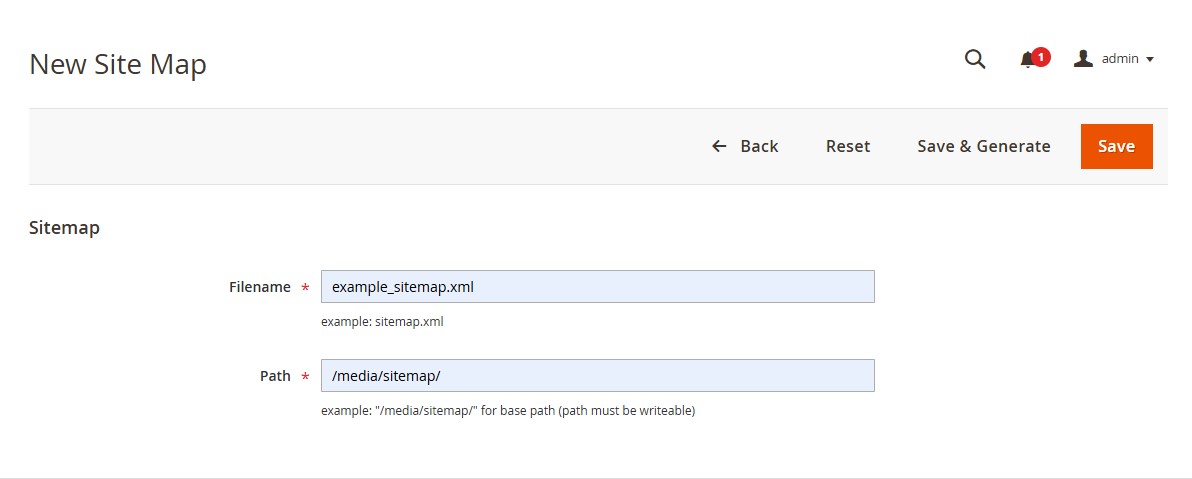
- Create the sitemap file. Navigate to Marketing → SEO & Search → Site Map, click Add Sitemap, enter the filename (for example, sitemap.xml) and the path (/ or /pub/), then select Save & Generate.
- Verify the sitemap URL. Open the sitemap in your browser to confirm it loads correctly and contains the expected URLs.
- Submit the sitemap to Google Search Console. In Indexing → Sitemaps, paste your sitemap URL and click Submit. Re-submit it whenever you make significant catalogue or URL structure changes.
- Review the sitemap regularly. Use the sitemaps report in Search Console to check for errors, compare submitted versus indexed URLs, and fix blocked, redirected, or missing pages.
Configure robots.txt correctly
The robots.txt file tells search engines which pages they should or should not crawl. A well-configured robots.txt prevents Google and other crawlers from wasting time on low-value or duplicate pages, protecting your crawl budget and reducing the risk of unnecessary pages being indexed.
Pages you typically want to block:
- Internal search pages, such as /catalogsearch/result/?q=shoes, which generate thin or duplicate content.
- Filtered or layered navigation URLs with query parameters (colour, size, price), which create large numbers of near-duplicate pages.
- Cart, checkout, and customer account pages, which have no SEO value and contain session-based content.
- Make sure you do not accidentally block product pages, category pages, blog articles, or essential CMS pages such as About Us, Contact, or FAQs.
How to configure robots.txt in Magento:
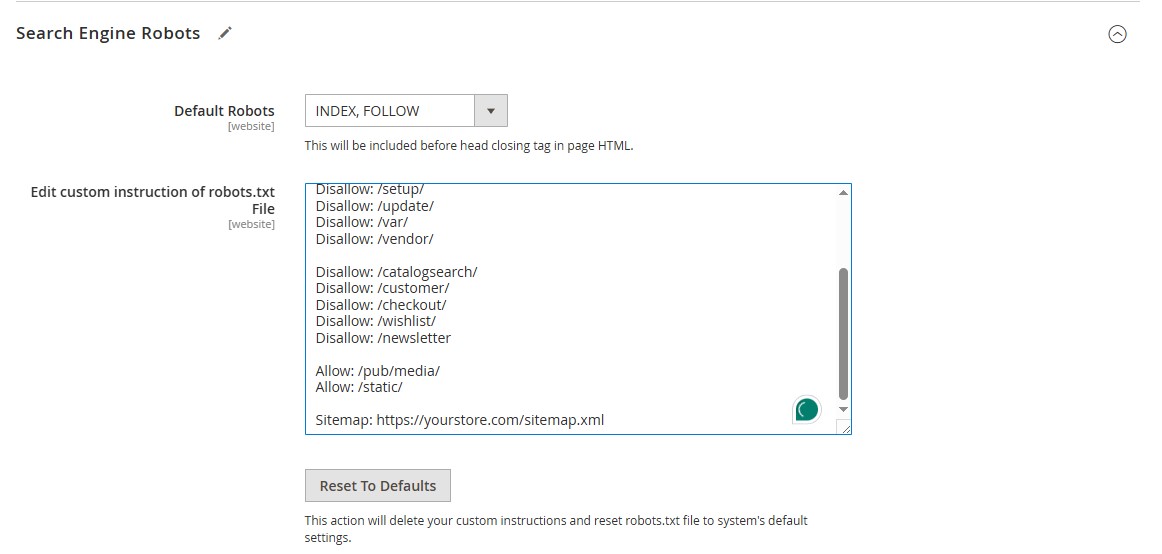
- Go to Content → Design → Configuration, choose the relevant Store View, and click Edit.
- Scroll to the Search Engine Robots section.
- Add your User-agent, Disallow, Allow, and Sitemap rules in the custom instructions field.
- Add your sitemap URL to robots.txt so search engines have another reliable way to discover it.
- Test the file using the robots.txt Tester in Google Search Console, confirming important pages are allowed and low-value URLs are correctly blocked.
If you choose to manage AI crawler access as described earlier, this is also where you add specific Allow or Disallow rules for user-agents such as GPTBot or ClaudeBot.
Add breadcrumbs to every page
Google relies on internal links to discover new pages, and breadcrumbs create clear, structured pathways that help Googlebot reach deeper content. They show the full navigation trail from the homepage to the current page (for example, Home → Women → Dresses → Midi Dresses → Product Name), which also helps users see where they are in your catalogue.
Key principles:
- Show the complete navigational path from the homepage to the current page.
- Ensure breadcrumbs exist in both the backend code (for Google) and the frontend display (for users).
How to implement breadcrumbs in Magento 2:
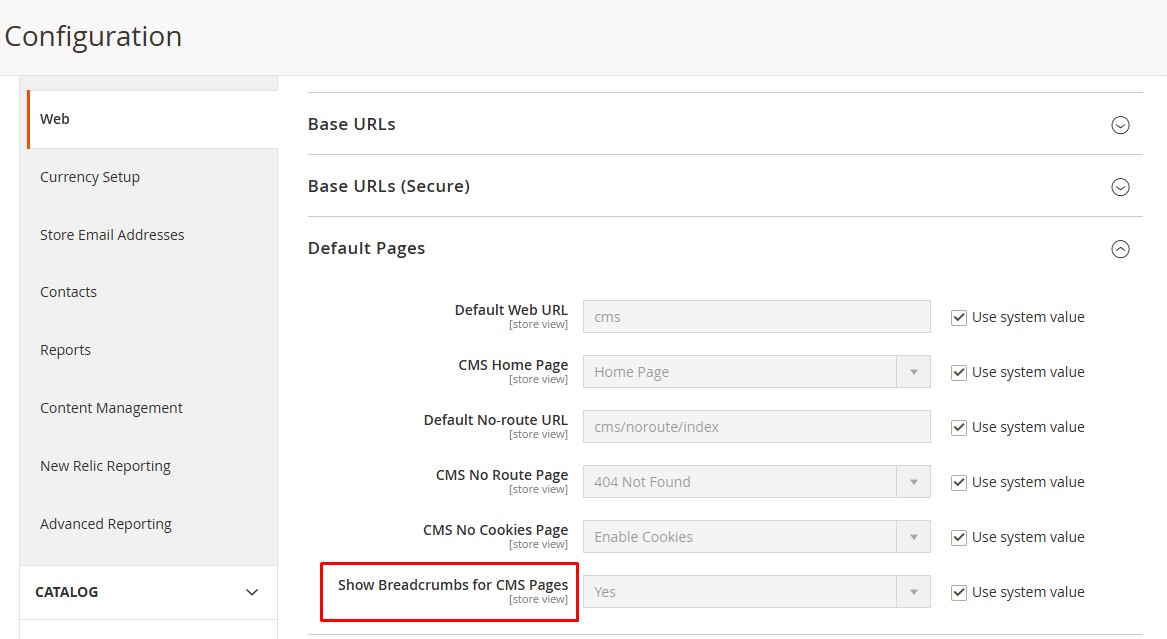
- For CMS pages, go to Stores → Configuration → General → Web → Default pages and set Show Breadcrumbs for CMS Pages to Yes.
- For product pages, assign the product to at least one active category; Magento generates the breadcrumb automatically.
- For category pages, organise categories in a proper parent-child hierarchy.
- Ensure your theme includes the breadcrumbs block in Magento_Theme/layout/default.xml, overriding the relevant layout file (for example, Magento_Catalog/layout/catalog_product_view.xml) if a page type needs custom breadcrumbs.
Set robot meta tags page by page
The robots meta tag controls how search engines handle individual pages. A typical tag looks like: meta name="robots" content="noindex, follow".
- Noindex: use when a page should not appear in search results but its links should still be followed (for example, internal search results or login pages).
- Index: the default; used for core pages that should rank, such as products, categories, and blog articles.
- Nofollow: use when Google should not pass link equity from a page (for example, checkout or temporary promotional pages).
- Follow: the default for most pages, allowing Googlebot to follow links even on pages that are not themselves indexed.
Magento does not provide a built-in way to set robot meta tags per product, category, or CMS page; the default admin panel only sets global directives. To control this page by page, use a third-party SEO module that adds a Meta Robots field to the admin interface, or add meta robots through a layout XML override if you prefer a code-based solution.
Build a logical site structure
Googlebot understands your website by crawling the internal links connecting one page to another. A clear, well-organised structure directs link authority toward your most important pages and helps Google interpret your catalogue correctly.
Strategy:
- Identify your most important pages by researching keyword search volume.
- Group keywords by search intent, mapping each group to a single page.
- Let search volume shape your hierarchy: higher-volume groups sit higher in the structure and receive more internal links, while lower-volume, more specific groups become subcategories.
How to build this in Magento:
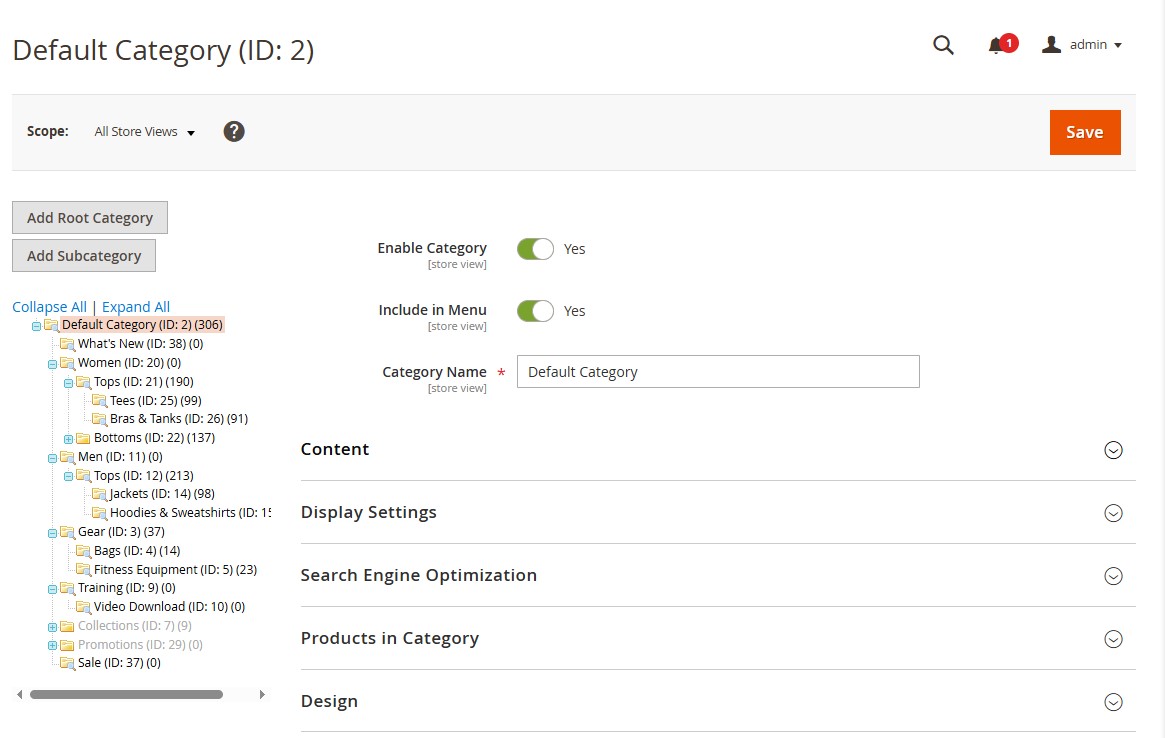
- Go to Admin → Catalog → Categories to view and shape your hierarchy.
- Create a parent category based on a primary keyword group, enter a Category Name and URL Key that reflect it, and save.
- Create child categories for more specific keyword clusters underneath the parent.
- Only build deeper levels when keyword research shows clear sub-intent.
- Assign products to the correct category levels under Catalog → Products.
- Review the storefront to confirm navigation, breadcrumbs, and product placement all reflect the intended hierarchy.
Use internal linking to build topical authority
Internal linking based on topical relevance helps Google understand the context, relationships, and depth of your content, which is a key factor in building topical authority.
Map your core topics, list all related page types within each one (category, product, blog, and CMS pages), then connect pages that share topical relevance: category to subcategory, category to product, product to related products, and blog content to the products it references. Magento automatically generates some links (subcategory to parent category, product to category via menu and breadcrumbs); everything else should be created manually.
Detailed configuration:
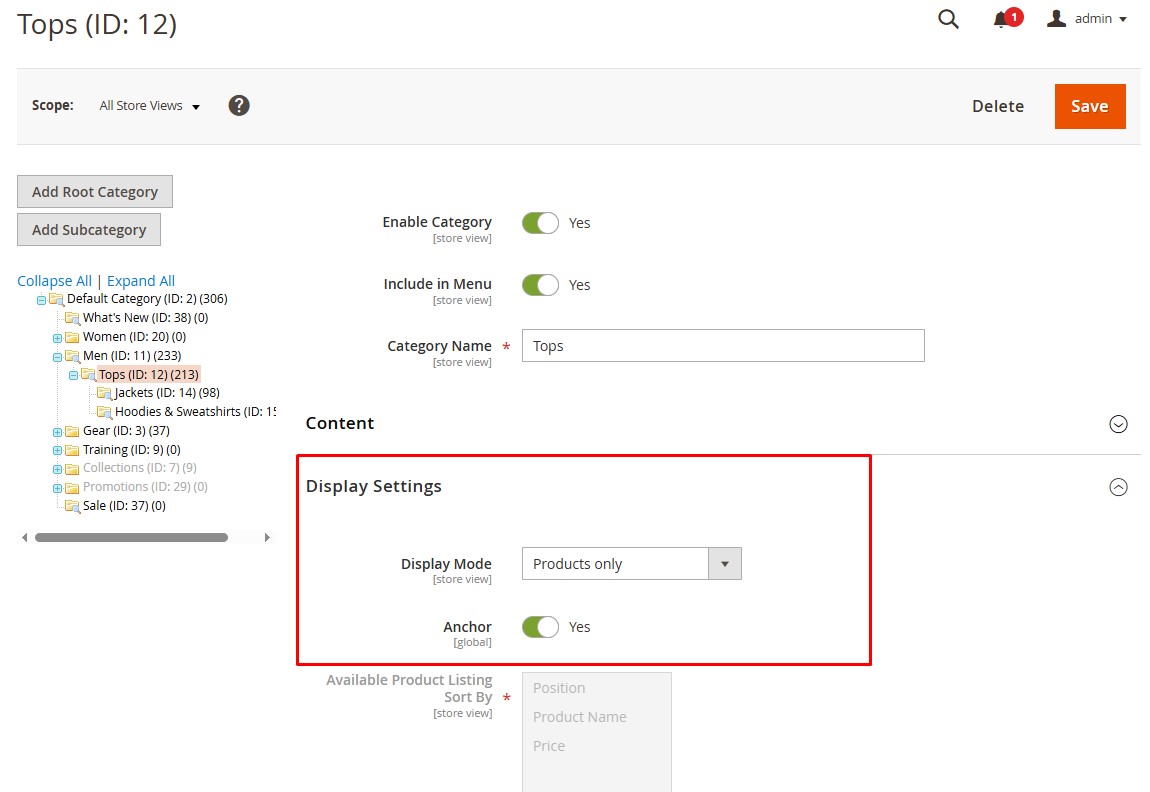
- Category to subcategory: add descriptive content with anchor-text links on parent category pages, or enable Anchor = Yes in Display Settings so layered navigation surfaces subcategories.
- Category to product: assign the product to the correct categories; Magento displays it automatically.
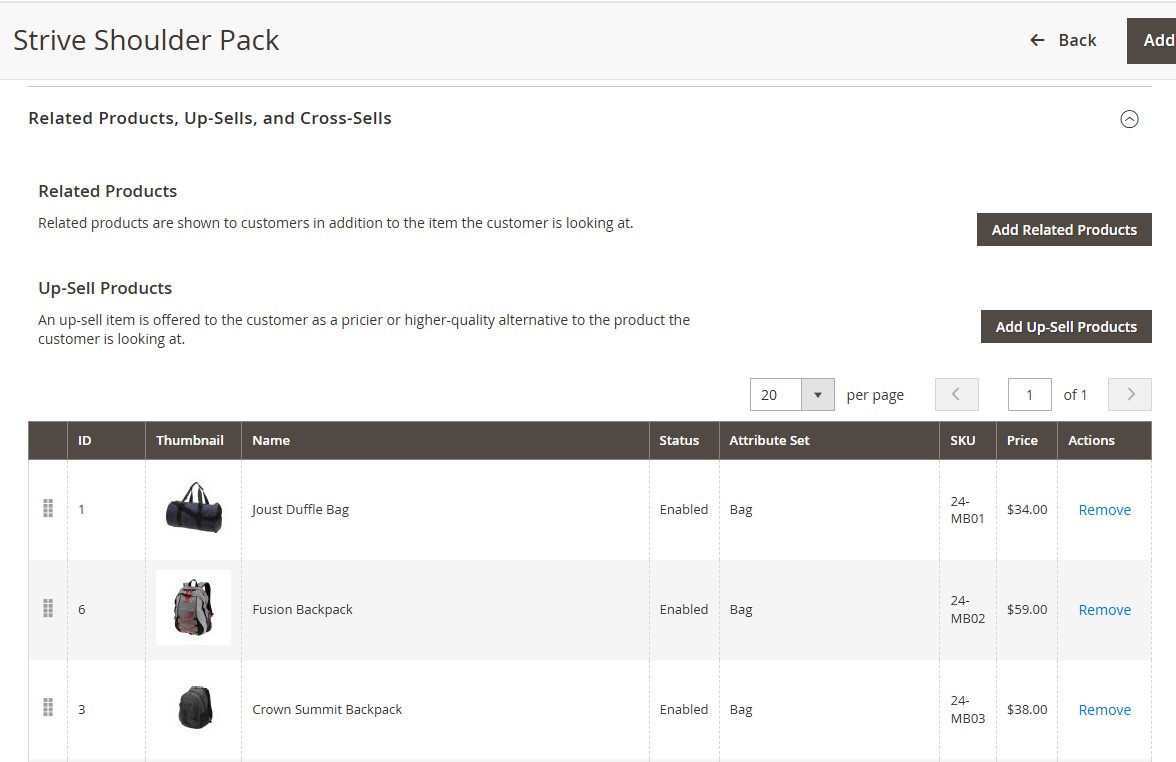
- Product to product: add Related Products, Up-Sells, and Cross-Sells under Catalog → Products.
- Content to product: link naturally from blog posts and CMS pages using keyword-rich anchor text via Insert/Edit Link.
Apply schema markup across your store
Schema markup is structured data added to your site's code to help Google understand the meaning and purpose of each page.
Where to apply it:
- Organisation or Local Business schema on your homepage and key business pages (Organisation for online-only brands, Local Business if you have physical locations).
- Product schema on every product detail page, covering name, SKU, price, availability, description, and reviews.
- Breadcrumb schema on all pages that display breadcrumbs.
- Article schema on blog posts, guides, and editorial content.
As covered earlier, extending this coverage to FAQPage, BreadcrumbList, Organization, and ImageObject schema also supports visibility in AI-generated search results.
Best practices: keep schema accurate and consistent across similar page types, avoid applying conflicting schema types to a single page, keep key attributes (price, stock, reviews) up to date, and validate structured data regularly using Google's Rich Results Test.
Write clear meta titles and descriptions
Meta titles and descriptions help Google understand a page's topic and improve click-through rate from search results.
Meta title: keep it under 60 characters, include the primary keyword, describe the content accurately, and for product pages include brand, product name, and a key attribute; for category pages, include the category name plus a modifier such as "Buy Running Shoes Online".
Meta description: write 140 to 160 characters, include secondary keywords or a unique selling point, highlight why the user should click, and make sure it matches the actual page content.
To set meta tags manually in Magento 2, go to Catalog → Products (or Categories), open the Search Engine Optimisation section, fill in the fields, and save.
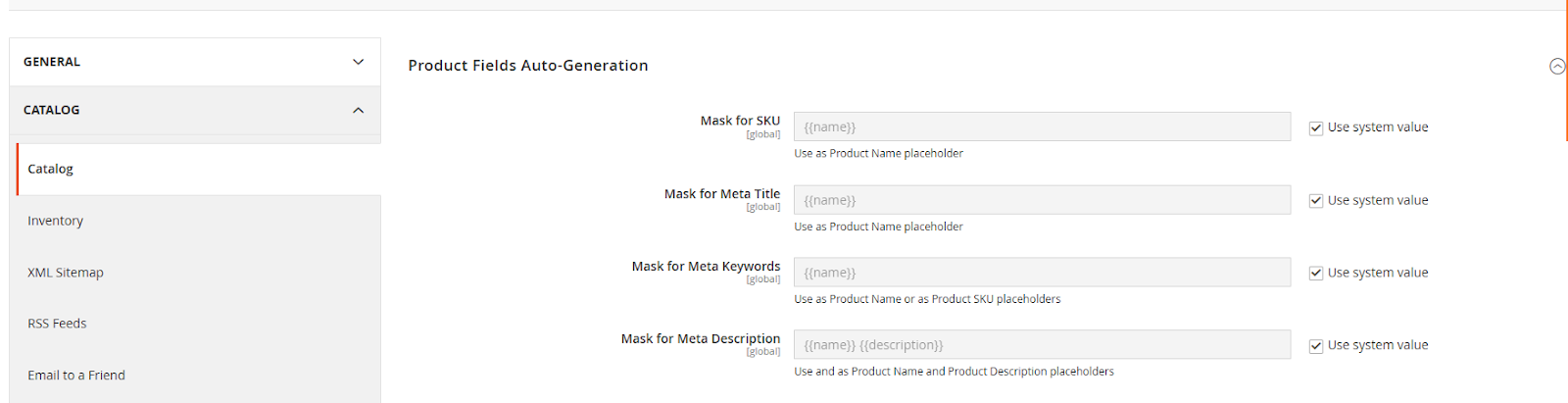
To set them automatically in bulk, go to Stores → Configuration → Catalog → Catalog → Product Fields Auto-Generation and set your title and description templates. Note that Magento only allows one global template for products, auto-generation only applies to empty fields, and template variables are limited (name, short_description, sku), so attributes like brand or material cannot be used.
Note:
-
Magento only allows one global metadata template for products, meaning auto-generated category meta titles and descriptions must be set via modules.
-
Auto-generation applies only when metadata fields are empty, so existing meta tags cannot be updated automatically.
-
Template functionality supports very limited variables (e.g., {{name}}, {{short_description}}, {{sku}}) and cannot use advanced attributes like brand, size, material, or custom fields.
Handle multilingual content without duplicate issues
Magento multilingual websites often contain multiple language versions of the same content, for example, a product page available in English, Vietnamese, French, and more. If these versions are not clearly declared as related, Google may interpret them as duplicate content. This can result in only one version being indexed, weaker overall site quality signals, and reduced visibility in each target market.
To prevent these issues, it’s essential to explicitly define the relationships between all language versions of each page.
-
Use language-specific subfolders: Organise each language version under a dedicated subfolder to help Google clearly understand language separation. For example, /en/ for English, /fr/ for French, /vi/ for Vietnamese.
-
Add locale identifiers for regional targeting: If one language serves multiple markets, use locale-specific paths. For example, /en-us/ for the United States, /en-uk/ for the United Kingdom, /fr-ca/ for French-speaking Canada.
-
Implement hreflang (rel="alternate") tags: Add hreflang annotations on every page to indicate all translated versions and prevent duplicate content misunderstandings.
-
Set canonical to the same-language page: Each page should point its canonical tag to itself to avoid cross-language canonical conflicts.
How to set up language folders and declare multilingual structure in Magento 2:
-
Step 1: Setting up language-specific subfolders
-
Create store views for each language: Go to Stores → All Stores and create a separate store view for each language (e.g., English, French, Vietnamese).
-
Assign subfolders for each language:
-
Go to Admin → Stores → Configuration.
-
In the top-left “Store View” selector, switch to the language store view.
-
Go to General → Web.
-
Set base URL for each store view, for example: https://example.com/en/, and repeat for other languages.
-
Configure URL structures with language folders: Enable Add Store Code to URLs.This ensures URLs follow a clear structure, such as /en/, /fr/, /vi/.
-
Set the locale for each store view: Go to Stores → Configuration → General → Locale Options and choose the appropriate locale for each store view (e.g., English (US), French (France), Vietnamese).
-
Step 2: Declaring multilingual settings and canonicals
-
Install language packs: Download and install the necessary language packs for your desired languages. This can be done via Composer or by manually placing the language pack files in app/i18n or app/design/frontend/{Vendorname}/{themename}/i18n.
-
Implement Hreflang tags declarations: For each store view, declare its relationship with other language versions by setting up hreflang tags. Make sure each page references all other language equivalents.
-
Ensure canonical is set per store view: Verify that every language version has a canonical URL pointing to itself, not to another language. This prevents Google from merging language variants.
Optimise Core Web Vitals to meet Google’s standards
Core Web Vitals (CWVs) are essential performance metrics that directly impact user experience and are recognised by Google as official ranking signals. You can measure these metrics using tools like PageSpeed Insights or Google Search Console.
Magento websites, especially those running the default Luma theme, often struggle with CWVs due to heavy frontend assets, render-blocking scripts, layout instability, and outdated frontend architecture.
To improve your CWV performance, focus on optimising the three key metrics:
-
LCP (Largest Contentful Paint) shows how quickly the main visible content, often a hero banner or large product image, loads. Faster LCP helps users see meaningful content sooner. Target: < 2.5s.
-
INP (Interaction to Next Paint) measures how responsive the page feels when users interact with it, replacing the older FID metric. A low INP ensures smooth, immediate feedback. Target: < 200ms.
-
CLS (Cumulative Layout Shift) tracks unexpected layout movements during loading that can disrupt the user experience. A stable layout lowers frustration and improves usability. Target: < 0.1.
Typical areas that require optimisation include:
-
Image optimisation (WebP, lazy load, proper sizing).
-
Reducing or deferring JavaScript.
-
Minimising unused CSS.
-
Optimising server response time and caching.
-
Cleaning third-party scripts and heavy widgets.
-
Improving layout stability (proper image dimensions, banner loading behaviour).
However, instead of manually fixing each performance issue one by one, a much faster and more sustainable solution is to switch to the Hyvä theme. By replacing Magento’s legacy frontend with a modern, lightweight architecture, Hyvä dramatically boosts Core Web Vitals and often delivers near-perfect scores right out of the box. Discover how our Hyvä development services can help you make the most of Hyvä and achieve stronger performance outcomes.
Sometimes, switching to Hyvä alone is not enough. While Hyvä delivers a major improvement at the frontend layer, it does not resolve deeper structural issues in the backend, such as legacy business logic, inefficient integrations, or accumulated technical debt. In these cases, Core Web Vitals optimisation becomes slow, fragile, and difficult to sustain.
This is where rebuilding on Carbon becomes the more effective path forward. Carbon is a rapid-deployment system for Magento and Adobe Commerce that allows merchants to move onto a high-performance, Hyvä-based framework while retaining full flexibility and scalability. Unlike a standard theme rebuild, Carbon delivers consistently strong Core Web Vitals across both frontend and system-level performance, a cleaner and more efficient architecture, faster development and maintenance, and stronger, more reliable SEO foundations. With Hyvä CMS built in, managing meta tags, canonical URLs, and structured data is significantly simpler and more intuitive than on the Luma stack.
Provide clear, visual product content that fully supports purchase decisions
Google prioritises product pages with complete, helpful, and visually clear content because it signals strong page quality and a positive user experience. To maximise both SEO performance and conversion rates, make sure every product page follows these key principles of helpful content:
-
High-quality product image:
-
Use high-resolution images optimised in WebP or AVIF for faster loading.
-
Include multiple angles: front, back, side, and close-up details.
-
Add lifestyle or in-use photos to help shoppers visualise the product.
-
Keep image dimensions consistent to prevent CLS and improve Core Web Vitals.
-
Product videos:
-
Use 360° videos or short feature demos that highlight the product’s key features and help customers understand the item quickly.
-
Use review or unboxing videos to build trust and credibility.
-
Clear product descriptions written for humans
-
Write unique, comprehensive descriptions; avoid copying vendor content.
-
Use bullet points to keep the content easy to scan.
-
Clearly explain what the product is, who it’s for, what value it delivers, and how it’s used in real-life situations
-
Specification tables: Present key technical information (size, materials, dimensions…) using HTML tables. Structured data in table format helps Google understand the content better and supports rich result eligibility.
-
Trust elements inside product pages: Include reviews, ratings, and relevant certifications or badges. Strong social proof improves user confidence and signals product quality to Google.
Steps to create helpful content for Magento stores:
-
Upload high-quality visual content:
-
Go to Catalog → Products → Images and Videos:
-
Convert images to WebP/AVIF using online tools or a WebP conversion module for automatic optimisation.
-
Upload images and assign them to the correct roles, like Base, Small, and Thumbnail.
-
Add product videos: In Images and Videos, click Add Video, then insert a YouTube, Vimeo or self-hosted link.
-
Create rich product descriptions: Go to Catalog → Products → Product Details and use the WYSIWYG editor to add content following the best practices above.
-
Add specification tables: Insert HTML tables into the description or create Product Attributes so Magento automatically displays structured details under Additional Information.
-
Enable product reviews: Go to Stores → Configuration → Catalog → Catalog → Product Reviews and enable reviews and ratings, and allow customers to upload images for stronger authenticity.
How do you keep your Magento SEO healthy after launch?
SEO is not a one-off task. As your store grows, new products are added, categories are reorganised, and modules or themes evolve, each of these changes affects the technical elements Google relies on: metadata, structured data, internal links, canonical rules, and performance.
This is where the last part of any seo magento programme, ongoing monitoring, becomes useful. Audit IQ is a proactive, automated monitoring platform built specifically for Magento. It checks your store around the clock for technical, SEO, and performance issues, and alerts you when something changes or breaks, including broken links and redirect issues, missing or duplicated meta tags, indexation problems such as blocked URLs or canonical conflicts, Core Web Vitals regressions, and theme or module changes that may affect SEO components.
Frequently asked questions
Do you need a third-party SEO extension for Magento?
Not always. Magento's built-in tools cover sitemaps, basic metadata, and canonical URLs. Extensions become useful mainly for page-level robot meta tags, bulk metadata rules, and some schema types the core platform does not generate automatically.
How long does it take to see results from Magento SEO changes?
Technical fixes, such as sitemap and robots.txt corrections, can affect crawling within days to a few weeks. Ranking improvements from content and structural changes typically take longer, often a few months, depending on competition.
Is there a simple Magento SEO checklist to follow?
Yes: sitemap submitted, robots.txt configured, canonical tags set, schema markup in place, Core Web Vitals passing, and metadata written for your priority pages. That short Magento SEO checklist covers the fundamentals in this guide.
What Magento 2 SEO settings should I check first?
Start with Stores → Configuration → Catalog for sitemap and metadata templates, then Content → Design → Configuration for robots.txt. These two areas hold most of the magento 2 seo settings that affect crawling and indexing.
What are the most common Magento SEO issues to check for?
Duplicate URLs from layered navigation, missing canonical tags, and slow Core Web Vitals scores are the magento seo issues that come up most often on Magento stores.
Conclusion
Optimising SEO for Magento stores is an ongoing effort that requires attention to structure, content quality, and technical stability. By applying the strategies outlined in this guide – from strengthening discoverability and clarity to improving user experience – you create a solid framework for long-term organic growth.
However, Magento’s dynamic nature means your SEO setup will continue to change. Updates to products, categories, themes, and extensions inevitably introduce new technical challenges. Audit IQ by On Tap removes this burden by automating ongoing monitoring, alerting you to issues as they arise, and helping you maintain a healthy technical foundation as your store grows.
If you need expert support implementing these Magento SEO best practices or want a partner to elevate your organic performance, On Tap’s Digital Marketing services can help. Our team specialises in technical SEO, content optimisation, CRO, and long-term growth strategies tailored for Magento stores. With decades of experience in eCommerce, we provide the audits, optimisation programs, and strategic guidance needed to keep your store performing at its best.
To discuss your goals or explore how we can support your SEO and digital marketing roadmap, get in touch with us today.