

Running a Magento store means balancing powerful functionality with fast, reliable performance. When a Magento site loads slowly, it can frustrate customers, increase bounce rates, reduce conversions and limit long-term customer lifetime value (CLV). That is why Magento speed optimization should be treated as an ongoing priority, not only something to fix when performance issues start affecting revenue.
In this guide, we’ll cover 9 proven optimization strategies that target every critical layer of your store, from the frontend theme and server setup to caching, images, modules, and more. You’ll also learn how to track your progress using reliable performance metrics like Google’s Core Web Vitals (CWVs), including Largest Contentful Paint (LCP) for loading speed, Interaction to Next Paint (INP) for interactivity, and Cumulative Layout Shift (CLS) for visual stability, along with Time to First Byte (TTFB) to measure server responsiveness. Finally, we’ll share best practices to sustain lasting results.
By applying these steps, you can speed up your Magento website, deliver a smoother shopping experience and support measurable improvements in conversions, revenue and long-term store performance.
Proven Magento 2 performance optimization strategies
Improving Magento site performance requires a mix of frontend optimization, backend adjustments, and ongoing maintenance. Below are 9 practical optimization strategies to speed up your Magento site.
Switch to using the Hyvä theme for your Magento website
The frontend theme is one of the most important areas in Magento speed optimization, as it directly affects page load speed, user experience and Core Web Vitals.
Magento’s default Luma frontend is heavy, reliant on Knockout.js, RequireJS, and LESS, and is a major reason why the Magento site is very slow even on strong servers. Hyvä was built to replace this legacy stack with a lightweight architecture that fixes Magento’s frontend bottlenecks at the root.
Here are some key ways Hyvä enhances Magento website performance:
-
Lightweight framework: Hyvä replaces Magento’s heavy Knockout.js and RequireJS frameworks with Alpine.js, a minimal JavaScript library. This reduces the number of scripts loaded, cutting page load times and improving interaction speed (INP scores).
-
Efficient CSS implementation: Instead of Magento’s LESS-based styles, Hyvä uses Tailwind CSS, a utility-first framework that only loads the styles developers use. This reduces CSS file size and dramatically improves Largest Contentful Paint (LCP), especially on mobile devices.
-
Lazy loading: Hyvä includes native performance features, such as image lazy loading, which can be enabled directly in the Magento Admin (from version 1.3.10). These features reduce the initial page load time by deferring non-critical content until it's needed. In contrast, Magento’s default theme (Luma) does not natively support lazy loading and often requires custom development to enable it.
-
Minimised HTTP requests: By eliminating redundant JavaScript and CSS dependencies, Hyvä significantly reduces the number of server requests needed to load a page — leading to faster Time to First Byte (TTFB) and INP.
-
Efficient caching: Hyvä’s architecture supports better caching of static assets, helping maintain fast performance even under heavy traffic loads, such as during Black Friday or holiday sales. This ensures consistent performance and supports better TTFB scores, a critical part of Magento 2 optimization.
Multiple case studies and user feedback have shown that websites using Hyvä have achieved substantial success in performance. Over 50% of stores built with Hyvä pass Core Web Vitals standards — compared to only 19% for standard Magento themes, 6% for Vue Storefront, and 2.4% for Magento PWA Studio. This makes Hyvä 250% more successful at delivering real-world performance improvements, directly boosting SEO rankings and conversion rates.
In addition to supporting the speed-up of Magento websites, Hyvä also offers the following benefits:
-
Faster time to market: Hyvä’s simple frontend structure means new Magento sites can be built and launched 30–50% faster than traditional Luma-based projects.
-
Lower development and maintenance costs: Cleaner code means fewer bugs, faster updates, and lower maintenance costs over time.
Real-world case studies on optimizing speed for Magento website
On Tap has successfully implemented Hyvä for several clients, demonstrating its effectiveness in real-world scenarios:
-
Harmony Store case study: Struggling with slow load times and poor user experience on a default Magento Luma theme, Harmony Store partnered with On Tap to implement the Hyvä theme. After switching to the Hyvä theme with On Tap's expert implementation, the website achieved a 68% improvement in page load times and exceeded Google’s benchmarks of Core Web Vitals scores.
These technical improvements translated into tangible business benefits: the store saw a 32% uplift in conversion rates and a notable improvement in customer retention, as faster load times enhanced the overall shopping experience -
Countrywide Healthcare case study: Countrywide Healthcare’s complex B2B Magento site faced major performance issues. On Tap’s Hyvä theme implementation helped the brand overcome this issue, which led to drastic improvements across all key performance indicators.
After switching to Hyvä, Countrywide Healthcare achieved a 65% reduction in page load times across all storefronts and significantly improved its Core Web Vitals metrics. These performance enhancements directly strengthened the site's SEO rankings and contributed to a 30% increase in overall conversion rates.
Upgrading to the Hyvä Theme is one of the most effective answers to how to make a Magento website faster, helping future-proof your Magento store. As a certified Hyvä Silver Partner, On Tap provides expert Magento developers who specialise in maximising Hyvä’s performance advantages. With our proven expertise, you can achieve faster load times, higher Core Web Vitals scores, stronger SEO rankings, and a smoother shopping experience that drives more conversions. Explore our Hyvä development services today and unlock the full potential of Hyvä to drive measurable business growth.
For merchants looking to go live even faster, explore Carbon — a quick-start eCommerce solution. Carbon accelerates your site’s launch in weeks while combining Hyvä’s performance with a fully functional, scalable platform optimized for both B2C and B2B needs. With Carbon, you unlock a high-performance store built for growth right from day one.
Keeping your Magento store updated with the latest version
One effective way to increase Magento 2 page speed is to keep your site updated regularly. Every new release fixes Magento performance issues and delivers faster page rendering, smoother checkout workflows, and more efficient indexing. Staying on an outdated version means your store is burdened with legacy code that slows page generation, causes bottlenecks with newer PHP/MySQL versions, and increases the risk of errors that degrade performance.
To confirm whether your store is on the latest release, check which Magento version you’re using here. If it’s outdated, schedule an upgrade so your site can benefit from the newest performance optimizations, improved stability, and enhanced security.
How to update to the latest Magento version?
-
Prepare and review system requirements: Back up code, database, and media. Confirm that your server stack (PHP, MySQL, Elasticsearch/OpenSearch) supports the target Magento version. In Magento Admin: Go to System → Tools → Backups to generate on-demand backups before starting.
-
Create a dedicated Git branch and staging environment: Clone production to staging for safe testing. Use bin/magento config:set in staging to adjust URLs and disable cron jobs that should not run in test environments.
-
Run the upgrade with Composer:
composer require magento/product-community-edition 2.4.x --no-update
composer update
bin/magento setup:upgrade
bin/magento setup:di:compile
bin/magento setup:static-content:deploy -f
bin/magento cache:flush
bin/magento indexer:reindex
-
Test thoroughly in staging: Validate checkout, cart, payments, search, and login. Benchmark Core Web Vitals (LCP, INP, CLS) and TTFB before/after the update. In Magento Admin: Use Reports → Marketing → Customer Shopping Cart to confirm carts behave normally.
-
Check module and theme compatibility: Ensure all third-party modules and custom themes work with the new version. In Magento CLI: run bin/magento module:status to list enabled modules, and disable non-critical ones with bin/magento module:disable Vendor_Module if needed.
-
Deploy to production: Use CI/CD or zero-downtime deployment (blue-green or symlink switch) to roll out the upgrade safely. During deployment, run bin/magento maintenance:enable and bin/magento maintenance:disable to control downtime if blue-green is not available.
-
Monitor post-deployment: Watch logs (var/log/) and performance metrics for 24–48 hours to catch issues early. In Magento Admin: check System → Support → System Report for errors, and monitor cache status under System → Cache Management.
-
Repeat regularly: Follow Magento’s release schedule and apply security/quality patches promptly to avoid technical debt and keep performance improvements.
Keeping Magento up to date isn’t just a technical detail — it’s a performance advantage. Learn what the newest release includes and how it can impact your store in Magento latest version: Magento 2.4.8 released - Key features you shouldn't miss.
Optimizing the server your Magento website uses
Your server environment plays a critical role in Magento website optimization by directly influencing Time to First Byte (TTFB) and overall loading speed. Here are three key tips to optimize your server setup for Magento.
Choose the right hosting type
Selecting the right hosting type is critical for Magento performance and long-term scalability, both of which are essential for effective Magento 2 page speed optimization. Magento stores typically run on one of four hosting models: shared hosting, virtual private servers (VPS), dedicated servers, or cloud infrastructure. Each option offers a different balance between cost, control, and performance — and the right choice depends on your store's size, complexity, and growth expectations.
-
Shared hosting offers an entry-level option where multiple websites share resources. While suitable for initial testing or very low-traffic stores, shared hosting is generally not recommended for Magento production sites due to stability and performance limitations.
-
VPS hosting provides a Magento store with a dedicated share of a physical server’s resources. While multiple users share the same physical server, each VPS operates independently with its own allocated CPU, memory, and storage. This setup offers better performance, stability, and flexibility compared to shared hosting.
VPS is a cost-effective option for small to mid-sized stores that expect moderate traffic but still need reliable speed and security. However, managing a VPS may require technical expertise, and performance can vary depending on how the underlying physical server is managed. -
Dedicated server hosting means your Magento website runs on an entire physical server that is reserved exclusively for your use — you do not share server resources (CPU, memory, storage, bandwidth) with any other websites. This setup offers maximum performance, complete control over server configurations, and higher security compared to shared or VPS hosting.
Dedicated servers are typically chosen for Magento stores with high traffic volumes, large product catalogues, complex integrations, or specific server customisation needs. However, they come with higher costs and require technical expertise to manage and maintain efficiently. -
Cloud hosting stores your Magento website across multiple interconnected servers instead of relying on a single physical server. This setup allows resources like CPU, memory, and storage to be allocated flexibly based on your site’s needs. If one server fails or becomes overloaded, another server in the network automatically steps in, improving reliability and uptime.
For Magento, cloud hosting offers better scalability to handle traffic spikes, seasonal demand, or rapid growth. It can support Magento stores of any size, from small businesses to large enterprises. Costs are usually based on actual resource usage rather than a fixed server plan. However, cloud hosting can be more complex to configure correctly, especially for Magento’s caching, database, and file system requirements.
Ensure your server meets Magento's minimum system requirements
Meeting Magento’s minimum system requirements is a foundational step in any successful Magento optimization process, ensuring stable and efficient website performance. These requirements serve as the technical foundation that supports the Magento application and helps prevent performance bottlenecks.
According to Adobe's official documentation, a standard Magento installation requires.
-
Operating System
-
Linux x86-64 distributions (Ubuntu, CentOS, Debian, or Red Hat).
-
Windows and macOS are not supported for production.
-
Web Server
-
Apache 2.4 with required modules (mod_rewrite, mod_version, mod_ssl).
-
Or Nginx 1.18 or later, configured for Magento.
-
PHP
-
PHP 8.1 or 8.4 (depending on the Magento version).
-
Required extensions: bcmath, ctype, curl, dom, gd, intl, mbstring, openssl, pdo_mysql, simplexml, soap, xmlwriter, xsl, zip, and more.
-
Database
-
MySQL 8.0 or 8.4, or MariaDB 10.4, 10.5, or preferably 10.6 (depending on Magento version).
-
Search Engine
-
OpenSearch 2.x (preferred for latest Magento versions).
-
Elasticsearch 7.x supported for older Magento 2.4.x versions.
-
Memory
-
Practically speaking, a minimum of 8GB is required if you are running MySQL, OpenSearch, and the web server application on the same server.
-
SSL / HTTPS
-
Valid SSL/TLS certificate required.
-
Server should support TLS 1.2 or later.
-
Redis
-
Redis 7.2 is required for session and page caching. It replaces file-based storage to improve site performance and reduce database load.
Why must these requirements be met?
-
Performance: Magento’s resource-intensive architecture demands robust server resources to improve Magento site performance and scalability.
-
Security: Keeping operating systems, PHP versions, and SSL/TLS protocols up-to-date protects customer and payment data.
-
Compatibility: Magento versions are tested against specific server software versions; unsupported stacks cause errors and instability.
-
Supportability: Adobe only provides official support for hosting environments that comply with system requirements.
Choose the right server location
The physical location of your Magento server affects how quickly your website can respond to visitor requests — playing a crucial role in Magento site performance optimization. When a customer’s browser connects to your server, each request must travel through multiple networks. The greater the distance, the higher the network latency, which can lead to slower page loads.
What to look at when deciding on your server location:
-
Host near your primary users: It is important to understand where your customers are. If most of your shoppers are in the UK, hosting your server in London or another UK data centre is generally advantageous.
-
Use a CDN for global visitors: If you sell internationally, a CDN can deliver static assets from locations closer to customers without moving your main server.
-
Comply with legal requirements: Compliance is another factor to consider. For instance, GDPR may require that European customer data stay within the EU unless adequate protections are in place. Certain sectors (such as healthcare or finance) may have even stricter requirements.
-
Prioritise infrastructure quality: Proximity alone isn’t enough — choose a server in a data centre with strong network quality, uptime guarantees, and proven Magento hosting experience.
-
Test actual latency: Before selecting a host, it is advisable to test server response times from different customer regions and to assess the provider's network quality, redundancy measures, and technical support availability.
On Tap, with 19+ years of experience, offers a specialized Magento hosting solution that delivers infrastructure specifically engineered for eCommerce performance.
-
Our service features autoscaling that adapts to your traffic demands, proactive monitoring with Audit IQ — addressing issues before they affect your store.
-
We also offer hybrid cloud solutions and custom server architectures, allowing you to tailor hosting environments to specific business needs.
With On Tap’s expertise, you can focus on growing your business while leaving the technical complexities in capable hands.
Configuring caching for your Magento store
Caching is one of the fastest ways to speed up your Magento website. By serving pre-rendered pages and data from memory, you cut down PHP executions, reduce MySQL load, and deliver TTFB in a fraction of a second. File-based caching is not viable for production — disk input/output (I/O) slows everything down. Instead, configure Varnish for full-page cache and Redis (or Valkey) for sessions and backend cache.
How to configure caching in Magento:
-
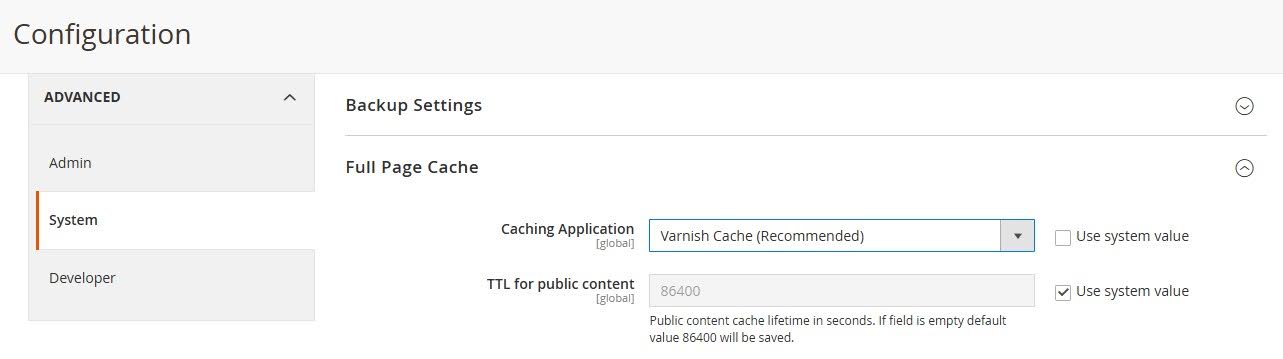
Enable Full Page Cache (FPC): Magento includes Full Page Cache out of the box, and enabling it is a core step in Magento site speed optimization. Make sure it is enabled to serve pre-built pages quickly, reducing the need for Magento to re-render content on every request. In Stores → Configuration → Advanced → System → Full Page Cache, set Caching Application to Varnish or Built-in Cache to ensure pages are cached instead of re-rendered.
-
Use Varnish as the production cache: Varnish is a high-performance HTTP accelerator that serves cached pages directly from memory, significantly reducing Time to First Byte (TTFB), improving responsiveness for all users, and reducing server load during traffic spikes. First, install Varnish as a separate application on your server, and configure caching behavior using the default.vcl file, and then point Magento to it under the Full Page Cache settings in Admin.
-
Configure Redis for sessions and cache storage: Using file-based storage for sessions and cache can slow down Magento, especially on high-traffic stores. Redis provides fast, memory-based storage that speeds up session handling and cache retrieval. To configure, update app/etc/env.php to set Redis as the backend for sessions and cache storage, using separate databases for each. This ensures session data and cache don’t conflict and avoids slow disk I/O.
-
Set proper cache rules and modules: Not all pages should be cached. Dynamic routes like /checkout/*, /customer/*, and cart pages must be excluded to prevent serving incorrect or outdated content, while catalog and CMS pages should maximize cache hits for speed. To configure, manage module caching under System → Cache Management, and apply route exclusions either via Magento Admin, where possible or in Varnish/server cache rules for complex scenarios.
-
Monitor cache hit ratios: Regularly tracking cache hit/miss ratios helps identify regressions and fine-tune efficiency. To measure overall cache performance and detect issues early, you can use Magento’s built-in cache reports, Varnish logs, or external tools like New Relic.
-
Test cache configurations in staging: Before deploying any caching changes to your live store, test them thoroughly in a staging environment. This is the best way to confirm that pages are loading correctly and that personalized content isn't being improperly cached and shown to the wrong users.
Optimizing the images your Magento website delivers
High-quality product images are essential for conversions, but oversized files can slow down page loads significantly. Image optimization reduces file size without compromising visual quality, helping your store load faster and rank better in search engines.
-
Compress images before uploading: Large, uncompressed product and banner images are one of the most common causes of slow Magento stores. By making compression part of your content workflow, you ensure every new asset is lighter without losing visual quality. Tools like TinyPNG, ImageOptim, or dedicated Magento modules can automate this process so your team doesn’t need to manually optimize each file. This reduces page weight and speeds up both category and product page loads.
-
Adopt modern formats such as WebP: JPEG and PNG remain widely used but are often heavier than necessary. Converting to WebP can shrink file sizes by 25–34% while maintaining the same clarity. Many CDNs and Magento optimization modules, like Magento 2 WebP Image extension, now support auto-conversion, meaning you can keep original files in the media library but serve WebP versions to browsers. This lowers bandwidth usage, accelerates rendering, and improves Google PageSpeed Insights scores.
-
Use responsive images across devices: Mobile traffic dominates most Magento stores, yet many still serve desktop-sized images to mobile users. Implementing responsive image techniques ensures that browsers load the correct resolution for each device type. This reduces unnecessary data transfer on mobile networks, speeds up product detail pages, and improves user experience for shoppers browsing on slower connections. In Magento: update theme .phtml templates to add srcset and sizes attributes on <img> tags, ensuring smaller versions are served to mobile devices.
-
Optimize thumbnails separately: Category and search pages display dozens of product thumbnails at once, multiplying their performance impact. If thumbnails are not properly optimized, these pages can feel sluggish even if product detail pages are fast. In Magento: adjust thumbnail sizes under Stores → Configuration → Catalog → Product Image Settings and clear generated thumbnails in /pub/media/catalog/product/cache/ to regenerate optimized versions.
Implement lazy loading
Lazy loading is a technique where images or other media are not downloaded until they are needed — usually when the user scrolls to that part of the page. Instead of loading every image immediately, the browser initially loads only the content visible above the fold. As the shopper moves down the page, additional images are fetched in real time.
Even optimized images can still hurt performance if they all load at once. By deferring the loading of non-visible images, lazy loading reduces initial page weight, shortens first render time, and directly improves Core Web Vitals like Largest Contentful Paint (LCP) and Interaction to Next Paint (INP).
How to implement lazy loading in Magento:
-
Enable Magento’s built-in lazy loading support: In Magento 2.4.x and later, lazy loading is native. Enable it under Stores → Configuration → Advanced → Developer → Media Settings to apply loading="lazy" to product and content images with minimal effort.
-
Use reliable third-party modules for older versions: For stores on Magento 2.3 or earlier, add lazy loading through a well-coded module. Choose trusted vendors to avoid conflicts with your theme or checkout.
-
Test lazy loading across all image types: Confirm it works not only on product images but also on banners, sliders, and thumbnails. Misconfigured lazy loading can cause CLS (layout shifts) or missing visuals.
After enabling lazy loading, track improvements using PageSpeed Insights or Lighthouse. Re-test after catalog or theme updates to confirm gains persist.
Minifying and streamlining CSS/JS delivery
Magento’s default frontend stack (Knockout.js, RequireJS, and heavy Luma theme bundles) generates bulky CSS and JavaScript payloads that block rendering and slow down interactivity. Even with a fast-loading backend, these assets remain a common bottleneck for Core Web Vitals such as LCP and INP. To optimize Magento performance, developers need to trim, defer, and restructure asset delivery rather than relying on Magento’s defaults.
How to streamline CSS and JavaScript in Magento:
-
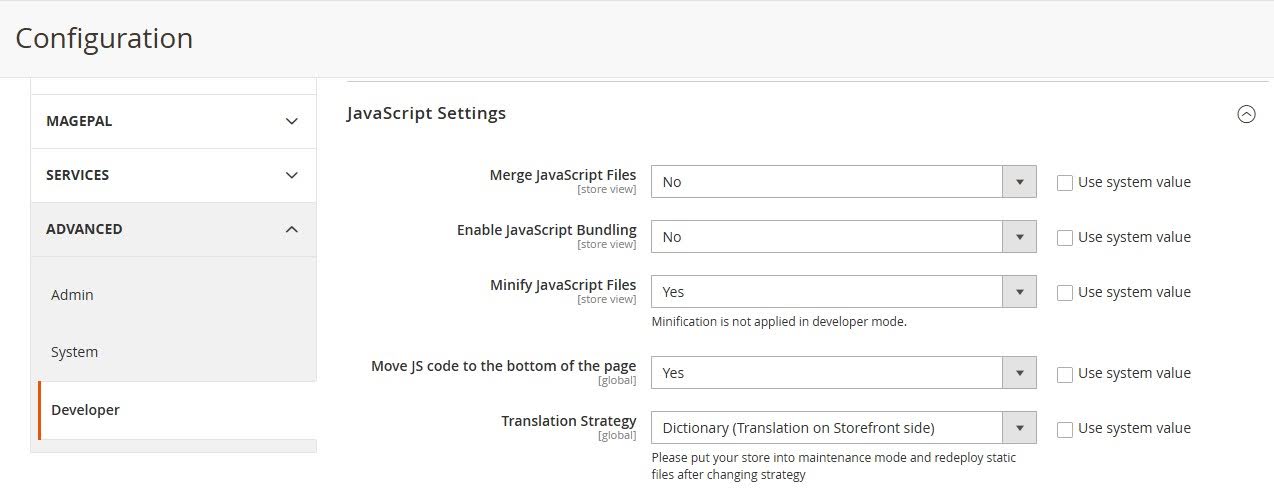
Disable Magento’s default JS bundling: Magento’s default JavaScript bundling can sometimes increase Magento site speed due to unnecessary code being loaded on every page. Disabling it ensures only necessary scripts are executed, improving responsiveness. In Magento Admin, go to Stores → Configuration → Advanced → Developer → JavaScript Settings and set Enable JavaScript Bundling to No.
-
Minify and compress CSS/JS: Unminified or uncompressed files increase the amount of data the browser must download, slowing page rendering. Minification removes unnecessary characters from each CSS and JavaScript file, reducing file sizes and speeding up page loading time. To activate, go to Developer → CSS/JavaScript Settings in Admin and set Minify JavaScript and Minify CSS to Yes. For further reduction of transfer payloads, you can enable Gzip or Brotli compression at the server level (Nginx/Apache).
-
Remove unused code: Extra CSS and JavaScript from unused modules or themes adds unnecessary bloat, slowing page rendering and increasing bundle sizes. To address this, audit your installed modules using bin/magento module:status and disable or remove any that aren’t needed. Then, strip unused CSS from your theme with tools like PurgeCSS or other build tools, ensuring only essential styles are loaded and improving overall frontend performance.
-
Reduce render-blocking resources: Scripts and CSS that block rendering delay page display and increase Largest Contentful Paint (LCP). To speed up perceived load time in Magento, enable Move JS code to the bottom of the page in Developer → JavaScript Settings and inline only critical CSS manually or via a build tool.
-
Optimize RequireJS configuration: RequireJS manages JavaScript modules in Magento. Unnecessary shims, paths, or global initialisers can increase Magento website speed. To address this, edit requirejs-config.js in your theme to remove unused shims/paths and prevent loading unnecessary global scripts.
-
Test and monitor continuously: Even after optimizations, scripts and styles may still impact performance. Continuous testing ensures improvements are effective. Use bin/magento dev:source-theme:deploy to deploy static assets in staging, then benchmark bundle sizes and frontend performance with Lighthouse or PageSpeed Insights.
Auditing the modules your Magento store relies on
Every Magento store depends on a combination of built-in features and third-party modules to provide full functionality. However, each module adds to Magento’s processing load, increases database queries, or can create conflicts that impact performance. Over time, unused, outdated, or poorly coded modules can accumulate and slow down your site. Conducting regular module audits helps keep your store lean, fast, and secure by ensuring only the code that truly adds value is running.
How to audit Magento modules effectively:
-
Review all installed modules regularly: Run bin/magento module:status to list active/inactive modules and disable any that are no longer needed.
-
Check module performance impact: Profile requests with New Relic, Blackfire, or the built-in Magento profiler to see which modules add queries or slow page execution.
-
Assess code quality and vendor reputation: Scan code against Magento Coding Standards (PHP_CodeSniffer/PHPStan) and stick to modules from vendors with a reliable update history.
-
Monitor compatibility after updates: Each Magento upgrade (or PHP/MySQL upgrade) can break module compatibility. Verifying that modules still function correctly after updates avoids unexpected slowdowns or site errors.
-
Remove or replace problematic modules: If a module is outdated, abandoned, or negatively affecting speed, consider replacing it with a lighter alternative or custom-built solution.
-
Test module combinations in staging: Some performance issues come from module conflicts rather than individual modules. Always test interactions between modules in a staging environment to ensure stability and speed.
-
Document your module stack: Keep a record of which modules are installed, why they are needed, and their performance impact. This documentation makes future audits faster and supports better decision-making when scaling.
Set up Content Delivery Network (CDN)
A Content Delivery Network (CDN) boosts Magento speed by caching and serving static assets (CSS, JS, images, fonts, videos) from edge servers around the world. This shortens the distance between your store and your customers, reducing latency, lowering origin server load, and improving Core Web Vitals like TTFB and LCP.
How to set up a CDN in Magento:
-
Point static and media files to the CDN: Serving static assets and media from a CDN ensures that theme files, images, and other resources are delivered from a globally distributed network. This reduces server load, decreases latency, and speeds up delivery for shoppers in different regions. In Admin, go to Stores → Configuration → Web → Base URLs (Secure) and set Base URL for Static View Files and Base URL for User Media Files to your CDN domain (e.g., https://cdn.example.com/).
-
Enable static file signing: Versioned URLs allow browsers and CDNs to cache static files effectively while ensuring updates are reflected immediately, preventing stale content from being served. In Stores → Configuration → Advanced → Developer → Static Files Settings, set Sign Static Files = Yes.
-
Use long cache lifetimes: Proper cache lifetimes for CSS, JS, fonts, and media reduce repeated requests to the origin server and improve bandwidth. Set headers so CSS/JS/fonts have max-age=31536000, immutable, while /media/ files get shorter TTLs (1–7 days) for frequent updates.
-
Strip cookies and unnecessary query strings: Cookies and extra query parameters can interfere with CDN caching and fragment cached resources. To optimize, make sure /static/ and /media/ responses don’t include cookies. Keep versioning query strings (?version=) to handle cache updates, but remove analytics or tracking parameters such as utm_* and fbclid.
-
Leverage advanced CDN features: Modern CDN features like Brotli compression, HTTP/2 or HTTP/3, and image optimization (WebP/AVIF, responsive resizing) further reduce load times and improve frontend performance. Enable these features in your CDN dashboard if supported.
-
Automate cache purges: After deploying new static files, old cached versions must be invalidated to ensure users receive the latest content. Add CDN API calls to your CI/CD pipeline to purge paths like /static/versionXXXX/* after each release.
-
Continuous monitor performance: Continuous monitoring ensures your CDN setup is effective and delivering the expected speed improvements. Check headers like X-Cache or CF-Cache-Status and compare origin vs CDN traffic to verify performance gains.

Key metrics to track for Magento page speed optimization
After applying the above Magento speed optimization strategies, the next step is to test their true impact on your site. The key is to look at how your site performs for real users — across different devices, networks, and browsers — not just in controlled lab tests. Using clear, standardised metrics ensures that every technical improvement delivers faster performance and a smoother customer experience.
Core Web Vitals (CWVs) and Time to First Byte (TTFB) are the industry benchmarks that define web performance. They reveal how quickly content loads, how smoothly users can interact, and how stable the layout remains while browsing.
The key metrics to track are:
-
Largest Contentful Paint (LCP): Time for the largest visible element (e.g., product image, banner) to render. On Magento, slow LCP is usually caused by heavy media, inefficient page structure, unoptimized JavaScript, and bloated themes like Luma. Server strain and extra third-party scripts can worsen delays.
-
Interaction to Next Paint (INP): Delay between a user action and the next screen update. Magento’s large JS bundles, blocking resources, or slow server responses after interactions often lead to poor INP.
-
Cumulative Layout Shift (CLS): Visual instability from elements moving as the page loads. Common in Magento themes, especially Luma, due to missing image dimensions or unoptimized font loading.
-
Time to First Byte (TTFB): Time from request to first server response. In Magento, high TTFB comes from complex page generation, large database queries, and reliance on dynamic content. Server performance and caching are decisive factors.
To guide businesses in assessing their website performance, Google has defined clear thresholds for CWVs and TTFB.
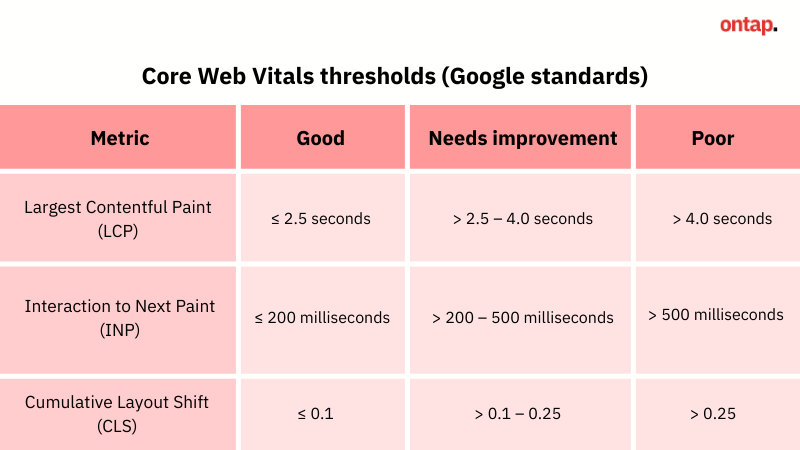
How to use these metrics to track optimization progress:
-
Aim for “Good” scores on all CWVs and a low TTFB. If not immediately achievable, set phased targets (e.g., reduce LCP or TTFB by 20–30% in the first round).
-
Re-test your store after each optimization (theme change, caching, CDN, image compression, etc.) to confirm improvements.
-
Use free tools like Google PageSpeed Insights or Chrome User Experience Report (CrUX) to monitor CWVs and TTFB with real-user data.
-
Compare results over time to measure how performance gains translate into better user experience and higher conversions.
Important notes for achieving the best Magento optimization results
Achieving peak performance for your Magento website requires ongoing focus, proactive testing, and strategic planning. Here are key principles to maximise your optimization efforts:

Validate Magento performance before making changes
Before applying any optimization strategies, it’s essential to know exactly where your Magento store stands today. Without a baseline, you can’t measure whether changes improve performance or accidentally introduce regressions.
Testing first ensures you:
-
Set a benchmark with Core Web Vitals and TTFB: Record current performance so you have a baseline for measuring improvements.
-
Identify true bottlenecks: Testing shows whether slowdowns come from the server, database, frontend, or modules.
-
Target improvements efficiently: Focus effort on the areas that deliver the biggest gains instead of guessing.
-
Measure ROI: Compare before/after metrics to prove results and link performance work to business impact.
How to test Magento store performance:
-
Measure Core Web Vitals and TTFB: Measuring Core Web Vitals and Time to First Byte is the first step in any Magento speed optimization process. Use Google PageSpeed Insights or Lighthouse to benchmark Largest Contentful Paint (LCP), Interaction to Next Paint (INP), Cumulative Layout Shift (CLS) and Time to First Byte (TTFB). These are the key indicators of Magento performance from a user’s perspective.
-
Profile backend execution: For effective Magento 2 speed optimization, frontend metrics should be supported by backend profiling. Enable the Magento profiler or integrate tools like New Relic or Blackfire to identify slow modules, inefficient PHP code or heavy database queries that impact performance. For example, add MAGE_PROFILER=html to your index.php in a staging environment to enable Magento’s built-in profiler, or install the New Relic PHP agent on your server to capture transaction traces and slow query reports.
-
Monitor server health: Server performance has a direct impact on Magento speed optimization, especially when high CPU usage, memory limits or slow database queries increase TTFB. Log in via SSH and run htop to check CPU and memory, enable MySQL slow query logs in my.cnf to capture heavy queries, and review hosting dashboards, such as AWS CloudWatch, to spot resource spikes early.
-
Validate with real users: Magento 2 speed optimization should be validated with real user data, not only lab tests. Enable Real User Monitoring (RUM) in tools like New Relic, SpeedCurve or your CDN to capture actual customer experiences across devices, browsers and networks, ensuring Magento performance is measured in production conditions.
For a detailed breakdown of recommended tools and best practices, see our full guide.
Test all states and pages thoroughly
Many Magento performance issues only emerge under real-world conditions, especially when logged-in users interact with carts, search, or account features. That’s why any serious optimization Magento approach should include performance testing across both guest and logged-in states on desktop and mobile devices. Each combination can trigger different behaviors, caching layers, and content delivery patterns.
For example, during load testing, a retailer should simulate logged-in customers with active carts to uncover bottlenecks not visible to guest traffic. Omitting critical page types or user states often results in performance gaps that directly affect conversion rates and revenue.
Treat optimization as a continuous process
Magento’s performance is dynamic — impacted by factors such as platform upgrades, module updates, and frontend changes. As such, optimisation cannot be a one-off project. It must be operationalised into your ongoing site management.
To streamline this process, On Tap’s AuditIQ provides continuous, real-time monitoring tailored for Magento environments. AuditIQ integrates directly with your eCommerce operations, scanning your store's technical, marketing, and customer experience layers around the clock. By embedding regular performance monitoring with solutions like AuditIQ, you can respond faster to risks, maintain consistently high site performance, and support ongoing revenue growth.
Start optimisation before peak periods
High-demand seasons like Black Friday or holiday sales can place significant strain on your Magento website.
For effective Magento speed optimization, peak-season preparation should start well before traffic spikes. This is especially important for Magento 2 speed optimization, where performance under pressure depends on scaling server resources, tuning Magento’s application and database layers, and load testing key customer journeys such as search, product pages and checkout. By optimising early, you protect revenue, maintain customer trust and minimise operational risk during critical trading periods.
Prioritise optimising important pages
Focus your optimisation efforts on the areas that directly drive revenue:
-
Homepage (initial engagement and navigation)
-
Category and product pages (discovery and decision-making)
-
Cart and checkout processes (conversion execution)
For example, reducing the time-to-interactive (TTI) of your product pages by even a fraction of a second can significantly lower bounce rates and increase add-to-cart actions. By concentrating on high-impact pages first, you ensure your investment in optimisation delivers the greatest return.
Conclusion
Delivering high performance in Magento 2 is not about chasing scores — it’s about applying a balanced mix of proven strategies and tracking their real impact. In this guide, we covered nine key optimization tactics for Magento stores, from choosing a faster theme and configuring servers to caching, image optimization, CDN, and regular updates. Combined with reliable metrics like Core Web Vitals (CWVs) and Time to First Byte (TTFB), these strategies give you a clear path to faster load times, smoother user experiences, and measurable business gains.
At On Tap - A certified Magento development company, we specialize in helping businesses unlock the full potential of Magento. Our comprehensive services include expert development — with a strong focus on Hyvä theme builds, advanced performance optimization, and fully managed Magento hosting solutions. Book a free consultation today and find out how we can help you achieve faster performance, stronger reliability, and better business results with Magento.