
Resizing images involves adjusting their pixel dimensions — width and height — to match the layout requirements of your Shopify store. This not only keeps your storefront looking clean and consistent but also helps prevent performance and design issues. For example, if you upload a 4000 × 4000 pixel image into a 500 × 500 pixel product box, Shopify still loads the full-size file unless it's resized. This can waste bandwidth, slow down your site, and cause misaligned product cards or inconsistent thumbnails.
In this article, you’ll learn how to resize images manually or automatically, and explore the best Shopify image resize tools, apps, and services available in 2026 for efficient image resizing. We’ll also share expert tips to help you maintain image quality, responsiveness, and performance across all devices, giving your store the visual consistency it needs to convert more effectively.
How to resize images in Shopify?
There are three main ways to resize Shopify images:
Method 1: Resize manually in Shopify Admin
Shopify includes a built-in image editor you can use to resize individual images directly from your admin dashboard. This is useful for quick edits or when working with a small number of images.
How to resize images manually in Shopify Admin
-
Go to your media library: In the Shopify admin, navigate to Content > Files, or open the image from a product or collection page.
-
Open the image editor: Click the image, then click the pencil icon to launch the Media Editor.
-
Select “Resize”: In the toolbar, choose the Resize option. By default, “Lock aspect ratio” is turned on to prevent the image from becoming distorted.
-
Enter new dimensions: Type in the desired width in pixels (e.g., 2048px — Shopify’s recommended maximum). The height will auto-adjust if the aspect ratio is locked. You can unlock it to resize width and height separately, but that may stretch the image.
-
Apply and save: Click Apply (or Done) to confirm, then Save to finish. If you're not satisfied, Shopify lets you revert to the original to undo the changes.
This method works well for one-off edits but isn’t efficient for resizing multiple images. Besides, the edited version doesn’t automatically update in your product listings. You’ll need to manually replace the old image on each product, collection, or page where it’s used.
Note: Shopify also natively resizes images at display time through its built-in CDN and Liquid filters. You only need to upload one original image — Shopify automatically generates and serves optimised, size-specific versions for each device or layout.
Method 2: Use Shopify image resize tools, apps, or services
Shopify’s built-in resizing is limited to display adjustments via its CDN, meaning you can’t define exact dimensions, crop logic, or apply changes across multiple images at once. For stores with large catalogues or strict brand standards, a Shopify image resize app offers more control. These tools let you automate resizing in bulk, set consistent ratios and file dimensions, and maintain a cohesive look across every product page.
Web-based image resize tools
Web-based tools like ConvertOut’s Image Resizer and Instasize’s Shopify Size Guide allow you to resize images before uploading them to your Shopify website. While they don't integrate directly with your store, they can be useful for preparing images to meet specific size requirements.
Key features:
-
Manual resizing: Supports individual or limited batch image resizing through a browser-based interface.
-
Dimension presets: Provides predefined size options such as square (1:1), landscape (16:9), or allows custom pixel input.
-
Fixed dimensions and aspect ratio settings: Allows users to define exact width and height in pixels, with the option to lock or change the original aspect ratio.
-
No platform integration: Operates independently of Shopify; resized images must be downloaded and re-uploaded manually.
-
Free access: Generally available at no cost, with no installation or subscription required.
Here is how to use these tools:
-
Upload from your device: You manually upload one or more images to the tool.
-
Set pixel dimensions: Input the exact width and height (e.g. 2048 x 2048) or use preset Shopify-friendly sizes.
-
Lock or unlock proportions: Some tools allow aspect ratio control to maintain visual consistency.
-
Download resized images: After processing, you download the new versions and upload them to your Shopify store manually.
Shopify image resize apps
These apps integrate seamlessly with your Shopify store to automate bulk image resizing and apply preset dimensions that match your theme layout.
Key features:
-
Bulk resizing: Supports resizing multiple images at once, often via batch selection or store-wide processing.
-
Automatic resizing: Allows configuration of rules to automatically resize images when new ones are uploaded to the store.
-
Fixed dimensions and aspect ratio settings: Offers options to set exact pixel width and height, or to maintain original aspect ratios during resizing.
-
Preview and revert functions: Displays before-and-after resize and provides the ability to undo applied changes.
-
Additional features: May include tools for image compression, alt text editing, filename renaming, and file format conversion (e.g., to WebP).
Pricing tiers: Typically includes a free plan with limited usage and one or more paid plans with expanded capabilities and automation.
Here’s how to use these apps:
-
Install the app from the Shopify App Store.
-
Scan your store to identify images that don’t match your desired dimensions.
-
Set image size (e.g., 2048 x 2048 px) and choose whether to lock the aspect ratio.
-
Preview the resized versions before applying changes.
-
Apply resizing in bulk to update images across your store.
Optional: Turn on automation to resize new images automatically upon upload.
Method 3: Advanced options with Cloudflare Images and Cloudflare Polish
Cloudflare Images is a fast and flexible image service that lets you upload a product photo once and have it automatically resized, compressed, and delivered in the right format for every device or page. While it’s not a traditional Shopify app, it’s a powerful solution for developers who need to resize images for Shopify dynamically. This is commonly used with custom storefronts built on Shopify’s headless technologies, such as Hydrogen or the Storefront API, offering advanced control over image delivery and performance.
You can use it with standard Shopify themes, but it’s not straightforward. You’d need to upload images outside of Shopify and then manually update your theme code to link to the Cloudflare versions, which requires technical skills.
For most merchants using Shopify’s built-in themes, image resizing apps or browser tools are much easier to use. But if you’re building a custom storefront and need advanced control over how images load, Cloudflare Images can offer advanced performance benefits.
If your images are already served via Cloudflare, you can go a step further with Cloudflare Polish. It automatically applies smart compression and format conversion (like WebP or AVIF) at the CDN level, reducing file sizes during delivery. This can significantly improve load speed and bandwidth efficiency, often reducing the need for separate manual optimisation steps when performance is the primary goal.
Top 10 Shopify image resize tools, apps, and services
Before we dive into each tool, here’s a quick comparison to help you choose the right Shopify image resize tools/ apps for you — based on whether it supports bulk edits, works inside your Shopify admin, offers preset sizes, lets you enter exact dimensions, or automatically resizes new uploads.
Top 10 Shopify image resizes tools/ apps: Feature comparison table
| Tool/App/ Service | Bulk resize | Pre-set size options | Custom sizes | Auto-resize new uploads | Integrate with Shopify | Pricing |
| Shopify Image Resizer | ✖ | ✔ | ✖ | ✖ | ✖ | Free |
| Cloudflare Images | ✔ | ✔ | ✔ | ✔ | ✖ | Free or from $5/month |
| insMind Resizer | ✔ | ✔ | ✔ | ✔ | ✖ | Free or from $9/month |
|
ConvertOut Resizer |
✖ | ✖ | ✖ | ✖ | ✖ | Free |
| ResizeImage.io | ✔ | ✖ | ✔ | ✖ | ✖ | Free |
| Bulk Resize Photos | ✔ | ✖ | ✔ | ✖ | ✖ | Free |
| Shrink.media | ✖ | ✖ | ✔ | ✖ | ✖ | Free or from $6/month |
| VF Image Resizer+ | ✔ | ✔ | ✔ | ✔ | ✔ | Free or from $12.99/month |
| Pixc Resize | ✔ | ✖ | ✖ | ✔ | ✔ | Free or from $5/month |
| Hextom Image Edit | ✔ | ✖ | ✔ | ✔ | ✔ | Free or from $9.99/month |
1. Shopify Image Resizer (Free official tool)
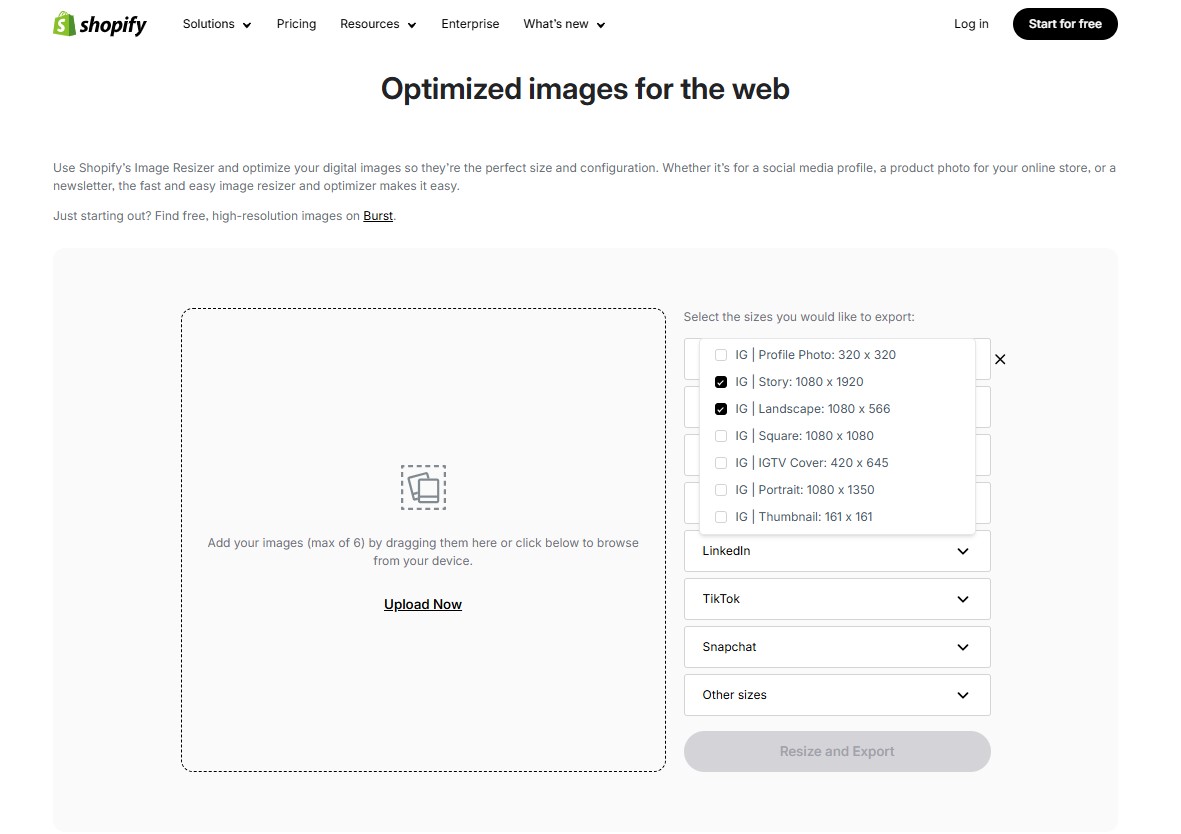
Key features:
- Resize 10 images at once: Upload multiple images (max 10 per batch on desktop, only 1 on mobile) for simultaneous resizing.
- Preset sizes for Shopify and social platforms: Export images in preconfigured dimensions tailored for Shopify, Instagram (e.g., Story, Landscape, IGTV Cover), LinkedIn, TikTok, and more — no need to manually enter pixel sizes.
Pricing: 100% free to use — no signup or fees.
Pros:
- A completely free online tool with no limitations on how often you can use it.
- Beginner-friendly with drag-and-drop interface and requires no software installation or technical knowledge.
- Quick and efficient for resizing a small number of images.
- Ideal for social media use as well, saving time when creating content for multiple platforms.
Limitations:
- Limited to 10 images per session (no bulk processing).
- No ability to enter custom dimensions or lock aspect ratios.
- Image quality may degrade when resizing (visible loss of clarity on low-resolution images).
Best for: New or small Shopify merchants who occasionally need to resize a few images for social or store use without installing an app.
2. Cloudflare Images
Website: https://www.cloudflare.com/

Key features:
- Dynamic resizing via URL parameters: Define image width, height, fit mode, quality, and format dynamically through URL parameters without pre-processing.
- Responsive image support: Generate multiple size variants to serve optimised images for different devices and screen resolutions.
- Cropping and scaling modes: Apply smart fit, fill, contain, cover, or scale-down options to maintain correct proportions without distortion.
- On-demand variants: Create and cache up to 100 resized versions per image automatically, eliminating the need for manual generation.
- Automatic format conversion: Deliver optimised formats like WebP or AVIF with fallback to JPEG or PNG depending on browser support.
- Global CDN delivery: Distribute resized and optimised images through Cloudflare’s edge network for fast, cached, worldwide performance.
Pricing:
- Free tier available with basic usage.
- Starts at $5/month for 100,000 stored images.
- $1 per 100,000 delivered.
- $0.50 per 1,000 unique transformations/month.
Benefits:
- Resize image for Shopify dynamically without storing multiple versions.
- Offloads image processing from Shopify theme or app logic.
- Optimised delivery reduces load time and improves Core Web Vitals.
- Can be paired with Cloudflare Polish for additional compression and format optimisation at the CDN level.
Limitations:
- Requires developer setup — no plug-and-play Shopify app available.
- No manual upload interface — images must be uploaded via API or integration.
- Not ideal for non-technical users or theme-based stores without developer support.
Best for:
- Headless Shopify stores or those using Shopify Hydrogen/Oxygen.
- Developers who want full control over image resizing logic via URL.
- Stores with high image volume or performance-critical needs.
3. insMind Shopify Image Resizer
Key features:
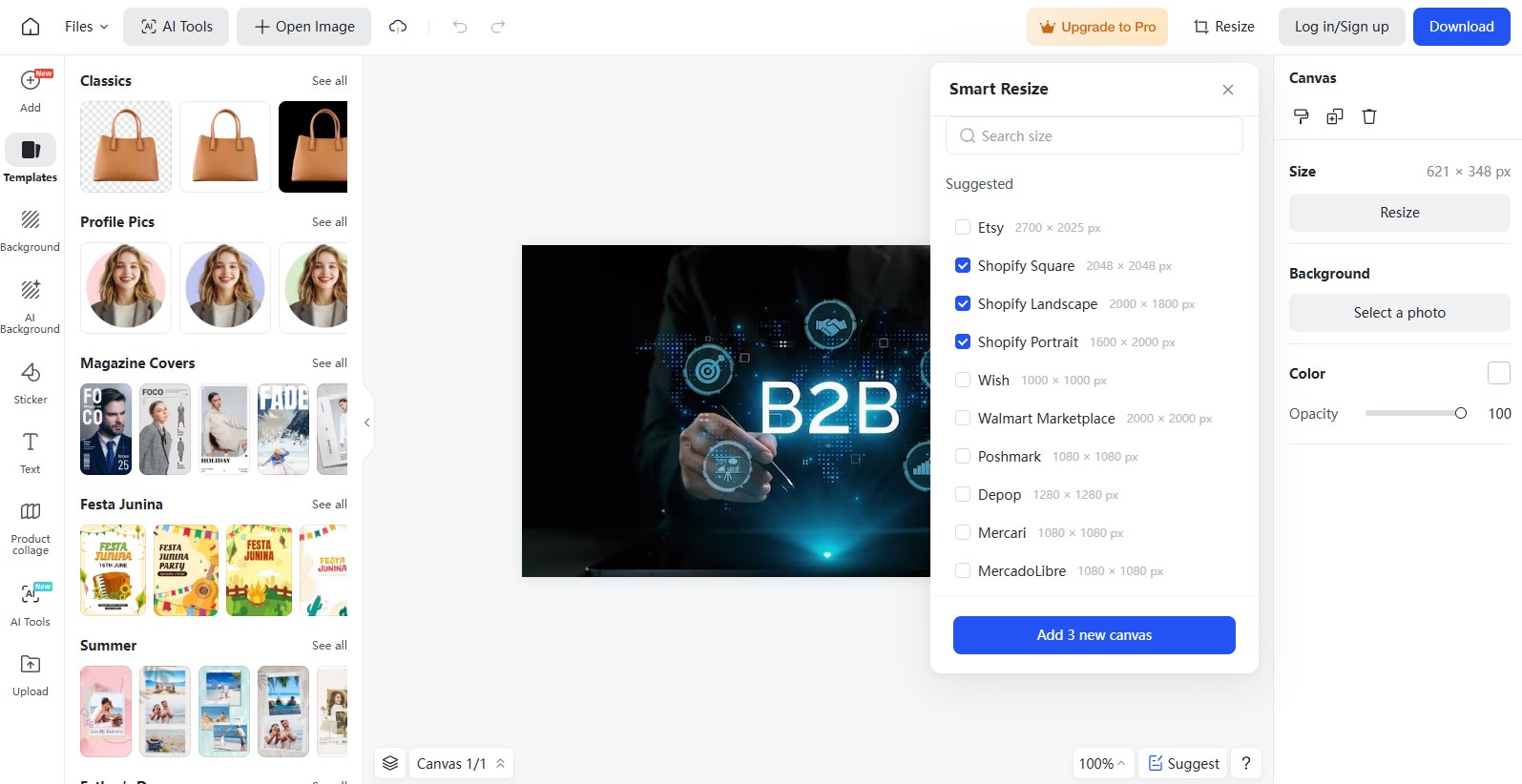
- Resize, crop, rotate, and adjust image alignment: Manually fine-tune individual images for precise framing and layout control.
- Batch resizing up to 30 images with consistent aspect ratio: Resize multiple images at once while maintaining uniform proportions across all files.
- Smart presets tailored for Shopify product photos, thumbnails, and banners: Apply predefined dimensions optimised for common Shopify image types.
- Automated multi-format resizing for Shopify, social media, and marketplaces: Instantly generate platform-specific versions without manual adjustment.
- AI-powered background removal (paid feature): Automatically detect and remove backgrounds to create clean, professional-looking product images.
Pros:
- More advanced than standard online resizers, with AI scaling and presets.
- Maintains sharpness and image clarity with AI algorithms.
- Ideal for creating clean, consistent product image grids.
- Batch processing saves time for large catalogues.
- Includes presets for multiple platforms: Shopify, marketplaces, and social media.
Cons:
- Some AI features (like background removal) require a sign-up or a paid plan.
- The interface can feel a bit complex for beginners.
- Full functionality requires creating an account.
Best for: Growing stores are seeking a powerful yet easy-to-use online Shopify photo resizer for producing consistent, high-quality product images without the need for Photoshop or additional apps.
4. ConvertOut - Image Resizer for Shopify
Website: https://image.convertout.com/
Key features:
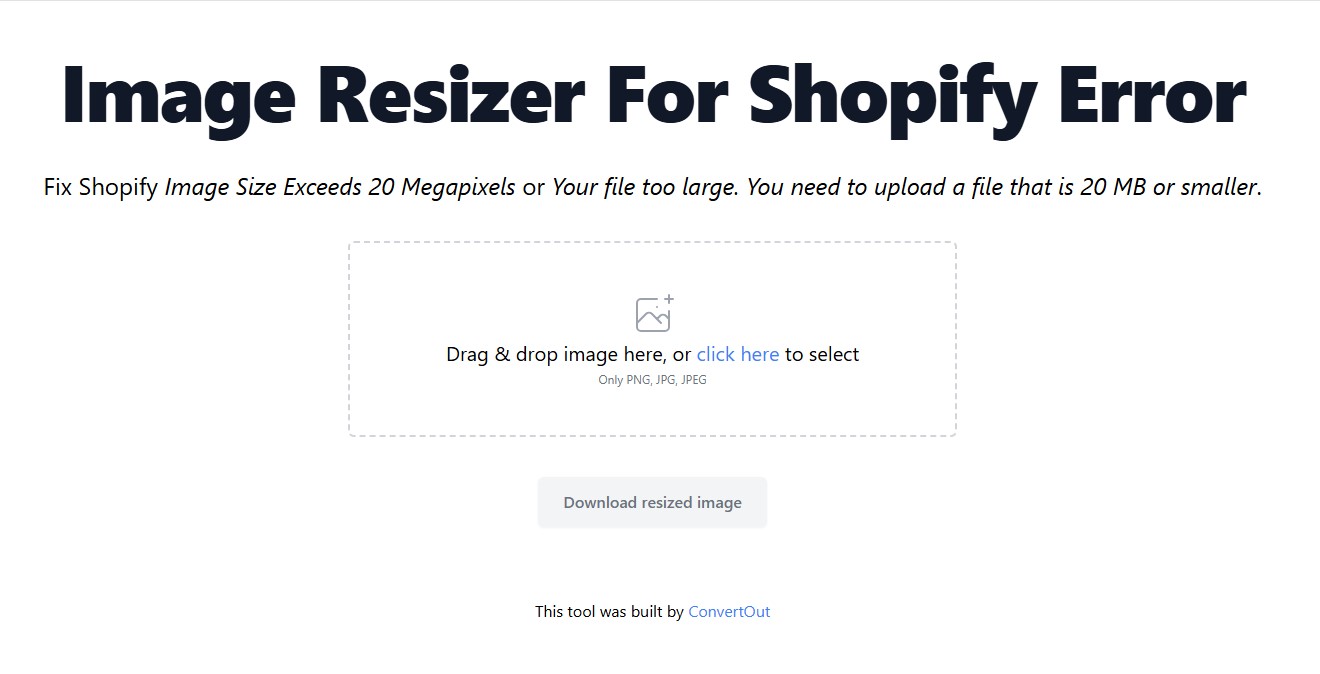
- Resize a single image to meet Shopify’s upload requirements (≤ 20 MB or ≤ 20 megapixels).
- Automatically adjusts dimensions to resolve upload errors (no manual input required).
- Simple one-screen layout with instant processing result preview.
Pricing: Free to use — no signup or payment required.
Benefits:
- Helps fix common Shopify upload issues (e.g., “image too large” errors).
- Useful for non-technical merchants – Drag-and-drop interface for quick resizing and download without editing software.
- Requires no login or setup — just upload, resize, and download.
Limitations:
- Supports only one image at a time — no batch or bulk resizing.
- No control over final pixel dimensions or aspect ratio.
- The preset purpose is very narrow — intended only for error correction, not layout optimisation.
Best for: Shopify merchants encountering file size or megapixel upload errors who need a fast, one-off fix.
5. Resize image
Website: https://resizeimage.io/
Key features:
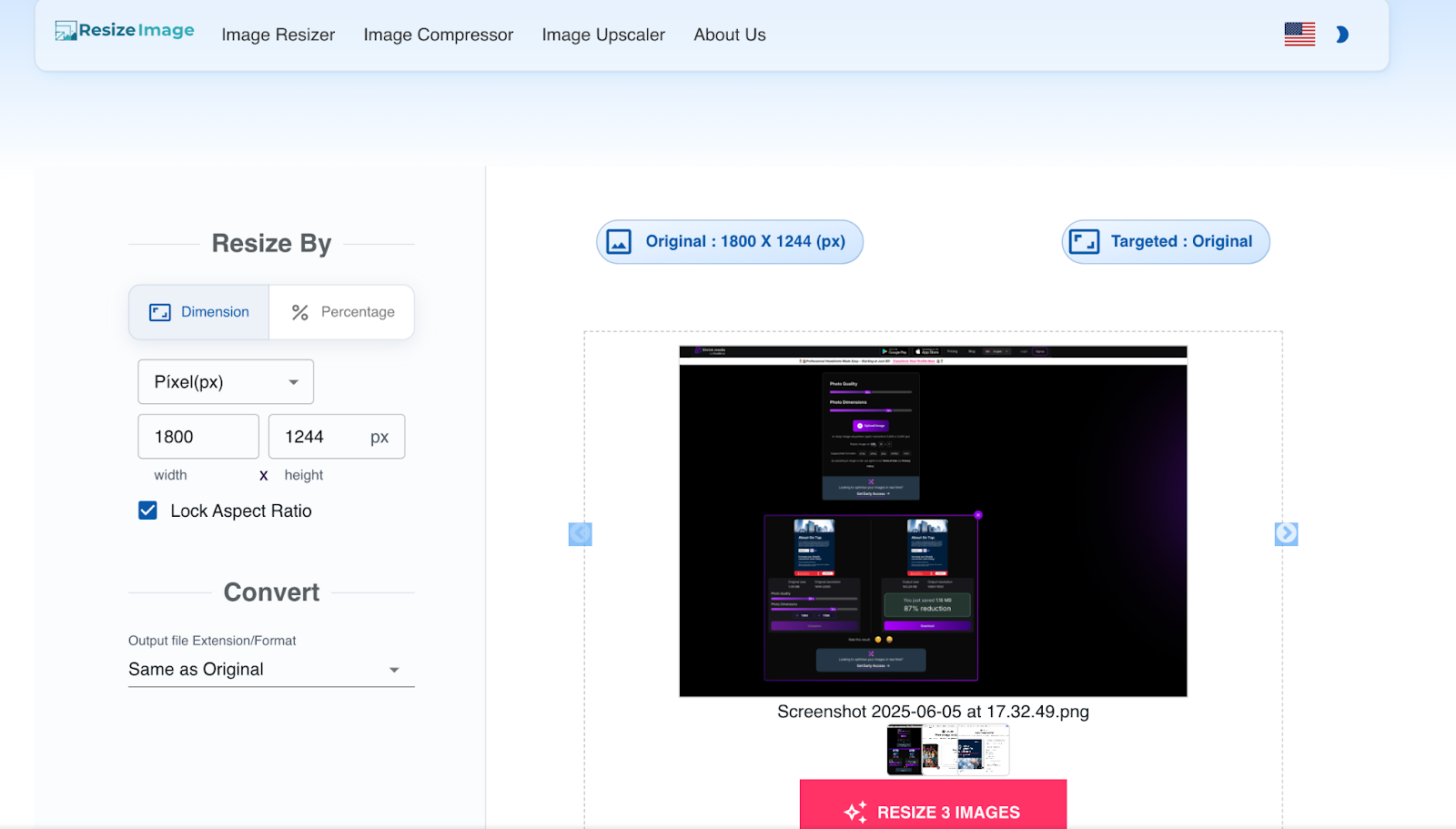
- Resize images by exact pixel dimensions (e.g., width: 1800 × height: 1244) or by percentage scale.
- Option to lock or unlock aspect ratio, preserving proportions or allowing custom reshaping.
- Allows batch resizing of multiple images at once.
- Show real-time preview of the resized image.
- Supports multiple file types, including JPG, PNG, and WebP.
- File format output can be kept "Same as Original" or converted to a different format during export.
Pricing: Free to use for resizing features. No sign-up or payment required.
Benefits:
- Offers precise control over image dimensions, making it suitable for matching Shopify’s layout requirements (e.g. 2048 × 2048 for product images).
- Batch resizing speeds up prep time for larger catalogues without needing an app install.
- No login required – Fully web-based and beginner-friendly with drag-and-drop interface.
Limitations:
- Lacks Shopify-specific presets — merchants must manually input pixel values.
- Crop, background fill, or framing tools are not included.
Best for: Shopify merchants who need a fast, free tool to resize multiple images by custom dimensions before uploading them into product pages, collections, or homepage content blocks.
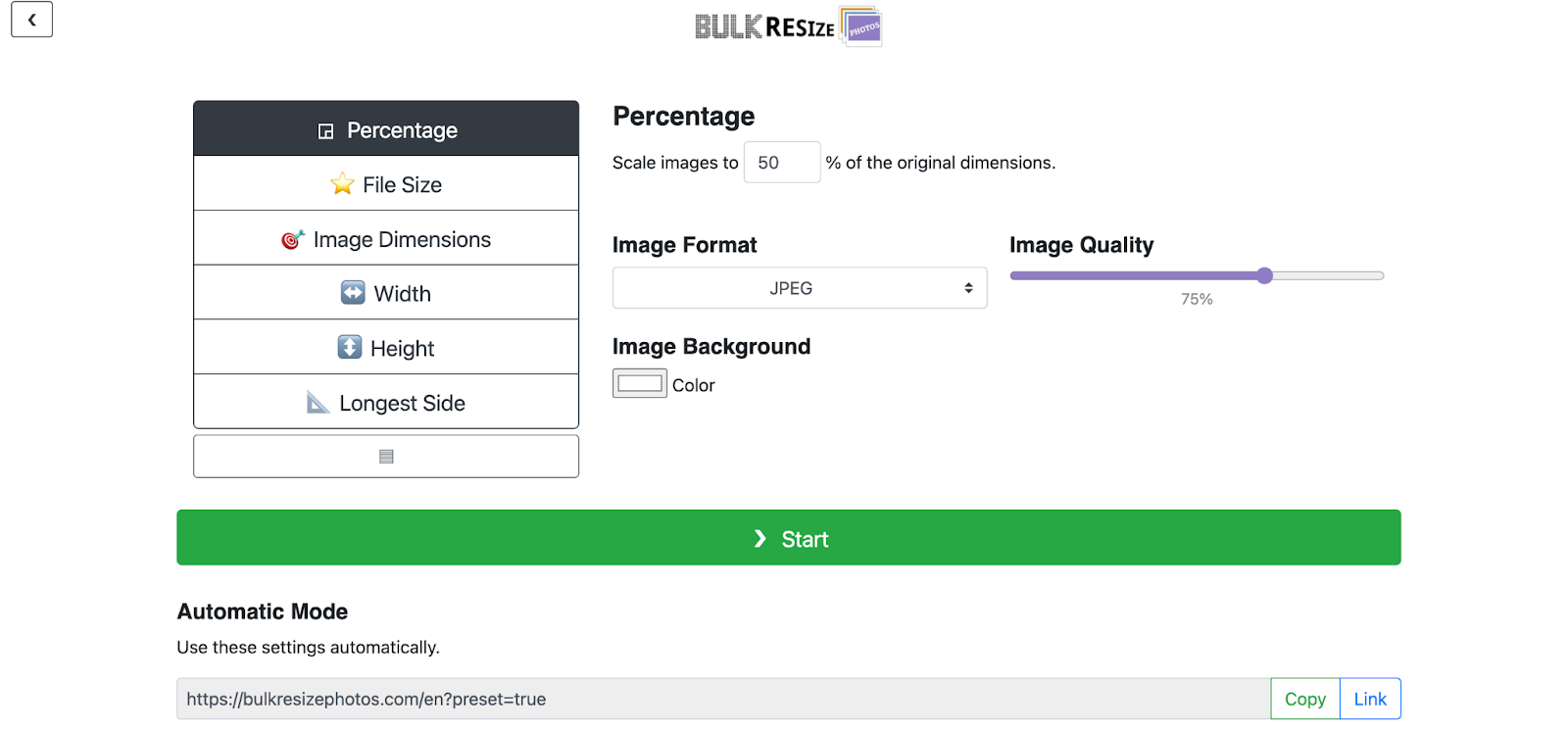
6. Bulk Resize Photos
Website: https://bulkresizephotos.com
Key features:
- Resize images in bulk using one of several methods:
- By percentage (e.g. scale all images to 50% of original size).
- By exact dimensions (width, height, or both).
- By the longest side (useful for maintaining aspect ratios).
- By target file size (optional compression layer).
- Supports JPEG, PNG, and WebP formats with control over image quality.
- Offers batch processing with no server upload — everything runs locally in your browser.
- Allows custom output file format and image background (useful for transparent PNGs converted to JPEG).
Pricing: 100% free. No account or credit card required.
Benefits:
- Fast and scalable for Shopify merchants managing large image catalogues.
- Flexible resizing logic lets you choose what matters most: dimension, layout fit, or relative scale.
- Ideal for preparing product images, thumbnails, and banners at scale before uploading to Shopify.
Limitations:
- No real-time preview — users need to know their desired output dimensions or logic.
- While image quality can be adjusted, it’s not a full compression tool (it’s primarily for resizing).
- Does not include cropping, framing, or background fill tools for square Shopify layouts.
Best for: Shopify merchants or teams who need a high-speed tool to resize hundreds or thousands of images by dimension, scale, or target layout before uploading to the storefront.
7. Shrink.media
Website: https://www.shrink.media/
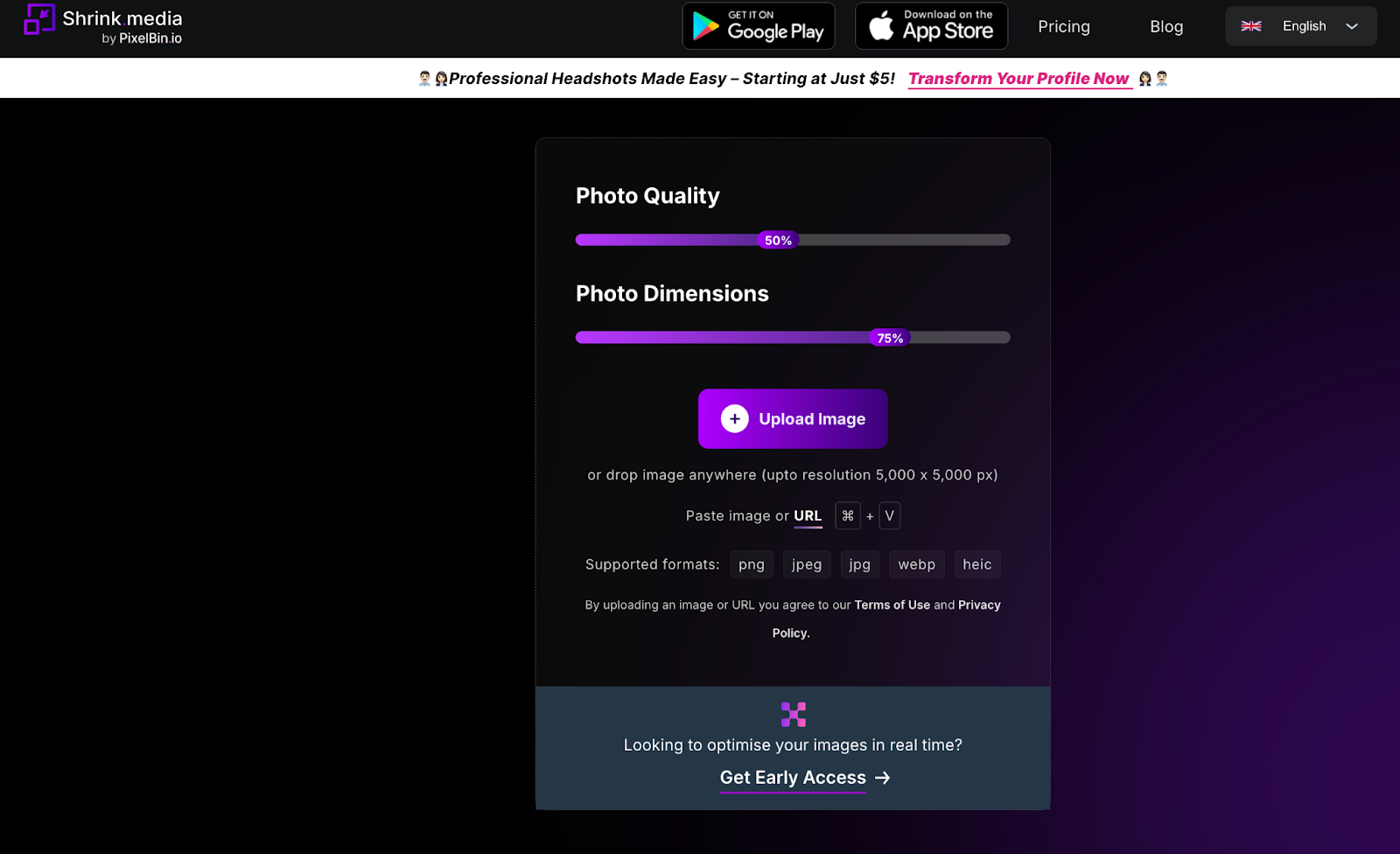
Key features:
- Resize images manually by entering specific width and height (e.g. 1060 × 1500 px).
- Option to maintain aspect ratio lock to prevent image distortion.
- Visual before-and-after preview showing resized image dimensions and resolution.
- Supports popular formats: PNG, JPG, JPEG, WebP, HEIC.
- Upload images directly from their device or via URL.
- Supports high-resolution input (up to 5000 × 5000 pixels).
Pricing:
- Free to use for basic resizing.
- Premium tier unlocks advanced features (mostly compression-related).
Benefits:
- Helps Shopify merchants prepare images with exact pixel dimensions to meet theme or layout requirements (e.g. square product tiles or banner placements).
- Aspect ratio control enables consistent, clean product grid presentation across store pages.
- Real-time dimension adjustment prevents trial and error when resizing manually in graphic tools.
- Fast, user-friendly drag-and-drop interface for non-designers.
Limitations:
- Handles only one image at a time — not built for bulk processing.
- Primarily marketed as a compression tool, resize is a manual adjustment, not its core strength.
- No presets for Shopify-specific formats or automation.
Best for: Shopify merchants who need to manually resize individual images to meet pixel-perfect display requirements, especially for one-off banner updates, product image corrections, or layout fixes.
8. VF Image Resizer+
Download via: https://apps.shopify.com/image-batch-editor
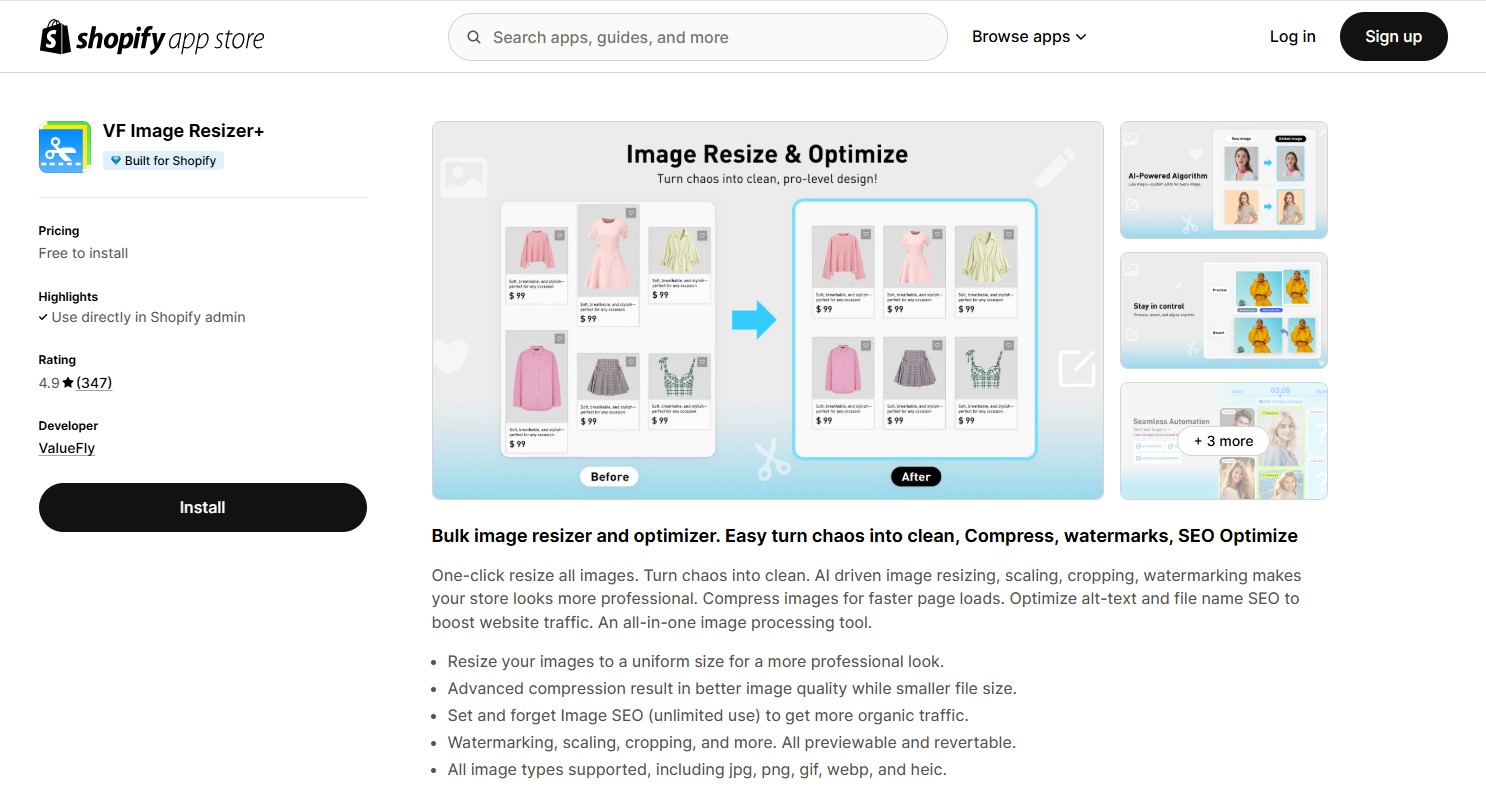
Rating: 4.9 (347 reviews) on Shopify App Store.
Key features:
- AI-powered resizing & cropping: Automatically detects product focus to resize or crop intelligently.
- Preview & revert: Allows previewing changes and restoring original images as needed.
- Format & compression optimisation: Supports JPG, PNG, WebP, and HEIC for fast-loading, space-saving images.
- SEO enhancements: Auto-generates SEO-friendly file names and alt tags.
- Bulk watermarking: Protects brand identity by applying logos across product images.
Pricing plan:
- Free – 200 images/month, 1-week backup, all features, $1.99 per 100 extra images.
- Basic – $12.99/mo: 2,000 images, 1-month backup, $0.79 per 100 extra.
- Pro – $26.99/mo: 6,000 images, $0.49 per 100 extra.
- Advanced – $58.99/mo: 20,000 images, unlimited compression, $0.29 per 100 extra.
All plans include alt-text SEO, daily scheduling, and full feature access.
Pros:
- Strong automation and bulk processing capabilities.
- Helps clean up inconsistent catalogues quickly.
- Includes image SEO and branding tools in one solution.
- Supports modern file formats and saves server space.
- Backup and revision options for safe editing.
Cons:
- The interface may feel advanced for casual users.
- Full functionality requires a paid plan.
- AI cropping may occasionally need manual adjustment.
Best for:
- Shopify merchants with large catalogues who want to standardise image sizes across all products.
- Stores needing a reliable, in-admin tool for bulk image resizing with preview control.
9. Pixc: Photo Resize | Quick Optimiser
Install: https://apps.shopify.com/photo-resize-by-pixc
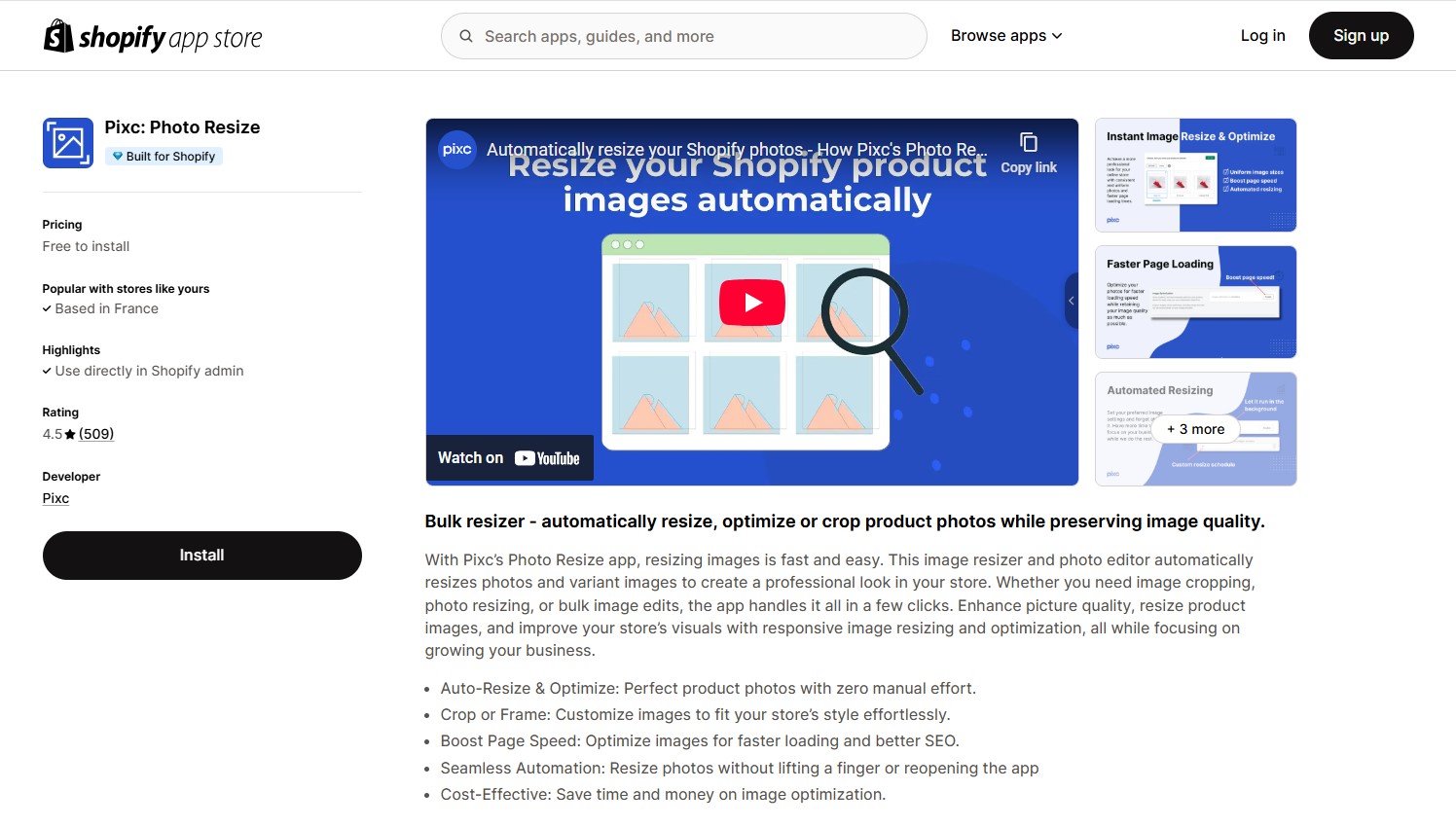
Rating: 4.5 (509 reviews) on Shopify App Store.
Key features:
- Bulk resizing and automatic scanning of product images.
- Two resizing modes: smart cropping or adding padding borders.
- Scheduled and automatic resizing of new product photos.
- Image compression for faster page load and better SEO.
- Original images preserved and restorable (depending on the plan).
Pricing:
- Pay-as-you-go: Free to install, resize up to 50 images for free, $0.06 per extra image, 7-day backup.
- Basic ($5/month): 100 images/month, $0.06 per extra image, 30-day backup.
- Pro ($25/month): 1,000 images/month, $0.06 per extra image, 30-day backup.
- Unlimited ($90/month): Unlimited image resizing with 30-day backup.
Benefits:
- Saves time by automating the resizing process across the entire catalogue.
- Provides flexibility between cropping and border padding for image standardisation.
- Preserves original images for easy restoration.
- Positive user ratings and reliable performance.
- Easy integration and user-friendly interface.
Limitations:
- Free plan limited to a small number of images; costs increase with volume.
- May require some initial setup to choose resizing preferences.
- The cropping option might cut off important image parts if not monitored closely.
Best for:
- Shopify merchants who want a set-it-and-forget-it resizing tool to standardize images automatically.
- Stores with ongoing product additions that need to maintain consistent image dimensions.
- Non-technical users seeking a fully managed resizing solution without much manual intervention.
10. Hextom: Bulk Image Edit & SEO
Install: https://apps.shopify.com/bulk-image-edit
Rating: 4.7 (716 reviews) on Shopify App Store.
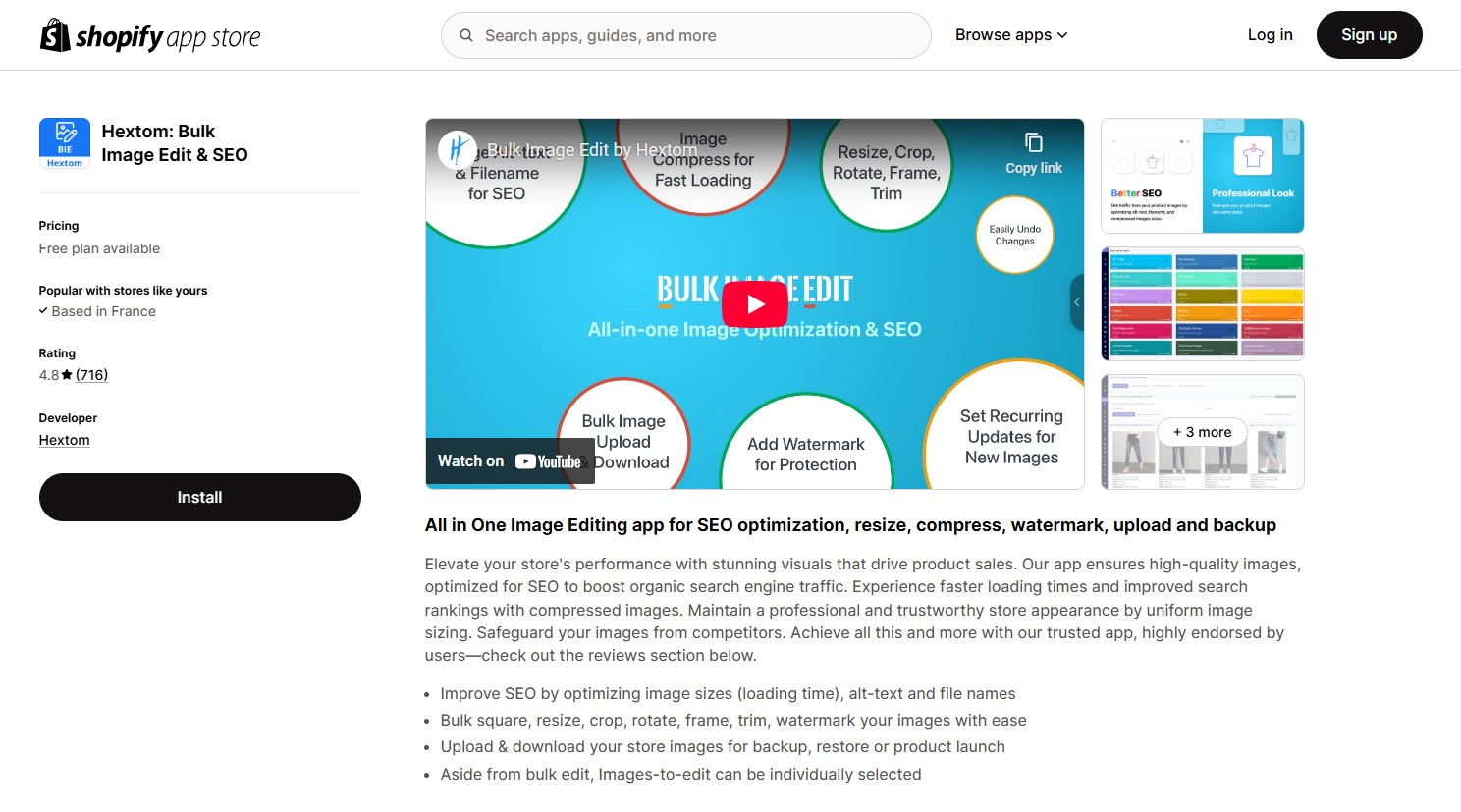
Key features:
- Resize by fixed width, height, or both to match Shopify display requirements.
- Crop or pad to square format using rules (e.g. centre-crop or white padding).
- Batch processing: Resize thousands of images at once using filters by product, vendor, or collection.
- Preview and backup: See resized image previews before applying, and restore originals within a 30–180 day window, depending on the plan.
- Image format conversion (e.g., PNG to JPG) as part of the resize workflow.
Pricing plan:
- Free plan: Includes 50 image edits per month with basic features and 30-day backup.
- Basic plan: $9.99/month, up to 1,000 image edits.
- Professional plan: $19.99/month, up to 3,000 image edits.
- Advanced plan: $49.99/month, up to 10,000 image edits.
All paid plans include longer backup retention (60 to 180 days) and access to advanced features.
Benefits:
- Offers fine-grained control over how images are resized, including square formatting via crop or padding.
- Supports bulk resizing with advanced filters, so you can target only specific SKUs or collections.
- Allows visual preview before applying, reducing the risk of misalignment or accidental edits.
- An integrated backup and restore system helps recover from incorrect resizing without external tools.
- Reliable performance — handles large image volumes without timing out or throttling (per merchant reviews).
Limitations:
- Resize logic is rule-based and not visually interactive — may require trial and error to match theme-specific needs.
- No dynamic sizing presets based on Shopify theme image slots — you must manually enter target dimensions.
- Padding colour is limited — branding flexibility (e.g., custom colour backgrounds) is basic.
Best for:
- Merchants with large catalogues needing targeted, rule-based batch image resizing.
- Teams are comfortable with setting dimension logic manually to standardise images.
- Stores preparing for seasonal updates, promotions, or theme refreshes that require layout alignment across many SKUs.
Expert tips for resizing Shopify images
Resizing images goes beyond reducing file size. It’s essential for maintaining visual clarity, ensuring consistent presentation across your storefront, and supporting fast page load times on all devices. While image resizing tools can streamline the process, applying best practices is still necessary to achieve reliable performance and maintain a professional appearance. The following tips outline how to approach image resizing effectively within a Shopify environment.
1. Use Shopify’s recommended image sizes
Properly sized images ensure your products look sharp, load quickly, and display consistently across all devices. By following Shopify’s guidelines, you can enhance user experience, enable features like zoom, prevent layout issues, and improve your store’s overall speed and SEO.
The table below provides Shopify’s recommended dimensions for images on both desktop and mobile websites:
| Website image type | Desktop image dimensions (W × H) | Mobile image dimensions (W × H) | Recommended aspect ratio |
| Background image | 2560 × 1400 pixels | 360 × 640 pixels | 16:9 |
| Hero image | 1280 × 720 pixels | 360 × 200 pixels | 16:9 |
| Website banner | 1200 × 400 pixels | 360 × 120 pixels | 3:1 |
| Product image | 2048 x 2048 pixels | 800 x 800 pixels | 1:1 |
| Collection image | 1024 x 1024 pixels | 1024 x 1024 pixels | 1:1 |
| Blog image | 1200 × 800 pixels | 360 × 240 pixels | 3:2 |
| Logo (rectangle) | 400 × 100 pixels | 160 × 40 pixels | 4:1 |
| Logo (square) | 100 × 100 pixels | 60 × 60 pixels | 1:1 |
| Favicon | 16 × 16 pixels | 16 × 16 pixels | 1:1 |
| Social media icons | 32 × 32 pixels | 48 × 48 pixels | 1:1 |
| Lightbox images (full screen) | 1920 × 1080 pixels | 360 × 640 pixels | 16:9 |
| Thumbnail image | 300 × 300 pixels | 90 × 90 pixels | 1:1 |
These are general recommendations. Actual requirements may vary depending on your theme, layout, or use of responsive design.
For optimal results, it's recommended to upload images at a higher resolution than their displayed size. For instance, if an image is displayed at 500 × 500 pixels on your store, uploading it at 1000 × 1000 pixels can ensure better clarity on high-DPI screens. Shopify will handle the necessary scaling and compression to deliver the best version to your customers.
2. Maintain consistent dimensions and aspect ratios
Beyond choosing the right dimensions, it’s important to apply them consistently across your store. Inconsistent image sizes within the same category — such as product photos or collection banners — can result in misaligned grids, uneven spacing, and a disjointed visual experience for customers.
For example, using a consistent 1:1 (square) aspect ratio for product images across your entire catalogue ensures clean alignment in listings and maintains visual cohesion, especially when customers navigate between pages or sections.
To avoid inconsistencies, crop and resize all images to your chosen format before uploading. Consistency in formatting reinforces brand professionalism and creates a more polished, reliable storefront experience.
3. Choose the right file format
When you resize images for Shopify, selecting the correct format helps maintain quality while optimising loading speed. Here's a breakdown of the best file types to use in your Shopify store:
JPEG (JPG):
- Ideal for product photos and most store images.
- Offers a good balance of image quality and smaller file size via lossy compression.
PNG:
- Best for images requiring transparency (e.g., logos, product cut-outs).
- Maintains high quality with lossless compression.
- Larger file sizes than JPEG — use only when necessary.
SVG:
- Great for logos and icons.
- Vector-based and resolution-independent (remains sharp at any size).
- Extremely small file size.
Note: Limited support on Shopify — mainly usable in theme code or specific settings.
WebP:
- Modern format with excellent compression (25–30% smaller than JPEG).
- Supported by most modern browsers.
- Shopify often delivers WebP versions automatically where possible.
- Provide fallback formats (like JPEG or PNG) for older browser compatibility.
GIF:
- Not recommended for large images due to poor compression.
- If animation is needed, use MP4 or WebP animations for better performance.
Using the right format improves loading times, ensures visual consistency, and helps deliver a better shopping experience across all devices.
4. Avoid excessive upscaling or downscaling
Image quality can suffer if the original file isn’t close to the required dimensions. Upscaling a small image — for example, increasing a 500 px image to 2048 px — can result in visible pixelation and a blurry appearance. Conversely, excessively shrinking large images may reduce sharpness, particularly on high-resolution (Retina) screens or when zoom features are enabled.
To maintain clarity and flexibility, it's best to start with a high-resolution source and resize it down to your target dimensions. Aim for image widths in the 1500–2048 px range, which provides a strong balance between detail, loading speed, and compatibility with Shopify’s visual features.
Conclusion
Resizing images in Shopify doesn’t have to be complicated. With the right tools, apps, and techniques, you can ensure your store runs fast, looks professional, and delivers a smooth experience across all devices. Whether you prefer using web-based tools, powerful apps, or Cloudflare, consistency and performance should always guide your image strategy. Remember to follow best practices, such as using Shopify’s recommended image sizes, using correct file formats, and maintaining consistent aspect ratios. By doing so, you not only improve your store’s aesthetics but also boost loading speed and SEO, directly impacting customer satisfaction and conversions.
At On Tap - One of the trusted Shopify experts, we specialise in Shopify solutions with a strong focus on front-end performance optimisation. We’ve helped merchants of all sizes enhance their stores’ speed and visual appeal. Contact us to unlock your store’s full potential, whether you need assistance with image optimisation or any other aspects of Shopify store optimisation.
FAQs
1. Does Shopify automatically resize images?
Yes, Shopify automatically resizes and optimises images to ensure they display correctly across various devices and screen sizes.
How Shopify handles image resizing:
-
Responsive images with Liquid filters: Shopify utilises Liquid's image_url and image_tag filters to generate responsive images. These filters work together to create HTML <img> tags with appropriate srcset and sizes attributes, allowing browsers to select the most suitable image size based on the user's device and screen resolution.
-
Content Delivery Network (CDN): When you upload an image to Shopify, it's stored on Shopify's CDN. The image_url filter accesses this CDN to generate image files that can be resized, cropped, and served in various formats. This ensures faster load times and optimised delivery across different devices.
-
Automatic format optimisation: Shopify's image processing system can automatically serve images in modern formats like WebP or AVIF to browsers that support them, enhancing performance without compromising quality.
While Shopify handles automatic resizing and compression, manually optimising your images before uploading, such as adhering to recommended dimensions and aspect ratios, can enhance visual consistency and performance across your store.
2. Will resizing images affect photo quality?
Properly resizing your images – especially scaling down – should not significantly impact quality, as long as you maintain the original aspect ratio and use reliable tools.
When you shrink an image, you're essentially removing unnecessary pixel data. If done using a high-quality algorithm (like those found in Shopify’s built-in image resizer or reputable apps), this reduction is usually imperceptible to the human eye. The Shopify resize photos will still look clear and professional on your site.
However, two situations can noticeably degrade quality:
-
Upscaling (increasing image size): Enlarging a small image beyond its original resolution will often lead to blurriness or pixelation.
-
Over-compressing: Using extreme compression settings can introduce visible artefacts, such as fuzziness or colour distortion.
Tip: Start with a high-quality original, resize down to the exact dimensions you need, and apply moderate compression to keep file sizes small without sacrificing visual integrity.
If you want to learn more about keeping your site fast while maintaining image quality, check out our guide on Shopify speed optimization for proven best practices that boost load times and performance.